Graphics Drivers

Graphics Drivers — Fix Display Issues and GPU Problems

Fix display artefacts, crashes, and performance issues with proper GPU driver care.

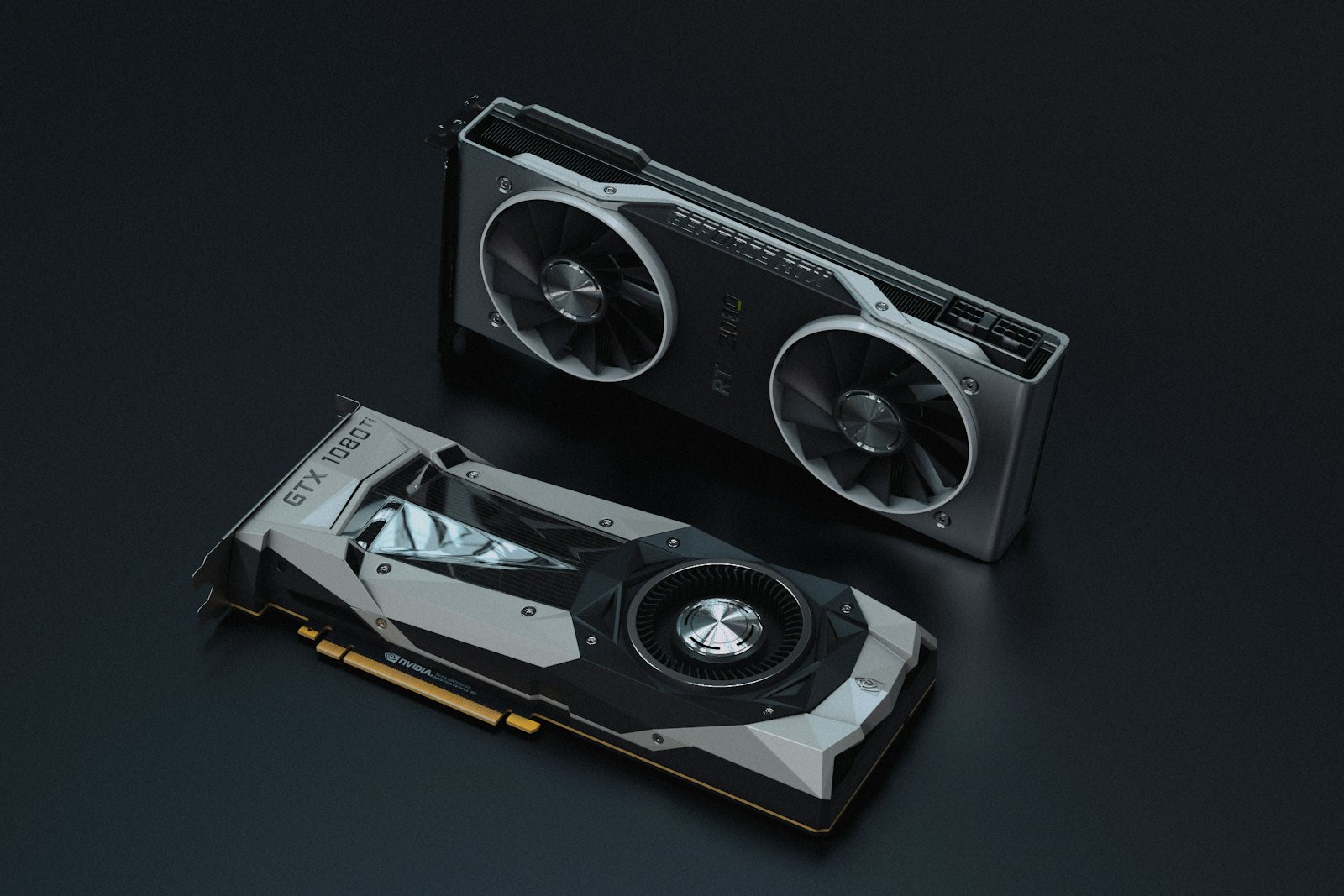
Graphics drivers are the software bridge between your operating system and your graphics card, controlling how images, videos, and 3D applications are rendered on screen. They are also one of the most actively updated drivers on any computer — manufacturers release new versions almost every month to improve game performance, fix crashes, and patch security vulnerabilities. Because graphics drivers do so much heavy lifting, they are also the most common single cause of system instability when something goes wrong. Black screens, visual artefacts, sudden crashes, low frame rates, and driver crash-and-recover loops can all be traced back to either an outdated, corrupt, or wrongly installed graphics driver. The good news is that almost every graphics driver problem can be resolved at home with a clean reinstall using the right tools and the right method.

Common Driver Problems

1

Screen Goes Black After Installing New GPU Driver

A black screen straight after a fresh driver install usually means the new driver is conflicting with leftover files from the previous version. Booting into safe mode and performing a clean uninstall before retrying the installation almost always resolves the issue.
2

Display Artefacts and Visual Glitches on Screen

Coloured squares, flickering textures, screen tearing, and corrupted pixels during normal use are classic symptoms of a graphics driver that has become unstable, often after a Windows update or game update has changed something the driver was not expecting.

3

GPU Not Detected After System Update

A graphics card that vanishes from Device Manager after a Windows update has had its driver replaced with an incompatible generic driver. Reinstalling the correct manufacturer driver restores full detection and functionality.

4

Poor Gaming Performance After Driver Update

Newer is not always better. Some driver releases introduce performance regressions in specific games or specific hardware combinations. Rolling back to the previous version restores expected performance until a fixed driver is released.

5

Driver Keeps Crashing and Recovering

A pop-up that says the display driver stopped responding and has recovered indicates the GPU driver is crashing under load. This is usually fixed with a clean reinstall, but can also indicate overheating or an unstable overclock that needs investigating.

Step-by-Step Fix Guides

1

How to Cleanly Uninstall GPU Drivers Using DDU

Step-by-step guide to using Display Driver Uninstaller in safe mode for a complete, residue-free graphics driver removal.

2

How to Install Graphics Drivers Step by Step

How to identify your exact GPU model, download the correct driver from the manufacturer, and install it without conflicts.

3

How to Roll Back a Graphics Driver in Windows

Use Device Manager to revert to the previous working driver version when a new update causes problems with games or stability.

4

How to Fix GPU Driver Crash and Recovery Loop

Diagnose the cause of repeated driver crashes and apply a clean reinstall, undervolt, or thermal fix to stop them returning.

Pro Tips

Always use DDU in safe mode before installing a new GPU driver for the cleanest result.

Download GPU drivers directly from the GPU manufacturer’s website only.

If gaming performance drops after an update, roll back immediately — newer is not always better.

Related Driver Categories