Storage Drivers

Storage Drivers — Fix Drive Detection and Performance Issues

Fix drives not showing up, slow performance, and storage controller errors.

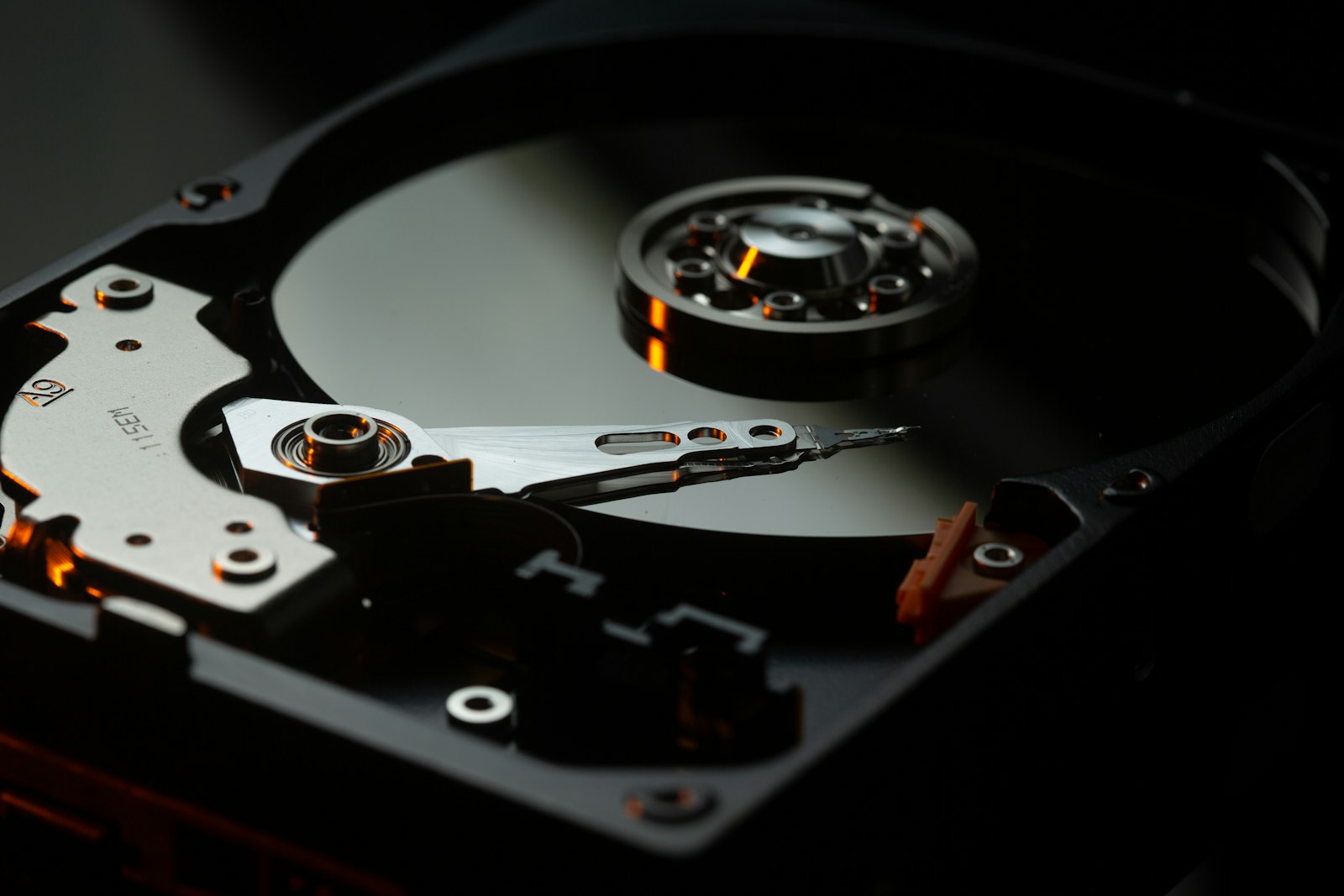
Storage drivers manage how your operating system reads from and writes to every drive in your computer — internal solid-state drives, NVMe modules, traditional hard disks, and external media. They handle the low-level commands that move data between the controller on your motherboard and the drive itself. When the wrong driver is installed (or the right one is missing), symptoms range from drives never appearing in the operating system, to drives running at a small fraction of their rated speed, to system instability and boot failures. NVMe drives in particular often need specific driver configuration to reach their full throughput, and changing the on-board controller mode without preparing the operating system first can leave a machine unable to boot. The good news: nearly all of these issues are software-only and can be resolved without opening the case.

Common Driver Problems

1

SSD Not Showing Up in Windows After Installation

A new SSD that does not appear in Windows Explorer needs to be initialised and assigned a drive letter through Disk Management. The drive itself is fine — the storage driver simply has no partition to mount yet.

2

Storage Controller Error in Device Manager

A yellow warning on the storage controller usually means Windows is falling back to a generic IDE driver instead of the proper Advanced Host Controller Interface or NVMe driver, which slows performance and can introduce stability issues. Installing the manufacturer's chipset package normally resolves it.

3

Drive Performance Much Slower Than Expected

When a solid-state drive performs at mechanical-disk speeds, the controller is almost always running in legacy IDE mode rather than the modern Advanced Host Controller standard. Switching to the modern mode through firmware setup, paired with the correct driver, restores full speed.

4

NVMe Drive Not Detected at Boot

NVMe drives that disappear during boot need the NVMe driver enabled in BIOS and the matching Windows driver installed. Without both, the operating system cannot see the drive even when it is correctly seated.

5

Controller Mode Change Triggers Boot Failure

Flipping the on-board controller from legacy IDE to the modern standard without preparing Windows first leads to a blue screen on the next boot. The fix is to enable the matching driver in safe mode before changing the firmware setting.

Step-by-Step Fix Guides

1

How to Fix SSD Not Detected in Windows

Initialise the new drive in Disk Management, create a partition, and assign a drive letter so Windows can use it.

2

How to Update Storage Controller Drivers

Download and install the matching controller driver from your motherboard or laptop manufacturer to unlock full performance.

3

How to Switch Controller Modes Without Reinstalling Windows

A safe registry edit followed by a safe-mode reboot lets you change the controller mode without losing your existing Windows installation.

4

How to Enable NVMe Driver for Full SSD Performance

Check BIOS settings, install the manufacturer NVMe driver, and verify your drive is running at full PCIe speed.

Pro Tips

Enable AHCI mode in BIOS for best SSD performance on systems defaulting to IDE mode.

Update chipset drivers alongside storage drivers for full controller compatibility.

Use manufacturer SSD software for firmware updates which improve performance and reliability.

Related Driver Categories