Network Drivers

Network Drivers — Fix Wi-Fi and Ethernet Connection Issues

Fix Wi-Fi not connecting, ethernet not working, and adapter errors.

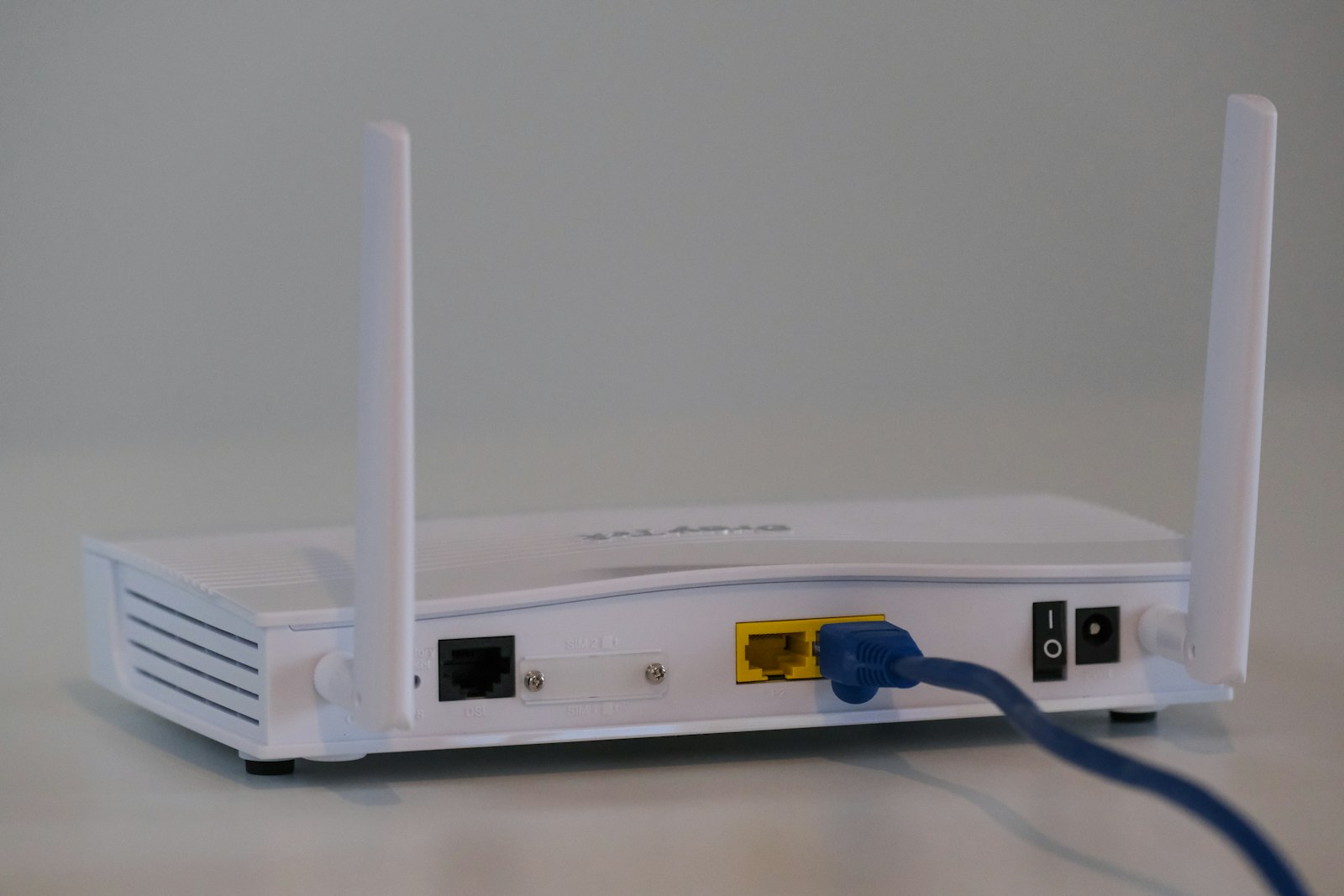
Network drivers control every wired and wireless connection your computer makes, from your home Wi-Fi to your office ethernet to mobile hotspots. They sit at the heart of how your operating system finds, connects to, and maintains stable communication with networks. Because network connectivity is so fundamental, network driver problems are some of the most disruptive a user can experience — losing internet access often means you cannot even download the fix you need. Wi-Fi adapters disappearing from settings, ethernet ports going dead after a Windows update, and connections dropping repeatedly are nearly all driver-related rather than hardware faults. Understanding how to reinstall a network driver from a USB stick when you have no internet, and how to reset the network stack alongside the driver, is essential knowledge for anyone troubleshooting connectivity.

Common Driver Problems

1

Wi-Fi Adapter Not Showing in Windows

A Wi-Fi adapter that has vanished from Windows network settings has had its driver disabled, removed, or corrupted by a recent update. Reinstalling the manufacturer Wi-Fi driver restores the adapter in almost all cases.
2

Ethernet Not Being Recognised After Update

When the ethernet port stops working after a Windows update, the network controller driver has been replaced with an incompatible generic version. Installing the correct chipset and ethernet driver fixes this.

3

Network Adapter Showing Error in Device Manager

A yellow warning icon next to a network adapter in Device Manager indicates a driver error code that points to either a corrupt installation or a conflict with another adapter. Each error code maps to a specific fix.

4

Wi-Fi Dropping Connection Repeatedly

Frequent Wi-Fi disconnects that no router restart fixes are usually caused by an outdated wireless driver combined with aggressive Windows power management on the adapter. Updating the driver and disabling power saving on the adapter resolves it.

5

No Networks Found When Scanning for Wi-Fi

A Wi-Fi adapter that scans but finds zero networks is running a driver that has lost the ability to detect signals. A clean driver reinstall, often combined with a network reset, restores normal scanning.

Step-by-Step Fix Guides

1

How to Reinstall Wi-Fi Adapter Drivers

Step-by-step guide to fully uninstalling and reinstalling the wireless driver, including how to download the installer in advance from another device.

2

How to Fix Network Adapter Not Found Error

Covers Device Manager checks, hidden device discovery, and driver reinstallation steps to restore a missing network adapter.

3

How to Update Ethernet Controller Drivers

How to identify the exact ethernet chipset, download the matching driver from the motherboard or laptop manufacturer, and install it.

4

How to Reset Network Settings in Windows

Use the built-in network reset tool to clear corrupted network configuration alongside the driver reinstall for stubborn issues.

Pro Tips

Keep a wired ethernet connection available as backup when fixing Wi-Fi driver issues.

Download network drivers on another device and transfer via USB if internet is unavailable.

Reset the TCP/IP stack alongside driver reinstall for persistent network connectivity issues.

Related Driver Categories