NationRepair
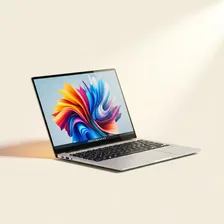
Windows laptops cover an enormous range — $300 budget Chromebook-style devices, $800 mainstream productivity machines, $1,500 ultrabooks, $2,500 gaming laptops, and $5,000+ mobile workstations for engineering and 3D work. The Windows ecosystem includes hundreds of laptop models from Dell, HP, Lenovo, Asus, Acer, MSI, Microsoft, and dozens of smaller brands. This breadth is both Windows' strength and its main source of confusion: a $400 laptop and a $4,000 laptop look superficially similar but deliver wildly different experiences.
Modern Windows laptops have largely converged on a similar physical design — thin aluminium chassis, 13–16 inch displays, 8–32 GB of RAM, fast SSDs instead of mechanical drives, and 8–18 hours of claimed battery life. The biggest meaningful differences are processor performance (Intel Core, AMD Ryzen, or Snapdragon), graphics capability (integrated for office work, dedicated NVIDIA or AMD for gaming and creative), build quality, screen quality, keyboard feel, and how long the manufacturer commits to driver updates.