 NationRepair

How to Upgrade RAM in a Laptop
Easy
15–30 minutes

Check your laptop's service manual or manufacturer website for maximum RAM and supported type (DDR4, DDR5, LPDDR5, etc.).
Shut down, unplug the charger, and remove the battery if it is removable.
Remove all bottom panel screws and gently lift the panel off with a plastic spudger.
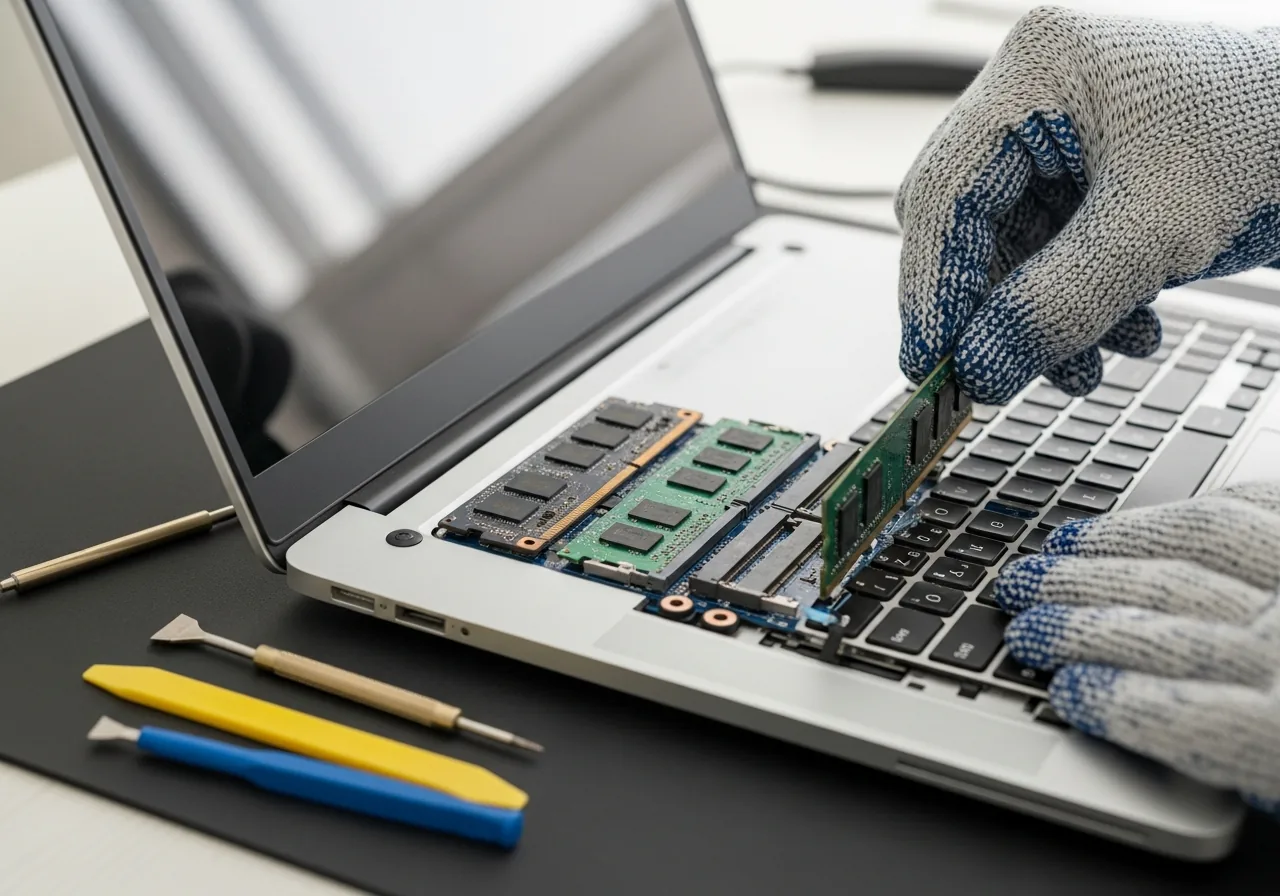
RAM slots are usually near the centre of the motherboard — they look like long narrow sockets.
If replacing: press the metal retention tabs on each side of the RAM stick outward — it will pop up at 45°.
Slide the RAM out at the 45° angle it popped up to, pulling straight along that angle.

Align the notch on the RAM stick with the key in the slot. Insert at 45°, then press flat until both clips click.
Replace the bottom panel and reinstall all screws finger-tight, then tighten firmly.
Power on and check System Information (Windows) or About This Mac to confirm the new RAM total is recognised.

Check if your laptop's RAM is soldered to the motherboard — many modern ultrabooks do not have upgradeable RAM.
Never install RAM while the laptop is powered on.
Touch a grounded metal surface before handling RAM to discharge static electricity.
Continue learning about Windows Laptops in Computers & Storage, or explore related repairs and learning guides below.