 NationRepair
Diagnose. Fix.
Get It Working.
Clear step-by-step repair guides for phones, laptops, TVs and more — written in plain English. No tech skills needed.
Smartphone — Repair & Care Guide
Smartphones are the most used and most carried devices most people own. From communication and navigation to banking and photography, they handle everything — and face constant exposure to drops, moisture, and daily wear. Battery drain, cracked screens, charging port issues, and slow performance are the problems smartphone owners encounter most. The good news is that most of these issues are diagnosable and fixable at home with the right guidance, saving you time and money before a repair shop visit becomes necessary.
Common Problems
-
Battery Draining Too Fast
Background apps, aging battery cells, and high screen brightness drain charge faster than expected — especially on older devices.
-
Screen Cracked or Damaged
Glass displays are beautiful but fragile. Even with a case, significant drops can shatter the screen and affect touch response.
-
Charging Port Not Working
Lint and debris packed into the port over time prevent a solid connection — cleaning often resolves this before any repair is needed.
Quick Fix Tips
-
Restart your phone weekly to clear background processes and fix most minor glitches instantly.
-
Clean your charging port monthly with a dry toothpick to remove lint buildup.
-
Check battery usage in settings to identify which apps are draining power fastest.
Browse by Category
Choose a category and find the right guide for your device.
Laptop — Repair & Care Guide
Laptops handle our most demanding daily tasks — work, creativity, communication, and entertainment — for hours at a time. Over time, even well-built laptops slow down, overheat, lose battery life, and develop hardware faults. Overheating from dust-blocked vents, battery degradation, keyboard faults, and slow performance are the most common complaints. Many of these are fixable at home through cleaning, software steps, or affordable component upgrades like a new battery or SSD that transform performance without buying a new machine.
Common Problems
-
Overheating and Loud Fan Noise
Dust accumulating in vents blocks airflow, causing the CPU to throttle performance and fans to run at maximum speed constantly.
-
Battery Not Lasting More Than an Hour
After 2-3 years of charge cycles, most laptop batteries lose significant capacity and need replacement to restore portable use.
-
Laptop Feels Slower Than Before
Full storage, too many startup apps, and outdated drivers are the most common causes of a laptop that feels much slower than it once did.
Quick Fix Tips
-
Clean vents with compressed air every 3 months to prevent overheating and performance throttling.
-
An SSD upgrade is the single most impactful performance improvement for a slow laptop.
-
Keep only essential apps in startup to reduce boot time and background resource usage.
Fix Your Device in 3 Steps
No experience needed. Our guides are designed for real people, not engineers.
Find Your Problem
Search by symptom, device type, or browse the category that fits your issue.
Follow the Guide
Work through numbered steps at your own pace. Each step tells you exactly what to do.
Fix It Yourself
Save time and money by solving the problem yourself — no repair shop needed.
Desktop PC — Repair & Care Guide
Desktop PCs offer the best performance, upgradeability, and long-term value of any personal computing platform. Unlike laptops, almost every component can be individually replaced or upgraded — making them the most repairable consumer computers available. Dust accumulation, overheating, random shutdowns, and display problems are the most common issues, and the majority are caused by dust, outdated drivers, or loose components rather than hardware failure. A well-maintained desktop can remain reliable and performant for a decade or more.
Common Problems
-
PC Overheating and Shutting Down
Dust buildup on heatsinks and fans restricts airflow, causing temperatures to rise until the system shuts itself down for protection.
-
Random Blue Screen Errors
Driver conflicts, failing RAM, and storage errors are the most common causes of unexpected blue screen crashes during use.
-
No Display Output on Boot
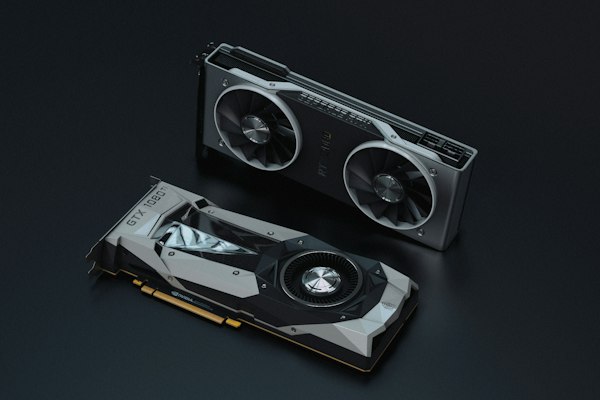
A GPU that has worked loose in its PCIe slot, a monitor cable fault, or a RAM seating issue causes most no-display problems on startup.
Quick Fix Tips
-
Clean the interior with compressed air every 3-6 months to prevent all dust-related issues.
-
Reseat RAM and GPU if experiencing crashes or no display — loose connections are common.
-
Monitor temperatures with free software — above 85°C under load needs immediate attention.
What Device Are You Fixing?
Jump straight to guides for your specific device type.



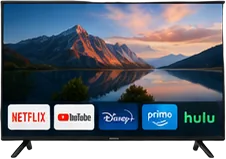

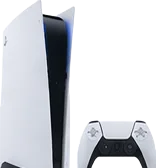

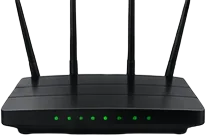



Smart TV — Repair & Care Guide
Smart TVs are the entertainment centrepiece of modern homes, used for hours every day by most households. Despite their sophisticated technology, most smart TV problems are software-related rather than hardware failures — meaning apps freezing, slow navigation, Wi-Fi drops, and streaming quality issues are almost always fixable through the right software steps. Screen flickering and backlight issues do occur but are less frequent. This guide covers every common smart TV problem with clear, actionable solutions that resolve most issues without a service call.
Common Problems
-
Apps Freezing or Crashing
Accumulated cached data and insufficient memory cause apps to freeze, crash, or refuse to load on older smart TV systems.
-
Wi-Fi Keeps Disconnecting
Router distance, channel congestion, and outdated TV firmware are the most common causes of intermittent Wi-Fi on smart TVs.
-
Screen Flickering or Going Black
Loose HDMI cables, outdated display drivers, and backlight component issues cause most smart TV flickering and black screen problems.
Quick Fix Tips
-
Clear app cache monthly to keep streaming apps running fast and prevent crashes.
-
Keep TV firmware updated — most Wi-Fi and app issues are fixed in regular updates.
-
Unplug for 60 seconds fully — a proper power cycle resolves most software faults.
Device Care Guides
Owner's care guides and repair overviews for popular consumer devices.
Flagship Smartphone: Repair & Care Guide
Common issues, maintenance tips, and repair guidance for high-end smartphones.
Read guide → DevicesThin & Light Laptop: Common Issues and Long-Term Care
Keeping your ultrabook in peak condition with smart maintenance habits and proven fixes.
Read guide → DevicesAndroid Smartphone: Repair & Maintenance Tips
A complete care guide covering battery health, software fixes, and hardware maintenance.
Read guide → DevicesBudget Windows Laptop: Care & Maintenance Guide
Get the most out of your Windows laptop with these care, cleaning, and repair tips.
Read guide → DevicesLatest Game Console: Care, Maintenance & Common Repairs
Everything console owners need to know about cleaning, storage, overheating, and errors.
Read guide → DevicesAndroid Tablet: Repair & Care Guide
Practical repair and maintenance tips to keep your Android tablet running smoothly.
Read guide → DevicesWireless Earbuds: Cleaning, Care & Common Fixes
Keep your earbuds sounding great with these cleaning and maintenance tips.
Read guide →Tablet — Repair & Care Guide
Tablets sit perfectly between a smartphone and a laptop — a large comfortable screen for content, creativity, and communication without the weight of a full computer. Popular across all age groups and often shared in households, they face higher than average risk of physical damage and performance issues from heavy use. Screen cracks, battery drain, storage filling up, and slow performance are the problems tablet owners encounter most. Most are fixable at home with the right steps before any professional repair becomes necessary.
Common Problems
-
Cracked or Shattered Screen
Large glass displays absorb more impact force than smartphone screens, making them more vulnerable to cracking from drops and falls.
-
Storage Full and Device Slowing Down
Apps, videos, photos, and downloads fill tablet storage quickly. Below 10% free storage causes noticeable slowdowns in all operations.
-
Touchscreen Not Responding Properly
Lifted screen protector edges, software bugs, or digitiser damage cause erratic or unresponsive touch input on tablets.
Quick Fix Tips
-
Keep storage below 80% full to maintain smooth performance at all times.
-
A tempered glass screen protector is far cheaper to replace than the screen itself.
-
Remove and reapply screen protector if touch response becomes erratic at the edges.
Trending Repair Topics
The guides our readers visit most this week.
Game Console — Repair & Care Guide
Gaming consoles deliver immersive entertainment and are among the most intensively used devices in any home. Modern consoles are powerful computers in compact enclosures that generate significant heat during long gaming sessions. Overheating, dust accumulation, storage running out, controller drift, and disc read errors are the most common console problems. Regular cleaning and proper ventilation prevent the majority of issues before they develop. This guide covers diagnosis and repair for every common console problem with clear step-by-step instructions.
Common Problems
-
Overheating and Unexpected Shutdowns
Dust blocking internal vents prevents the cooling system from working, causing thermal shutdowns that protect components from damage.
-
Controller Stick Drift
Analogue sticks registering movement without being touched affects gameplay significantly and worsens progressively without intervention.
-
Storage Full and Games Not Installing
Modern game files are enormous and fill console storage quickly, preventing new games from installing without management.
Quick Fix Tips
-
Never place your console in an enclosed cabinet — open airflow is essential.
-
Clean vents with compressed air every 2-3 months to prevent overheating.
-
Regularly delete or archive games you no longer play to free up storage space.
Repair Tutorials
Hands-on repair guides you can follow at home with basic tools.
How to Replace a Laptop Battery
Step-by-step guide to safely swapping out a worn or swollen laptop battery.
Read guide → TutorialsHow to Clean PC Fans Safely Without Damage
Remove dust buildup from your desktop or laptop fans without causing component damage.
Read guide → TutorialsHow to Replace a Smartphone Screen at Home
A detailed walkthrough for replacing a cracked smartphone screen with the right tools.
Read guide → TutorialsHow to Install an SSD in Your Laptop
Upgrade from a slow hard drive to a fast SSD — one of the best laptop improvements you can make.
Read guide → TutorialsHow to Reset Your Router the Right Way
Know the difference between a restart and a factory reset — and when to use each.
Read guide → TutorialsHow to Fix a Broken Laptop Hinge
Diagnose and repair a loose or broken laptop hinge before it causes screen damage.
Read guide → TutorialsHow to Replace a Laptop Keyboard
Swap out a damaged or sticky laptop keyboard with this step-by-step disassembly guide.
Read guide → TutorialsHow to Reapply Thermal Paste on a CPU
Reduce overheating and improve performance by refreshing your CPU's thermal paste.
Read guide → TutorialsHow to Fix a Loose Charging Port
Diagnose and repair a wobbly or non-responsive charging port on any device.
Read guide → TutorialsHow to Deep Clean a Mechanical Keyboard
Remove grime, debris, and stuck keycaps to restore your keyboard to like-new condition.
Read guide → TutorialsHow to Upgrade RAM in a Laptop
Address slowdowns by adding more RAM to a laptop — a beginner-friendly upgrade guide.
Read guide →Wireless Earbuds — Repair & Care Guide
Wireless earbuds deliver music, calls, and noise cancellation without tangled cables and have become one of the most popular personal technology accessories worldwide. Their compact size and daily exposure to earwax, sweat, and moisture make them prone to specific problems that worsen without proper care. One earbud going quiet, connection dropping, charging case faults, and muffled audio are the most common issues. Most are preventable with regular cleaning and correct storage habits that take only minutes to develop.
Common Problems
-
One Earbud Quieter or Silent
Earwax blocking the speaker mesh is the most common cause — cleaning resolves most one-sided audio issues instantly.
-
Charging Case Not Charging Earbuds
Dirty charging contacts on the earbuds or inside the case prevent the electrical connection needed for charging to occur.
-
Bluetooth Connection Dropping
Firmware bugs, interference from other devices, and distance from the source device cause most Bluetooth drop issues.
Quick Fix Tips
-
Clean speaker mesh weekly with a dry soft brush to prevent earwax audio issues.
-
Clean charging contacts monthly with a dry cotton swab to ensure reliable charging.
-
Always store earbuds in their case to protect and keep them charged and ready.
Understand Your Devices
Deeper guides that help you understand your devices, not just fix them.
Complete Guide to Diagnosing an Overheating PC
Learn to identify, measure, and resolve CPU and GPU overheating issues.
Read guide → GuidesExtend Your Laptop Battery Life
Practical settings, habits, and maintenance steps to maximise battery longevity.
Read guide → GuidesUnderstanding Router Lights: What Each One Means
Decode every LED on your router and diagnose network problems at a glance.
Read guide → GuidesHow to Choose the Right Power Bank
Capacity, wattage, and ports explained so you pick the power bank that fits your needs.
Read guide → GuidesHow to Back Up Your Data Before a Repair
Never lose your files during a repair — this guide covers every major platform.
Read guide → GuidesWhy Your Computer Feels Slower Over Time
A plain-English explanation of what genuinely slows a Windows PC down over time.
Read guide → GuidesSSD vs HDD — Which One Should You Use?
Understand the real-world difference in speed, durability, and value so you can choose wisely.
Read guide → GuidesHow to Factory Reset Any Device Safely
Back up your data first, then wipe and restore any device cleanly with this step-by-step guide.
Read guide → GuidesHow to Read Error Codes on Any Device
Decode cryptic error messages and know exactly what action to take next.
Read guide → GuidesWhat RAM Does and When to Upgrade It
Understand memory in plain terms and find out whether more RAM will actually help your device.
Read guide → GuidesHow to Extend the Life of Any Device Battery
Charging habits, settings, and storage tips that dramatically increase battery lifespan.
Read guide → GuidesHow to Safely Dispose of Old Electronics
Don't just throw it away — learn the safe, legal, and eco-friendly ways to recycle electronics.
Read guide →Router & Network — Repair & Care Guide
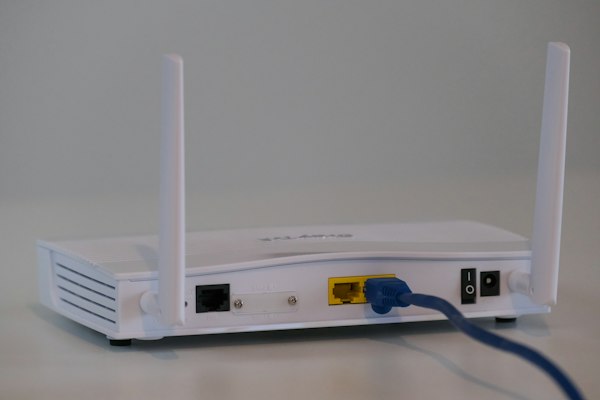
Your router is the device every other connected device in your home depends on entirely. A well-configured router delivers fast, reliable internet everywhere. A poorly positioned or aging router creates frustration through slow speeds, dead zones, and dropped connections. Slow Wi-Fi, devices dropping connection, poor signal in certain rooms, and devices failing to connect are the most common home network complaints — and most are fixable without calling a technician by following the right diagnostic steps in the correct order.
Common Problems
-
Slow Wi-Fi Speeds Throughout Home
Channel congestion, router placement, and outdated firmware are the three most common causes of slower-than-expected speeds.
-
Devices Dropping Connection Intermittently
Memory buildup, IP conflicts, and interference from neighbouring networks cause devices to drop and rejoin the network unexpectedly.
-
Dead Zones in Certain Rooms
Wi-Fi signals weaken through walls, floors, and furniture. Single router placement cannot cover all areas of larger homes effectively.
Quick Fix Tips
-
Reboot your router monthly to clear memory and refresh all device connections.
-
Position centrally and elevated — never in a cabinet or corner of the room.
-
Update firmware regularly to fix security vulnerabilities and improve performance.
Recently Added Guides
New articles to help you tackle the latest device problems.
How to Clean PC Fans Without Causing Damage
Dust-clogged fans cause overheating and loud noise. This guide shows the safe way to clean them at home.
How to Reset Your Router the Right Way
Know the difference between a soft restart and a factory reset — and exactly when each one is the right call.
How to Choose the Right Power Bank
Capacity, wattage, and port types explained so you buy the power bank that actually fits how you use your devices.
Smartwatch — Repair & Care Guide
Smartwatches track health, keep you connected, and handle payments around the clock — worn through exercise, sleep, and daily life. Their constant use and exposure to sweat, moisture, and physical impact make proper care essential. Battery life shortening, sync problems, screen scratches, strap wear, and sensor accuracy issues are the most common smartwatch problems. Most are preventable with simple cleaning and maintenance habits, and fixable at home with basic steps before any service is needed.
Common Problems
-
Battery Not Lasting a Full Day
Aging battery cells lose capacity over hundreds of charge cycles, requiring more frequent charging as the watch gets older.
-
Health Sensor Giving Inaccurate Readings
Sweat, sunscreen, and debris on the underside sensors reduce contact quality and produce inaccurate health data.
-
Watch Not Syncing with Paired Phone
Bluetooth interference, outdated firmware on either device, and app permission issues cause most smartwatch sync failures.
Quick Fix Tips
-
Clean the underside sensors weekly for the most accurate health tracking.
-
Rinse with fresh water after every workout and dry before wearing again.
-
Enable battery saver mode overnight if the watch struggles to last a full day.
Streaming Device — Repair & Care Guide
Streaming devices make thousands of hours of content instantly accessible on any screen. Despite their simple appearance, they run a full operating system and face the same software challenges as any smart device. Buffering, slow app loading, remote control failures, and the device not being recognised by the TV are the most common problems. Regular software maintenance and a weekly restart prevent the gradual slowdown that affects most streaming devices after months of continuous standby use.
Common Problems
-
Constant Buffering and Poor Video Quality
Slow internet reaching the device, overloaded device memory, and app cache buildup cause most buffering and quality issues.
-
Apps Crashing or Freezing
Insufficient memory from too many installed apps and accumulated cached data causes streaming apps to crash and freeze regularly.
-
Device Not Recognised by TV
A faulty HDMI connection, incorrect input selection, or HDCP handshake failure prevents the streaming device appearing on screen.
Quick Fix Tips
-
Restart your streaming device weekly — standby mode causes gradual memory buildup.
-
Clear app cache monthly for all streaming apps to prevent crashes and slow loading.
-
Use an HDMI extension cable to improve Wi-Fi signal away from the TV electronics.
Why Readers Trust NationRepair
We write guides the way a knowledgeable friend would explain things — clearly, honestly, and without wasted words.
Step-by-Step Clarity
Every guide breaks the process into numbered steps with specific actions — no vague advice like "check your settings."
Plain English Only
We avoid jargon and explain technical terms when we do use them. You don't need to be a tech expert to follow our guides.
Tested Solutions
Our fixes are based on real-world repair experience. We only recommend solutions that genuinely work for the majority of users.
No Filler, No Fluff
We get straight to the point. Every paragraph earns its place — you'll find the fix you need without wading through irrelevant content.
External Drive — Repair & Care Guide
External drives store some of the most valuable data people own — photos, documents, work files, and memories that would be devastating to lose. Despite their importance, they are among the most casually handled devices, carried without protection and disconnected without safe ejection. Drive not recognised, slow speeds, clicking noises, and file system errors are the most common problems. Most are solvable without specialist data recovery services if addressed promptly with the right diagnostic steps covered in this guide.
Common Problems
-
Drive Not Recognised When Plugged In
A faulty USB cable, driver issue, or file system error — rather than drive failure — causes most recognition problems on both Windows and other operating systems.
-
Clicking or Grinding Noise from Drive
Mechanical drives making clicking sounds are approaching failure. Back up immediately — this warning sign should never be ignored.
-
File System Error or Asking to Format
Improper disconnection causes file system corruption that makes the drive appear empty or unreadable, though data is usually recoverable.
Quick Fix Tips
-
Always safely eject before unplugging — it prevents most file system corruption.
-
Try a different USB cable first before assuming the drive itself has failed.
-
Clicking sounds mean back up immediately — mechanical drive failure is imminent.
Smart Home Device — Repair & Care Guide
Smart home devices make daily life more convenient, energy-efficient, and secure through connected technology. Voice assistants, smart plugs, doorbells, thermostats, and lighting systems all depend entirely on a stable network and regular software maintenance to function as intended. Connectivity drops, voice commands failing, automations not triggering, and devices going offline are the most common smart home problems — and most are network or configuration issues rather than hardware failures, making them fixable at home without specialist help.
Common Problems
-
Device Going Offline Frequently
Poor Wi-Fi signal reaching the device location is the most common cause of smart home devices dropping offline and becoming unresponsive.
-
Voice Commands Not Being Recognised
Microphone obstruction, background noise, outdated firmware, and incorrect device naming cause most voice command failures.
-
Automations Failing to Trigger
Outdated app versions, changed device names, and network instability cause smart home automations to miss triggers unpredictably.
Quick Fix Tips
-
Restart smart home devices monthly to refresh memory and restore stable connections.
-
Keep all firmware updated — most reliability issues are resolved in manufacturer updates.
-
Ensure strong Wi-Fi signal at every device location — poor signal causes most problems.