NationRepair
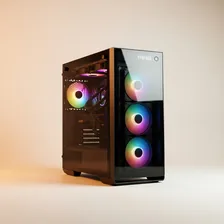
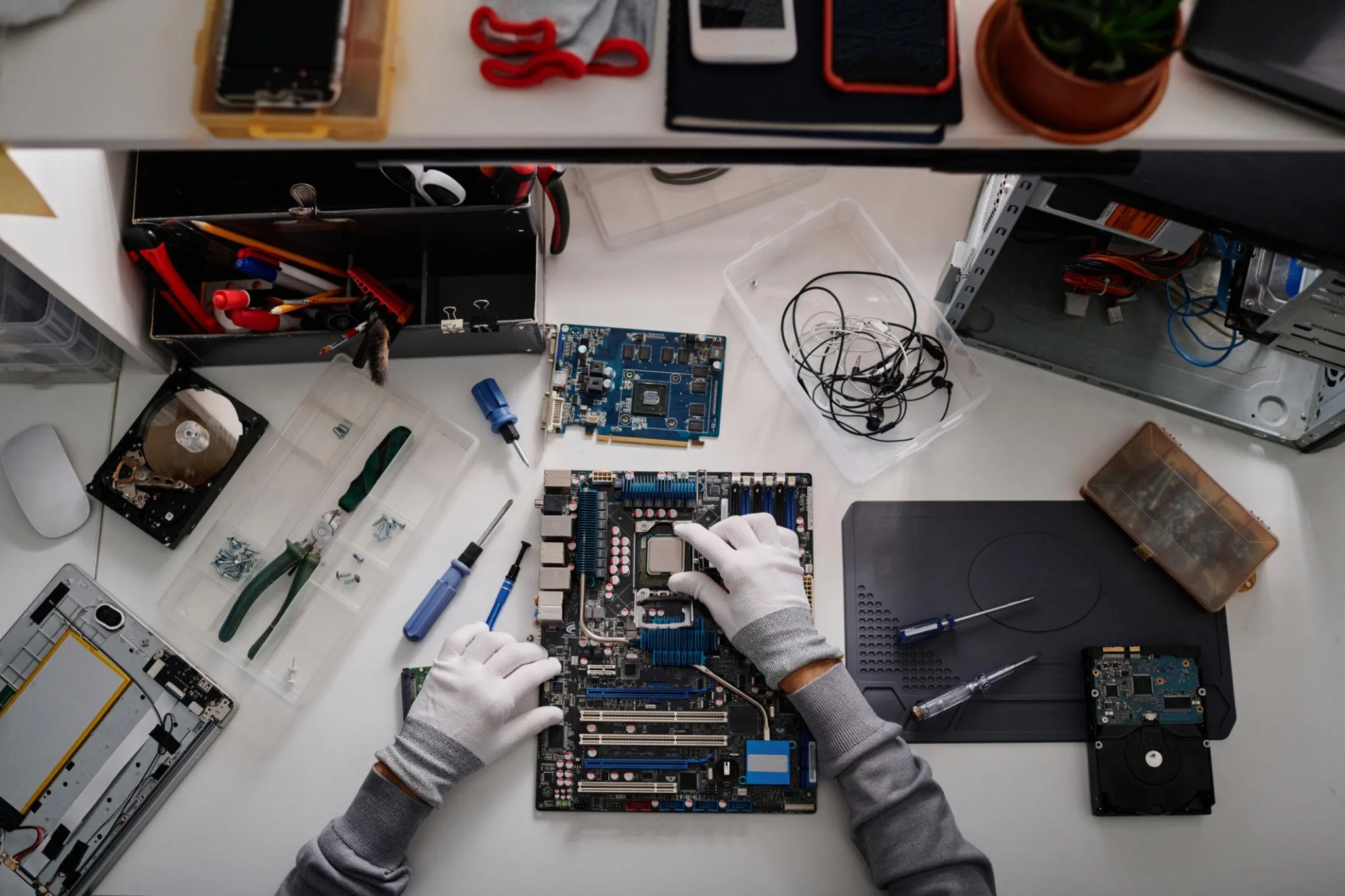
Desktop PCs remain the most powerful, most upgradeable, and most repairable category of personal computer. Unlike laptops, where every component is integrated and difficult to service, a desktop PC is fundamentally a collection of standardised parts — motherboard, processor, memory, graphics card, storage drives, power supply, and case — that can be individually swapped, upgraded, or replaced over many years. This is why a well-built desktop from 2019 can be brought up to current performance levels with a few component swaps, while a laptop from the same year is essentially fixed in capability.
The desktop market today splits into pre-built systems (sold by Dell, HP, Lenovo, and dozens of boutique builders), DIY-built systems (assembled from parts the buyer chooses), and small-form-factor mini PCs (fanless or compact systems for office use). Each has tradeoffs: pre-built systems offer convenience and warranties, DIY builds offer maximum flexibility and value, and mini PCs offer space efficiency at the cost of upgradeability. For most users, a mid-tower DIY build offers the best long-term value.