NationRepair
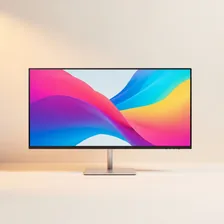
Computer monitors have transformed from boxy 17-inch CRT displays into 27, 32, and even 49-inch ultrawide LCD and OLED panels that rival the picture quality of premium televisions. The category covers basic 1080p office monitors under $150, sharp 4K productivity displays, ultrawide gaming monitors with 144 Hz+ refresh rates, OLED panels for creative work, and professional reference displays for colour-critical photo and video editing. The right choice depends entirely on what you do — a colour grader, a competitive gamer, and a spreadsheet user all benefit from very different monitor specifications.
Modern monitors share common foundational technology: an LCD or OLED panel (the part that produces the image), a backlight (for LCD only — OLED is self-illuminating), a controller board that processes incoming video signals, and connections (HDMI, DisplayPort, USB-C are now standard). The specifications that matter — resolution, refresh rate, response time, panel type (IPS, VA, TN, OLED), brightness, contrast, and colour accuracy — are reasonably comparable across brands, making it possible to make informed decisions if you understand what each number means.