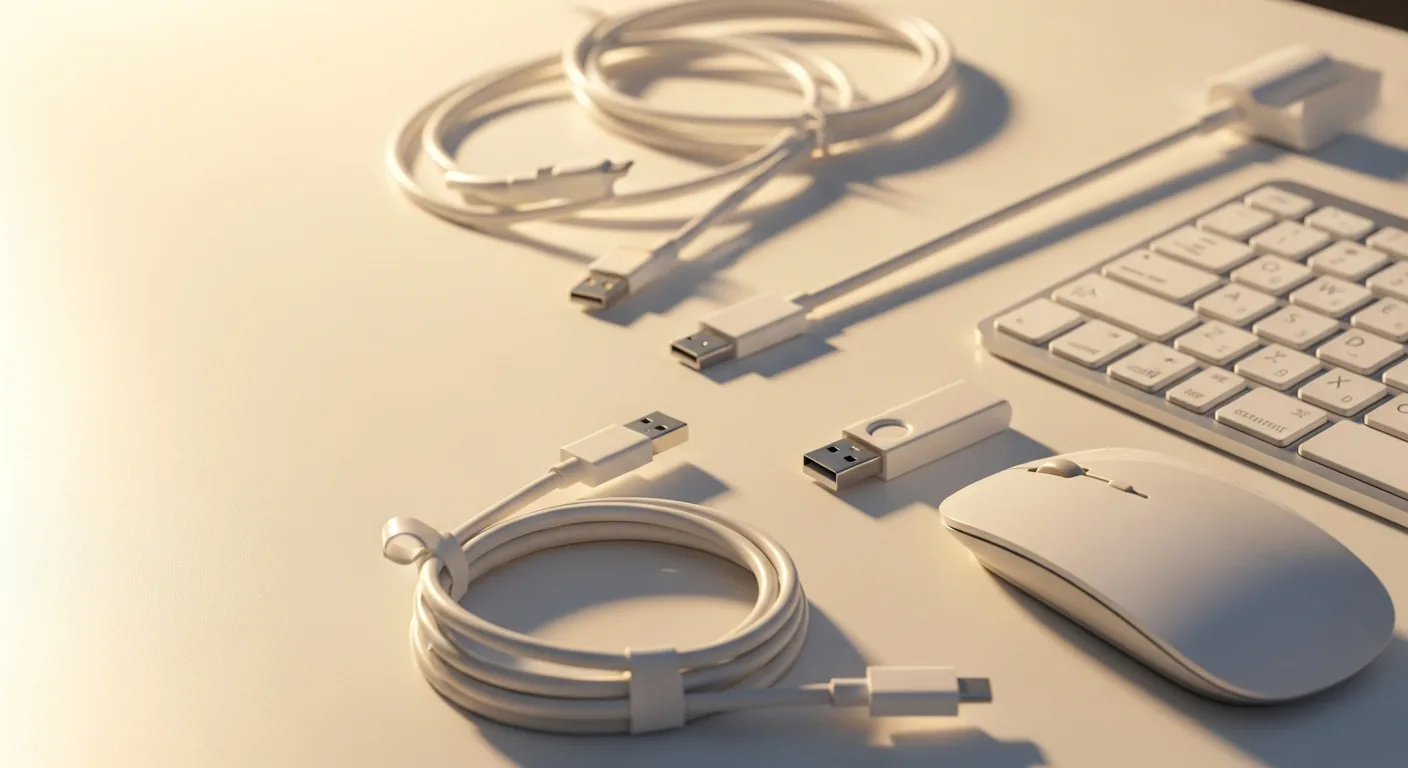
USB cables, flash drive, wireless mouse, and keyboard arranged on a desk

USB & Peripheral Drivers — Fix Device Recognition Issues

Resolve USB devices not recognised, port errors, and peripheral failures.

USB and peripheral drivers control how your computer recognises and communicates with the wide range of devices that plug into your USB ports — keyboards, mice, external drives, webcams, printers, controllers, and countless other accessories. They are layered: there is a driver for the USB controller built into your motherboard, separate drivers for each USB hub or root port, and individual drivers for each connected device. When any layer in that stack misbehaves, the result is one of the most familiar Windows errors of all: the dreaded USB device not recognised pop-up. Most USB driver problems are caused by Windows installing a generic driver instead of the manufacturer one, by a port driver entering an error state after a sleep cycle, or by power management aggressively disconnecting devices. Almost all of them are fixable in software.

Common Driver Problems

1

USB Device Not Recognised Error When Plugging In

The most common USB error indicates the operating system has detected a device but cannot identify or load a driver for it. Trying a different port, reinstalling the USB controller driver, and resetting USB power settings fixes the majority of cases.
2

Peripheral Working on One Port But Not Another

When a device works on some USB ports but not others, the issue is almost always a port-specific driver problem rather than a fault with the device itself. Reinstalling the USB hub drivers in Device Manager restores function across all ports.

3

Device Appearing Then Disappearing from System

A device that connects then drops out repeatedly is usually being suspended by Windows USB power management. Disabling USB selective suspend and updating the controller driver stops the cycle.

4

USB Controller Showing Error in Device Manager

A USB controller with a yellow error icon means the entire root hub has stopped working, taking every device on it offline. Uninstalling the controller and rebooting reinstalls a fresh copy of the driver and restores all attached devices.

5

Driver Not Installing for Connected Peripheral

When Windows fails to automatically install a driver for a new peripheral, the device is missing from the Windows driver catalogue and needs the manufacturer driver downloaded and installed manually.

Step-by-Step Fix Guides

1

How to Fix USB Device Not Recognised in Windows

Walks through every common cause from cables to drivers to power settings so you isolate the real problem fast.

2

How to Reinstall USB Controller Drivers

Step-by-step guide to removing every USB controller in Device Manager and letting Windows reinstall fresh copies on reboot.

3

How to Fix Peripheral Driver Installation Errors

Diagnose installer error messages, run installers in compatibility mode, and resolve administrator permission issues.

4

How to Reset USB Power Settings in Windows

Disable USB selective suspend and adjust per-device power management in Device Manager to stop unexpected disconnects.

Pro Tips

Try all USB ports before reinstalling drivers — the issue may be port-specific not driver-related.

Disable USB selective suspend in power settings to prevent devices dropping connection.

Update USB controller drivers alongside the device driver when troubleshooting recognition issues.

Related Driver Categories