Input Device Drivers

Input Device Drivers — Fix Keyboard, Mouse and Controller Issues

Fix keyboards, mice, drawing tablets, and gamepads not working properly.

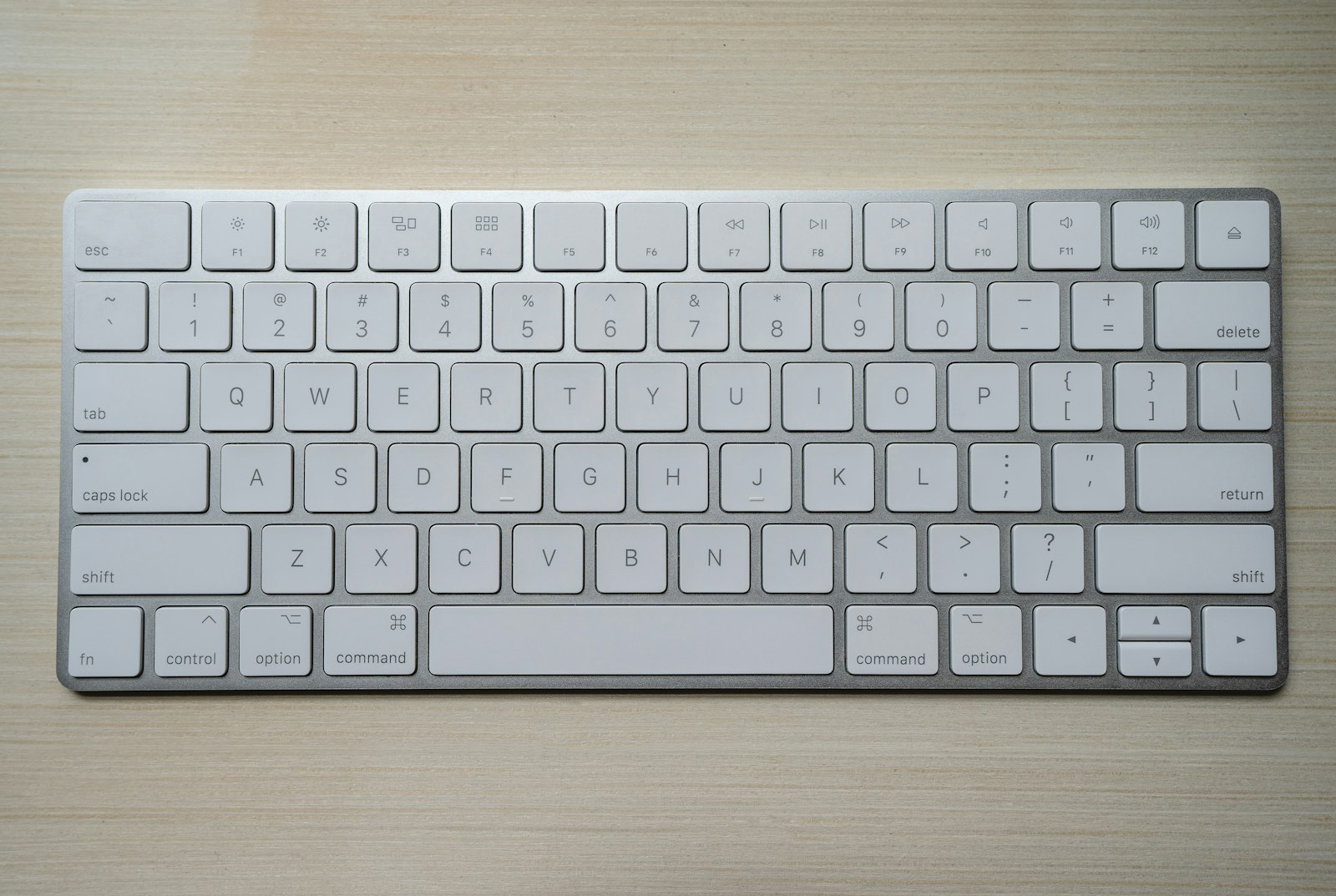
Input device drivers handle the constant stream of data between your computer and the devices you use to control it — keyboards, mice, drawing tablets, gamepads, and the wide range of specialist input hardware that creators and gamers use every day. The basic driver layer is provided by Windows itself and works for most devices straight out of the box. The full feature layer, however, almost always needs the manufacturer driver — without it, keyboards lose their custom shortcuts, mice lose their adjustable resolution, drawing tablets lose pressure sensitivity, and gamepads lose vibration and trigger feedback. When an input device suddenly stops working, it is almost always because Windows has replaced a working manufacturer driver with a generic one, or because companion software has corrupted its own driver components. A clean reinstall fixes the vast majority of input device problems.

Common Driver Problems

1

Keyboard Not Working After Windows Update

A keyboard that types but loses custom shortcuts and macros after a Windows update has had its manufacturer driver replaced with a generic Windows driver. Reinstalling the manufacturer driver restores full feature support.
2

Mouse Buttons Not Responding Correctly

When mouse side buttons or scroll wheel features stop working, the mouse driver has been overwritten by a generic Windows driver that lacks support for advanced buttons. The manufacturer driver fixes this.

3

Drawing Tablet Not Being Detected by System

Drawing tablets with no pressure sensitivity in creative software either have a missing driver or a conflict between the manufacturer driver and Windows Ink settings that needs adjusting.

4

Gamepad Not Recognised in Windows or Games

Controllers that show as connected but do not appear in games are usually missing the correct controller driver or need an additional input mapping layer to translate inputs into the format games expect.

5

Wireless Input Device Losing Connection Repeatedly

Wireless keyboards, mice, and controllers that drop connection are typically being suspended by aggressive USB power management. Disabling power saving on the wireless receiver and updating its driver stops the disconnects.

Step-by-Step Fix Guides

1

How to Reinstall Keyboard and Mouse Drivers

Step-by-step uninstall and reinstall guide for restoring the manufacturer driver and full button or shortcut support.

2

How to Fix Drawing Tablet Not Detected Issues

Resolve detection and pressure sensitivity issues on drawing tablets by aligning the manufacturer driver with Windows Ink settings.

3

How to Install Gamepad and Controller Drivers

Identify your controller, install the correct driver, and configure any input mapping software needed for full game compatibility.

4

How to Fix Wireless Input Device Connection Issues

Disable USB selective suspend on the wireless receiver and update its driver to stop random disconnects mid-use.

Pro Tips

Try the device on another computer first to confirm whether the issue is driver or hardware.

Generic Windows drivers work for basic function — install manufacturer drivers for full feature support.

Uninstall companion software alongside the driver for a completely clean reinstallation.

Related Driver Categories