NationRepair
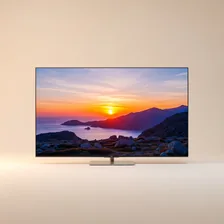
Smart TVs have completely replaced traditional television sets in most households over the past decade. Where a TV in 2010 was essentially a display with HDMI ports, today's smart TVs are full-featured computers running Android TV, webOS, Tizen, Roku OS, or proprietary platforms — capable of streaming Netflix, browsing the web, running apps, controlling smart home devices, and increasingly performing AI-powered upscaling and scene optimisation in real time. The display technology has advanced equally dramatically, with OLED, QLED, and Mini-LED panels delivering picture quality that rivals professional broadcast monitors.
Despite all this sophistication, the core failure modes for modern TVs remain remarkably consistent: backlight or panel failures (resulting in a black screen, dim image, or visible bands), HDMI input issues (the most common service complaint by far), Wi-Fi disconnections (caused by router issues at least as often as TV problems), software bugs that cause apps to crash or freeze, and remote control failures. Understanding which problems are TV-side versus source-side versus network-side saves hours of frustrating troubleshooting.