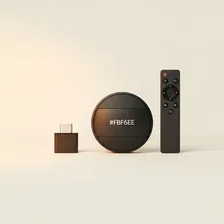
Streaming Devices

Streaming Devices

Complete repair and maintenance guide for streaming media devices

Streaming sticks, boxes, and dongles transform any TV with an HDMI port into a smart streaming hub — making them one of the most cost-effective home entertainment upgrades available. Their compact design hides surprisingly capable hardware that handles 4K HDR video, surround sound, and an entire app ecosystem. Buffering and poor video quality, app crashes, remote control failures, TV detection issues, overheating, and resolution problems are the most common complaints from streaming device owners. Most are fixable through Wi-Fi optimisation, simple resets, or settings adjustments. This guide explains every common streaming device issue and the practical fix that gets you back to watching uninterrupted.

Understanding Streaming Devices

Streaming devices add modern smart-TV functionality to any television with an HDMI port. The category includes Apple TV (premium tier), Roku and Fire TV (mainstream), Chromecast and Google TV (Google ecosystem), and dedicated devices like NVIDIA Shield (gaming-focused). The reason for buying a streaming device when most modern TVs already have built-in apps is straightforward — dedicated streaming hardware is faster, gets longer software support, and provides a smoother experience than the underpowered processors and rarely-updated operating systems built into most TVs.

The streaming device market has been remarkably stable in feature set but has evolved dramatically in performance and codec support. 4K HDR streaming, Dolby Vision, Dolby Atmos audio passthrough, and HDMI 2.1 are now standard expectations on premium devices. Many users who bought smart TVs five years ago and now find them slow, missing apps, or unable to stream the latest formats can extend their TV's useful life by another 5+ years simply by adding a $50–$200 streaming device.

Common Problems

1

Constant Buffering and Poor Video Quality

Buffering and quality reduction during streaming are almost always caused by insufficient internet bandwidth reaching the device, weak Wi-Fi signal at the TV location, or the streaming service automatically lowering quality due to network congestion at peak viewing times.

2

Apps Crashing or Freezing During Playback

Streaming app crashes are typically caused by accumulated app cache filling the limited storage on streaming devices, outdated app versions running on outdated device firmware, or memory pressure from too many apps running simultaneously in the background.

3

Remote Control Not Responding

Remote control problems on streaming devices are most commonly caused by depleted batteries, the remote losing Bluetooth pairing with the device, or the IR sensor on the device being obstructed by another device or cable behind the TV.

4

Device Not Recognised by TV Screen

TV detection failures are typically caused by the TV being set to the wrong HDMI input, the streaming device not getting enough power from the USB port being used for power, or HDMI cable issues that affect the handshake between device and TV.

5

Device Overheating During Long Sessions

Streaming device overheating is usually caused by poor ventilation when the device is hidden behind the TV in a tight space, direct sunlight on the device, or extended 4K HDR playback that pushes the device's processor harder than standard content.

6

Video Stuck at Low Resolution Setting

Resolution issues on streaming devices are most commonly caused by HDMI cables that do not support the bandwidth required for higher resolutions, TV settings forcing a lower resolution output, or streaming app settings limiting maximum quality.

Why Streaming Devices Fail

Streaming devices fail less often than most consumer electronics — they have no moving parts, minimal heat output, and run lightweight software. The most common issues are HDMI connector wear (after years of being plugged into the same TV port), Wi-Fi pairing memory loss after firmware updates, and remote control failures (battery drain, IR or Bluetooth pairing issues). Most of these are resolved by re-pairing the remote or factory-resetting the device.

Manufacturer software support is the bigger long-term concern. Older Amazon Fire TVs, Chromecasts, and Apple TVs eventually stop receiving app and OS updates, leaving them unable to install or run newer streaming apps. This obsolescence typically arrives 5–7 years after launch. Devices that no longer receive updates can also become security risks if used for any sign-in or account-related actions.

Repair & Fix Guides

Maintenance Tips

  • Use a high-quality HDMI cable rated for the resolution and refresh rate you need
  • Position the device with adequate ventilation — heat shortens device life
  • Restart the device monthly by unplugging for 30 seconds to clear performance issues
  • Update firmware when prompted for new features and stability improvements
  • Use ethernet adapter where possible for the most reliable 4K streaming performance

Repair, Replace & Buying Advice

Streaming devices that still receive software updates and support the apps you use are worth keeping. Upgrade reasons usually involve specific format support (Dolby Vision, AV1 codec, 4K at 120Hz) or significantly better processor performance (newer devices feel noticeably snappier). For most users, mid-tier devices like Roku Ultra or Fire TV Cube provide all the practical benefit — flagship Apple TV is worth the premium only for users deeply embedded in Apple's ecosystem.

When buying new, the key features are 4K HDR support (with the specific HDR formats your TV supports), Dolby Atmos audio if you have a compatible sound system, app support for the streaming services you use, voice control quality, and the manufacturer's track record for long-term software updates. Apple TV typically receives updates for 7+ years, Roku and Fire TV for 5+. Avoid buying budget no-name devices — they're often abandoned within 2 years.

Long-Term Care & Best Practices

Streaming sticks and boxes are tiny computers running tiny operating systems, and the single most useful maintenance habit is rebooting them once a month. Long uptime accumulates memory leaks, stuck background processes, and stale cached data that slowly degrade the snappy responsiveness that made the device feel great when it was new. A simple unplug-and-reboot, or scheduled restart through the device's settings menu, resolves most of the gradual sluggishness that owners blame on the device being old or underpowered. The whole routine takes ninety seconds and dramatically extends how long a streaming device feels current.

Heat management matters more than most owners realise. Streaming sticks plugged directly into the back of a wall-mounted TV are squeezed against a hot panel with no airflow, which throttles their performance and shortens their useful life. Use the supplied HDMI extension cable (every major streaming-stick manufacturer ships one in the box) to give the stick some breathing room, and avoid covering or enclosing set-top boxes inside cabinets without ventilation. The Wi-Fi reception also benefits — a few extra centimetres away from the TV's metal back panel often turns frustrating buffering into smooth playback, particularly for higher-bitrate 4K content.

Plan for the eventual end of app updates on every streaming platform. Streaming services occasionally drop support for older device versions, leaving owners suddenly unable to use Netflix or Disney+ on a device that worked perfectly the day before. When that happens, a $30–$50 replacement device is far cheaper than a new TV and gives the otherwise-fine display years more useful life. Older streaming devices often have a productive second life as a kid's bedroom video device, kitchen recipe screen, or guest-room movie player. Recycle properly when they truly fail; they contain small lithium batteries and should never go in regular household waste.

Account hygiene and remote management round out the long-term care list. Periodically review which streaming services are signed in on which devices, log out of services you no longer use, and remove old devices from your accounts if you've sold or given them away. Most services support a remote sign-out from a web dashboard, which is the only way to revoke access on a device that's no longer in your possession. Update your account passwords every couple of years, and enable two-factor authentication on every streaming subscription that supports it. These small habits prevent the slow account-hijacking and password-reuse problems that affect millions of streaming users every year and can result in subscription charges, watch-history pollution, and unwanted content recommendations across every device you own.

Quick Tips

Use ethernet over Wi-Fi for reliable 4K streaming without buffering

Restart by unplugging for 30 seconds to fix most streaming performance issues

Use a quality HDMI 2.1 cable for 4K HDR content — cheap cables limit quality

Frequently Asked Questions

Do I need a streaming device if my TV is already smart?

If the TV's built-in apps are fast and current, no. But most smart TVs more than 3 years old have noticeably slower interfaces than dedicated streaming devices, miss support for newer apps and codecs, and stop receiving updates entirely. Adding a $50 streaming device often makes a 5-year-old smart TV feel new again, much cheaper than replacing the TV.

What's the difference between Roku, Fire TV, Apple TV, and Chromecast?

Roku is the most platform-neutral with the broadest app support and a clean interface. Fire TV pushes Amazon content but has good app support. Apple TV is the premium choice with the smoothest interface, the best App Store, and the longest software support — but at a higher price. Chromecast/Google TV is best for users who already use Google services heavily. All four handle the major streaming services well.

Why does my streaming device buffer so much?

Buffering is almost always a network issue, not a device issue. The streaming device needs consistent bandwidth — 5 Mbps for 1080p, 25 Mbps for 4K. Speed test from the device location, not just from your phone next to the router. Other common causes are Wi-Fi congestion (move the device closer or use Ethernet if available), the streaming service being overloaded during peak hours, or VPN interference if you use one.

Should I get a 4K streaming device if I have a 1080p TV?

Generally yes, even though you can't watch 4K content. 4K streaming devices have faster processors, more RAM, and longer software support than 1080p models, which makes the interface and app loading noticeably smoother. They also future-proof for when you eventually upgrade the TV. The price difference between 1080p and 4K models is now small enough that 4K is usually the better choice.

Can I install apps that aren't in the streaming device's official store?

It depends on the platform. Fire TV is the most permissive — you can sideload Android apps with some technical effort. Apple TV is the most locked down. Roku and Google TV fall between. For most users, the official app stores cover everything they actually need, and sideloading creates complexity and security risk that's rarely worth it.

Step-by-Step Repair Tutorials

Hands-on tutorials covering the most common Streaming Devices repairs.

Recommended Learning Guides

Background knowledge from the Learning Center to help you understand and care for Streaming Devices.

Related Guides