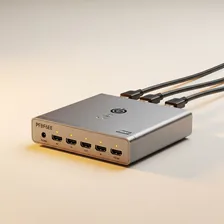
HDMI Switches & Splitters

HDMI Switches & Splitters

Complete repair and setup guide for HDMI switches and splitters

HDMI switches and splitters solve the problem of TVs with too few HDMI inputs or the need to send one source to multiple displays. They are essential for home theatre setups, gaming stations, and multi-display work environments — but they introduce their own potential failure points between source devices and screens. No signal on output displays, reduced picture quality, remote control failures, copy-protection handshake errors, 4K HDR signal problems, and switching delays are the most common complaints. Most are fixable through cable upgrades, settings adjustments, or compatibility verification rather than buying new hardware. This guide explains every common HDMI switching issue with clear fixes.

Understanding HDMI Switches & Splitters

HDMI switches and splitters solve two different problems. A switch combines multiple HDMI inputs (game console, streaming device, Blu-ray player, computer) into a single output to a TV that doesn't have enough inputs. A splitter takes a single HDMI source and duplicates it to multiple displays — useful for video walls, business displays, or streaming a single feed to two TVs. The categories are sometimes confused but serve completely opposite purposes.

Quality varies enormously in this category. Cheap unbranded HDMI switches often fail to pass HDR, Dolby Vision, or 4K at 120Hz reliably, downgrading premium content quality silently. Quality switches from established brands (Kinivo, Monoprice, Ugreen, J-Tech) handle modern formats correctly. Audio extraction switches add the ability to send video to a TV while sending audio separately to a sound system or headphone amp — useful when the TV doesn't pass through high-quality audio formats.

Common Problems

1

No Signal on Output Display

No signal failures on HDMI switches and splitters are typically caused by HDMI cables that have failed or come loose, copy-protection handshake issues between source and display, or — for splitters — output displays that do not match capabilities (one 4K and one 1080p creates problems).

2

Picture Quality Reduced Through Switch

Picture quality reduction through HDMI switches is most commonly caused by the switch not supporting the bandwidth required for the source's resolution and refresh rate, low-quality HDMI cables that limit signal integrity, or — for some switches — automatic downscaling.

3

Remote Control Not Switching Inputs

Remote control failures on HDMI switches are typically caused by the IR sensor on the switch being obstructed by other devices in the entertainment cabinet, depleted batteries in the remote, or — for HDMI-CEC switching — incorrect TV CEC settings.

4

HDCP (content protection) Handshake Errors Blocking Content

These handshake errors are most commonly caused by version mismatches between source devices and displays, switches not supporting the latest copy-protection version required for premium content, or temporary handshake failures that a power cycle resolves.

5

4K or HDR Signal Not Passing Through

4K and HDR pass-through failures are typically caused by HDMI cables that do not support the full 18 Gbps required for 4K HDR, switches rated for HDMI 2.0 trying to pass 4K HDR signals, or source devices with HDR settings that need manual configuration.

6

Input Switching Delay Too Long

Long switching delays on HDMI switches are most commonly caused by copy-protection renegotiation taking time between sources, source devices entering deep sleep that requires wake-up time, or older switches simply having slow switching circuitry by design.

Why HDMI Switches & Splitters Fail

HDMI switches fail in HDMI-specific ways. HDMI handshake failures occur when the switch can't successfully negotiate the EDID (display information) (display capability data) between source and display, leaving you with no signal or downgraded picture. These often appear after firmware updates to source devices or after switching between sources rapidly. The switch's HDMI controller chip can fail outright, especially in cheap models that run hot.

Beyond electronic failures, the HDMI ports themselves wear from repeated cable insertion. Power adapters in powered switches are typical failure points. Cheap unpowered switches often can't deliver enough power to the HDMI signaling chips, leading to sporadic problems that disappear when an external power adapter is connected. Heat buildup in compact switches accelerates all of these failure modes.

Repair & Fix Guides

Maintenance Tips

  • Use HDMI 2.1 cables for 4K HDR content — older cables limit signal capability
  • Keep the switch in well-ventilated space — heat causes most signal stability issues
  • Update switch firmware when manufacturer releases improvements for compatibility
  • Power cycle the switch monthly to clear accumulated handshake issues
  • Match output displays where possible when using splitters for the cleanest signal

Repair, Replace & Buying Advice

HDMI switches and splitters that work reliably should be kept until you need new format support (HDMI 2.1, 4K at 120Hz, Dolby Vision passthrough, eARC). For 4K 60Hz HDR content, basic HDMI 2.0 switches work fine. For 4K 120Hz gaming, ensure HDMI 2.1 support — older switches will limit refresh rates without obvious indication.

When buying new, the key specifications are HDMI version (2.0 minimum for 4K, 2.1 for 4K 120Hz), supported HDR formats (HDR10, Dolby Vision, HDR10+), audio passthrough capabilities (Dolby Atmos, eARC if needed), powered vs. unpowered (powered is more reliable for multiple sources), automatic vs. manual switching, and number of inputs/outputs. Avoid extremely cheap models — quality matters in HDMI distribution.

Long-Term Care & Best Practices

HDMI switches and splitters are passive-looking devices that actually do a surprising amount of signal processing, and the single most useful habit is keeping them in well-ventilated locations rather than buried inside entertainment cabinets or behind televisions. Even the small amount of heat generated by their signal-processing chips accumulates inside enclosed spaces and shortens device life noticeably, while also causing the intermittent signal dropouts and handshake failures that get blamed on the connected devices themselves. A few centimetres of clearance on every side, and a quick dust-off every six months, prevents most of the gradual reliability problems that affect these devices.

Cable selection matters more on switches and splitters than on direct connections because every cable in the chain has to handle the same bandwidth as a direct connection. For 4K HDR video, all cables must be certified Premium High Speed or Ultra High Speed depending on the resolution and refresh rate involved; cheap unbranded cables almost always work for 1080p but fail unpredictably at 4K, and the failures look exactly like a defective switch or splitter. Label every cable in the chain with what it connects to, inspect connectors annually for bent pins or accumulated lint, and replace any cable that has been repeatedly bent at sharp angles where it enters the connector.

Power matters on active splitters and switches; many models include an external power supply that some owners try to skip thinking the device will run from the source HDMI port. Without proper external power, an active splitter often delivers degraded signals that look like cable problems but are actually power problems. Check the manufacturer's recommendation and use the supplied power adapter. As HDMI standards advance and your source devices upgrade to support newer features (4K 120 Hz, 8K, HDR10+, Dolby Vision), evaluate whether the existing switch supports those features or whether an upgrade is needed. Recycle old units through certified e-waste channels when they fail.

Quick Tips

Use HDMI 2.1 cables for 4K HDR — older cables limit picture quality dramatically

Power cycle the switch when content is blocked — fixes most copy-protection handshake errors

Match resolution capabilities on splitters — mismatched displays cause signal failures

Frequently Asked Questions

What's the difference between an HDMI switch and a splitter?

A switch has multiple inputs and one output — it lets you connect several sources (console, streaming box, Blu-ray) to a single TV input. A splitter has one input and multiple outputs — it duplicates one source to multiple displays. The categories serve opposite purposes; make sure you're buying the right one for your setup.

Why does my HDMI switch sometimes show no signal or wrong resolution?

Almost always an HDMI handshake (display settings) issue. The switch needs to negotiate display capabilities between source and TV correctly. Try power-cycling the switch, source, and TV simultaneously. If problems persist, the switch may not support the source's output format — common with HDR, Dolby Vision, or 4K at high refresh rates. Higher-quality switches handle modern formats more reliably.

Will a splitter cause picture quality loss?

A quality powered splitter introduces no detectable picture quality loss. Cheap splitters can degrade signal, especially over long HDMI cables, leading to sparkles, dropouts, or blank screens. For runs longer than 5 metres, look for HDMI 'baluns' that convert HDMI to Cat6 Ethernet for transmission, then back to HDMI at the destination — this handles long distances much more reliably than HDMI extension cables.

Can I use a splitter to copy protected content like Blu-ray or Netflix?

Generally no — content protection (High-bandwidth Digital Content Protection) is built into HDMI and prevents most splitters from duplicating protected content. Some splitters claim to bypass content protection but doing so violates the DMCA in many jurisdictions. For legitimate uses (showing the same source on multiple TVs in a home), most splitters work because they negotiate content protection normally with each connected TV.

Do I need an HDMI 2.1 switch for my new TV and game console?

Only if you want to use the highest-quality formats — 4K at 120Hz with HDR. For 4K at 60Hz with HDR (which covers most 4K streaming and most movies), HDMI 2.0 switches work perfectly. HDMI 2.1 switches are still significantly more expensive than HDMI 2.0 versions, so verify you actually need the higher capabilities before paying the premium.

Step-by-Step Repair Tutorials

Hands-on tutorials covering the most common HDMI Switches & Splitters repairs.

Recommended Learning Guides

Background knowledge from the Learning Center to help you understand and care for HDMI Switches & Splitters.

Related Guides