 NationRepair
How to Reset Your Router the Right Way
Most router problems — from slow speeds to random disconnections to devices that refuse to connect — have a simple fix: reset the router. But "reset" means two very different things, and choosing the wrong one can wipe your entire network configuration, causing hours of frustration. This guide explains the critical difference between a router restart and a factory reset, tells you exactly when to use each, walks you through both procedures correctly, and guides you through reconfiguring your network afterward if needed.
The Critical Distinction: Restart vs. Factory Reset
These terms sound similar but have very different consequences. A restart (also called a "power cycle" or "reboot") simply turns the router off and back on again — clearing temporary memory and refreshing its connection to your internet service provider. Your Wi-Fi name, password, custom settings, and parental controls all remain intact. You should do this regularly (weekly is ideal) and whenever you experience connectivity problems. A factory reset erases everything and returns the router to its factory default state — as if it just came out of the box. Your custom Wi-Fi name, password, port forwarding rules, static IP assignments, and all other customisations are gone. You should only do this when you can't access the admin panel, are giving away the router, or have a serious configuration issue that a restart doesn't fix. Always try a restart first.
Common Causes That a Router Reset Resolves
- Memory leaks after extended uptime: Consumer routers are essentially small computers running embedded Linux. Like any computer, they can develop memory leaks after weeks or months of continuous operation, slowing down dramatically. A regular restart clears this.
- IP address conflicts on the network: When multiple devices end up with the same IP address, connectivity becomes unreliable. A router restart forces all devices to request fresh IP addresses, resolving the conflict.
- Failed ISP authentication: Your router authenticates with your ISP using a protocol called PPPoE or DHCP (automatic IP assignment). If this session drops and the router doesn't re-establish it cleanly, your internet goes down. A restart forces a fresh authentication attempt.
- Firmware glitch after an update: Router firmware updates occasionally leave the router in a degraded state. A restart typically clears this — if it doesn't, a factory reset and reinstallation of the latest firmware usually does.
- Corrupted automatic IP table: The automatic IP table tracks which IP addresses have been assigned to which devices. A corrupted table causes some devices to fail to connect. A restart rebuilds the table cleanly.
Step-by-Step: How to Restart Your Router Correctly
-
Step 1: Unplug the router's power cable from the wall
Don't use the power button on the router itself — it often puts the router into a low-power standby mode rather than fully powering it off. Disconnect the power adapter from the wall socket. If you have a separate modem (a box that connects to your phone line or cable, separate from the router), unplug that first.
-
Step 2: Wait a full 30 seconds
Waiting is important — 30 seconds allows the router's capacitors to fully discharge, clearing all memory. A 5-second wait often isn't enough for a complete memory flush. Use the time to check whether the problem affects all devices or just one — if just one device, the router may not be the issue at all.
-
Step 3: Plug in the modem first (if separate), wait 60 seconds
If you have a separate modem, always plug it in first and wait a full minute for it to establish a connection with your ISP before powering on the router. If you power on the router before the modem is fully online, the router may fail to authenticate and require another restart to resolve.
-
Step 4: Plug in the router and wait two full minutes
Reconnect the router's power. Wait two full minutes before testing any internet connection. Routers go through several stages during boot — booting the OS, connecting to the modem, authenticating with the ISP, and building the automatic IP table. Attempting to connect before this process finishes looks like a failed restart when it's actually just a slow boot in progress.
-
Step 5: Test the connection
Connect one device (your phone works well) to the Wi-Fi and test internet access. If it works, the restart resolved the issue. If not, test by connecting a laptop directly to the router via Ethernet cable — if Ethernet works but Wi-Fi doesn't, the wireless radio may need troubleshooting. If neither works, the issue may be with your ISP rather than the router.

Step-by-Step: How to Factory Reset Your Router
Only proceed with this if a restart doesn't help and you've noted your current settings (or are prepared to reconfigure from scratch).
-
Step 1: Document your current settings first
Log in to the router admin panel (typically 192.168.1.1 or 192.168.0.1 in a browser). Screenshot or write down: your custom Wi-Fi SSID and password, any port forwarding rules, automatic IP reservations (static IPs), and your ISP PPPoE username/password if shown. You'll need these to reconfigure after the reset.
-
Step 2: Locate the reset button
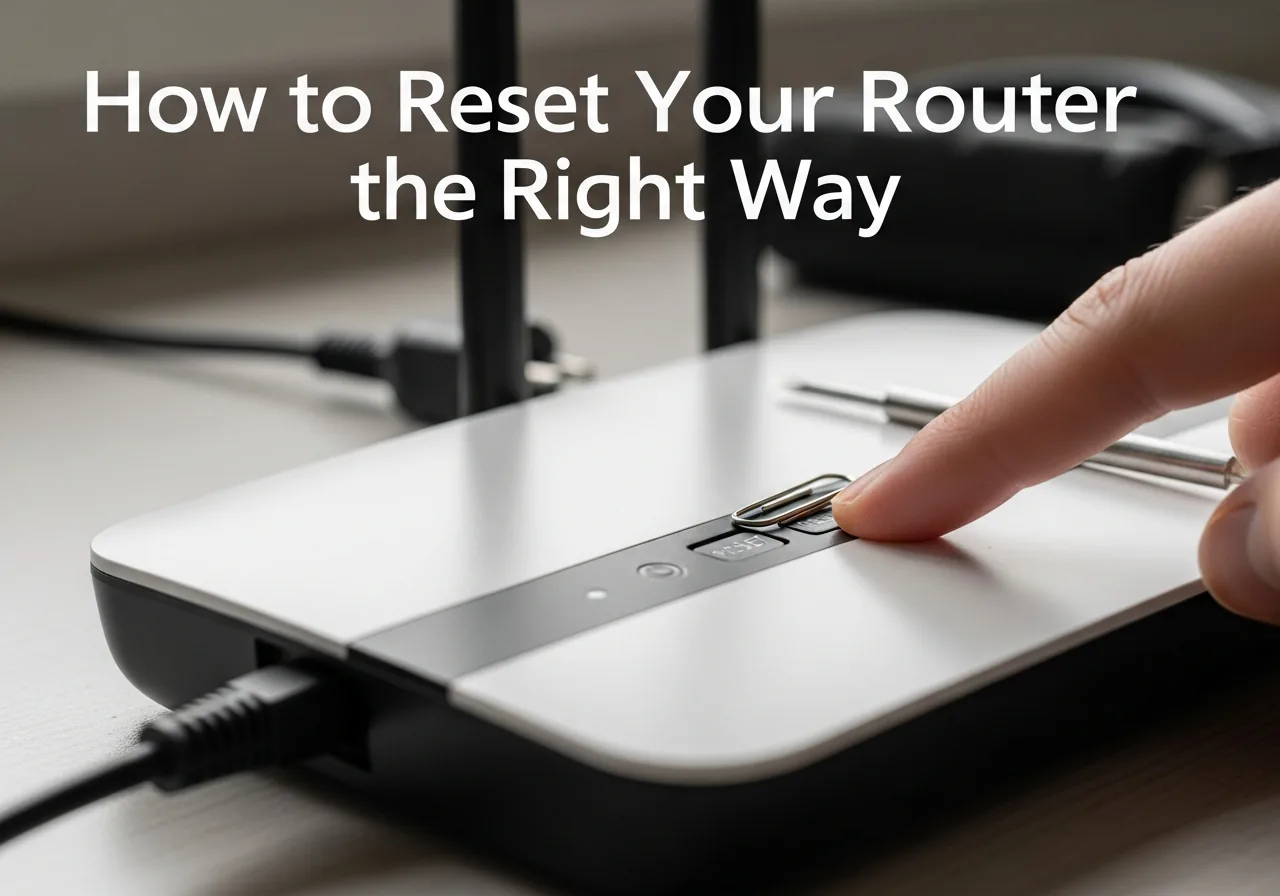
Almost all routers have a small recessed reset button, usually on the back or bottom. It's labelled "Reset" or "RST" and requires a pin, toothpick, or straightened paper clip to press — this prevents accidental resets.
-
Step 3: Hold the reset button for 10–15 seconds while powered on
With the router powered on, press and hold the reset button for 10–15 full seconds until the router's lights flash or change pattern — this indicates the reset has been triggered. Release the button. The router will restart and return to factory defaults. Wait two minutes for the full boot process.
-
Step 4: Reconnect and reconfigure
After a factory reset, connect to the router using the default Wi-Fi name and password printed on the router's label. Access the admin panel at 192.168.1.1 and run the setup wizard. Re-enter your custom Wi-Fi name and password, your ISP credentials if required, and rebuild any custom rules you had previously. Update the router's firmware immediately as part of the reconfiguration process.

Prevention Tips
- Restart your router once a week to prevent memory buildup — some routers support scheduled restarts in their admin panel; enable this to automate weekly reboots.
- Keep router firmware updated — log into the admin panel monthly and check for firmware updates, which fix bugs, improve stability, and patch security vulnerabilities.
- Place your router in a central, elevated location away from thick walls, microwaves, and baby monitors — proper placement reduces the connectivity problems that make people think a reset is needed.
- Record your router settings in a secure location so that if you ever need to factory reset, reconfiguration takes minutes rather than hours.
Frequently Asked Questions
How often should I restart my router?
Once a week is a good baseline for consumer routers. If you notice your internet getting slower, devices struggling to connect, or streaming quality degrading over the course of a week, a restart almost always fixes it — which suggests your router needs weekly maintenance. Some routers let you schedule automatic restarts; check your admin panel's administration or maintenance section. ISP-provided routers in particular often benefit from weekly restarts as they can accumulate memory-related slowdowns quickly.
Will a factory reset fix my router if it's been hacked?
Yes — a factory reset wipes all configuration including any settings an attacker may have changed (such as DNS hijacking or port forwarding rules they added). After a factory reset, immediately update the firmware to the latest version, set a strong unique admin password (not the default), and change your Wi-Fi password. If you had DNS settings changed, factory reset is the most reliable way to ensure they're completely cleared, as malicious DNS changes can sometimes persist in configuration files that a restart alone wouldn't clear.
My router won't let me log into the admin panel — what do I do?
If you can't access the admin panel at the default gateway address (usually 192.168.1.1 or 192.168.0.1 — check the label on your router for the exact address), try connecting via an Ethernet cable rather than Wi-Fi. Also try different browsers and confirm your device is connected to that router's network. If the admin password has been changed and you don't know it, a factory reset using the physical reset button is your only option — this restores the original default admin credentials printed on the router's label.
How long does a router factory reset take?
The reset process itself — holding the button until the lights flash — takes about 15 seconds. The subsequent reboot takes 2–3 minutes for most consumer routers. Reconfiguration time depends on how complex your previous setup was: a simple home network with a custom Wi-Fi name and password takes 5–10 minutes. A network with multiple SSID bands, port forwarding, automatic IP reservations, and custom DNS takes 20–30 minutes. Always note your settings before resetting to make reconfiguration as quick as possible.
Can I factory reset my ISP-provided router?
Yes, with one important caveat. ISP-provided routers often require your ISP credentials (a PPPoE username and password, or authentication tied to your account) to connect to the internet after a factory reset. Your ISP's support line can provide these details, or they may be stored in a letter or email from your ISP. Some ISP routers connect automatically based on MAC address authentication — in this case, a factory reset won't require credentials and reconfiguration is just Wi-Fi name and password.
Related Articles & Categories
Continue learning about Wireless Routers & Modems in Power & Connectivity, or explore related repairs and learning guides below.