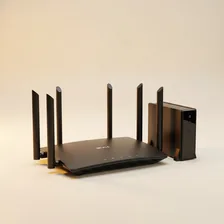
Wireless Routers & Modems

Wireless Routers & Modems

Complete repair, setup and maintenance guide for home routers and modems

Wireless routers and modems are the silent backbone of every connected home — handling phones, laptops, smart TVs, smart home devices, and everything else that needs internet access. When they fail or perform poorly, every connected device suffers. Slow Wi-Fi speeds, intermittent disconnections, dead zones in certain rooms, admin panel access problems, firmware update failures, and ISP connection drops are the issues router owners encounter most often. Most are fixable through router placement, channel optimisation, firmware updates, or settings adjustments rather than buying new hardware. This guide explains every common router and modem issue with practical, proven fixes.

Understanding Wireless Routers & Modems

Routers and modems form the foundation of every modern home network. The modem connects your home to your internet service provider, while the router distributes that internet across all your devices via Ethernet and Wi-Fi. Many ISPs supply combined modem-router gateway devices, which are convenient but typically lower-quality than buying separate modem and router units. For homes with significant connectivity needs (multiple users, smart home devices, gaming, streaming), separate components offer better performance and longer useful life.

Modern routers have advanced enormously. Wi-Fi 6 (802.11ax) routers handle dramatically more simultaneous connections than older Wi-Fi 5 hardware, with significantly better performance in busy networks. Wi-Fi 6E adds the 6 GHz band for less congestion. Wi-Fi 7 (802.11be) is now arriving in flagship routers, offering even higher speeds and lower latency. Most users without specific needs for the latest standards do well with mid-range Wi-Fi 6 routers, which deliver excellent performance for $100–$200.

Common Problems

1

Slow Wi-Fi Speeds Across All Devices

Slow speeds across all devices are typically caused by router placement in a poor location, congested wireless channels with neighbouring networks, or — for older routers — hardware that simply cannot deliver the speeds your internet plan provides.

2

Devices Dropping Connection Intermittently

Intermittent connection drops are most commonly caused by router overheating, interference from other 2.4 GHz devices like microwave ovens, or — for older routers — firmware bugs that have been addressed in updates the user has not applied.

3

Dead Zones in Certain Areas of the Home

Dead zones are usually caused by the router being placed in a corner of the house instead of centrally, walls or floors blocking signal between rooms, or the router's wireless transmission power being insufficient for the home's total area.

4

Router Admin Panel Not Accessible

Admin panel access failures are typically caused by the user trying to access the wrong default IP address, browser cache issues with router login pages, or the admin password having been changed and forgotten without being recorded.

5

Firmware Update Failing to Install

Firmware update failures are most commonly caused by power being interrupted during the update process, internet connection being lost during automatic updates, or — for some routers — the manual firmware file being corrupted during download.

6

ISP Internet Connection Dropping Regularly

ISP connection drops are typically caused by issues at the ISP rather than the modem itself, but can also be caused by aging cable connections at the wall, modem firmware needing updates from the ISP, or modem hardware reaching end of life.

Why Wireless Routers & Modems Fail

Routers and modems are among the most failure-prone consumer electronics because they run 24/7 in always-on operation, generate heat that degrades capacitors over time, and handle thousands of network operations per second. After 4–7 years of continuous operation, internal capacitors dry out, leading to symptoms like random reboots, slow speeds, dropped connections, and Wi-Fi disappearing intermittently. These failures are often misdiagnosed as ISP problems but are actually router hardware end-of-life.

Beyond aged hardware, common failures include power adapter failures (the external power brick is typically the first thing to die), Ethernet port damage from years of cable insertion and removal, antenna failures in routers with external antennas, and firmware corruption from interrupted updates or power outages. ISP-provided gateway units fail most often because they're built to lower quality standards than retail-purchased routers.

Repair & Fix Guides

Maintenance Tips

  • Restart the router every 1-2 months by unplugging for 60 seconds to clear connection issues
  • Update router firmware when manufacturer releases security and performance improvements
  • Position the router centrally and elevated for the best wireless coverage in all rooms
  • Change the default admin password to prevent unauthorised access to router settings
  • Keep the router in well-ventilated space — overheating causes most reliability issues

Repair, Replace & Buying Advice

Routers older than 5–6 years are usually worth replacing even if they appear to work — performance degrades in subtle ways that affect overall internet experience. Modems should be replaced when DOCSIS standards change (current standard is DOCSIS 3.1 for cable; DOCSIS 4.0 is rolling out for gigabit-plus speeds). For ISP-provided gateways, check what your ISP is renting you and whether buying your own would pay for itself in saved monthly rental fees within 1–2 years.

When buying new, the most important specifications are Wi-Fi standard (Wi-Fi 6 minimum, Wi-Fi 6E or 7 for future-proofing), maximum number of simultaneous devices (most quality routers handle 50+; check before buying for IoT-heavy homes), Ethernet port count and speed (gigabit minimum, 2.5 GbE for newer setups), processor power (matters for VPN and threat protection features), and management interface (avoid cloud-only management). Mesh systems are worth considering for homes larger than 1,500 square feet.

Long-Term Care & Best Practices

Routers and modems work harder than almost any other consumer electronic, running constantly twenty-four hours a day for years on end. The single most useful long-term habit is rebooting them on a monthly schedule, either manually or through a smart plug timer. Long uptime accumulates memory leaks, stuck connections, and DHCP-table bloat that gradually slow the network and cause the random disconnects usually blamed on the internet service provider. A monthly reboot costs nothing, takes two minutes, and resolves the vast majority of slow-network complaints in homes that haven't had a hardware change recently.

Placement and ventilation matter enormously and are usually wrong. Routers belong in central, elevated, open locations — not in cabinets, not behind televisions, not on the floor in a corner. Heat is the silent killer of consumer networking gear; a router stuffed into a tight space runs ten to fifteen degrees hotter than necessary and fails years sooner. Vacuum dust off the vents every six months, and confirm that nothing has been moved in front of or stacked on top of the router. If your router's ports run noticeably warmer than its main case, the network chip itself may be working harder than it should — usually a sign of an overloaded device or compromised firmware.

Firmware management is critical for both performance and security. Enable automatic updates if your router supports them, and check manually every couple of months otherwise. Older firmware versions accumulate known security vulnerabilities that botnets actively scan the internet for. Plan to replace consumer routers every five to seven years; the underlying Wi-Fi standards advance significantly over that period, and supported firmware updates dry up. Older routers often have a productive second life as a wired-only switch, a guest network access point, or a Wi-Fi access point for a detached garage or workshop. Recycle through certified e-waste channels.

Quick Tips

Restart the router monthly to clear most connection and speed issues instantly

Place the router centrally in the home — corner placement creates dead zones

Use 5 GHz Wi-Fi for fast nearby devices and 2.4 GHz for distance and smart home devices

Frequently Asked Questions

Should I rent a modem from my ISP or buy my own?

Buy your own if your ISP allows it. Cable internet providers in particular often charge $10–$15 per month for modem rental; a DOCSIS 3.1 modem you buy outright costs $100–$200 and pays for itself in 8–18 months. Verify your ISP's compatible modem list before purchasing. Some providers (especially fiber) require their own gateway — in that case you have no choice.

Why is my Wi-Fi slow even though my speed test from the modem is fast?

The bottleneck is your router or your wireless connection rather than your internet. Test by connecting a computer directly to the router via Ethernet — if speeds are full, the router itself is fine and your Wi-Fi is the issue. If wired speeds are also slow, the router or ISP is the issue. Wi-Fi can be limited by router capability, distance, interference, or the wireless adapter in your device.

How often should I restart my router?

Modern routers don't need scheduled restarts and shouldn't need them more than every few months. If you find yourself restarting weekly to restore connectivity, the router is failing — capacitor degradation causes exactly this pattern, typically appearing 4–6 years into the router's life. Replacement is the long-term fix.

What's the difference between 2.4 GHz and 5 GHz Wi-Fi?

2.4 GHz has longer range and penetrates walls better but supports lower speeds and is more congested (microwaves, baby monitors, older devices all use it). 5 GHz is faster and less congested but doesn't reach as far. Modern routers automatically present both bands and let devices choose; smart home devices typically connect to 2.4 GHz, phones and laptops to 5 GHz. Wi-Fi 6E adds a 6 GHz band that's faster still and very uncongested.

Should I get a separate router and access points or a mesh system?

Mesh systems are easier to set up and provide seamless roaming as you walk around the home. Separate routers and access points (typically using Ubiquiti UniFi or similar prosumer gear) offer more control, better performance, and longer hardware lifespan but require more technical knowledge. For most homes, mesh is the right choice. For technically inclined users with very large homes or specific requirements, separate components are better.

Step-by-Step Repair Tutorials

Hands-on tutorials covering the most common Wireless Routers & Modems repairs.

Recommended Learning Guides

Background knowledge from the Learning Center to help you understand and care for Wireless Routers & Modems.

Related Guides

Related Driver Guide

Network Driver Guide

Wi-Fi adapter not showing, ethernet not detected, or connection dropping? Our network driver guide walks you through every fix.

Read the Network Driver Guide