 NationRepair
Wi-Fi Bands Explained: 2.4GHz vs 5GHz vs 6GHz
Which band to use for which device, and why connecting to the wrong one makes your Wi-Fi feel slower than it really is. This guide explains the key concepts in plain language — no jargon, no marketing fluff, and no assumed prior knowledge. By the end you'll understand the underlying ideas well enough to make better decisions, troubleshoot common problems, and avoid the mistakes that cost most users time, money, or both. Everything below is written for everyday users who want to understand their devices a bit better, not for engineers or IT professionals.
Why This Topic Is Worth Understanding
Home networking sits in an uncomfortable middle ground: simple enough that most people expect it to "just work," but complicated enough that when something goes wrong, the troubleshooting can feel like guesswork. Understanding what's actually happening between your device and the internet makes most network problems straightforward to diagnose, and helps you avoid common mistakes when buying equipment or adjusting settings.
How It Actually Works
Your internet connection is actually a chain of hops: your device talks to your router, the router talks to your modem, the modem talks to your ISP's equipment, and from there your traffic crosses dozens of networks before reaching the server you're trying to access. Each hop adds latency (delay), and any one of them can be the cause of a slow connection. Wi-Fi adds an extra wireless step between your device and the router, which is by far the most common source of network problems in a home — interference, distance, walls, and channel congestion all reduce real-world wireless throughput far below what the box on your router promises.
The Key Concepts You Need to Know
- Bandwidth (the size of the pipe, measured in Mbps) and latency (how long a single packet takes, measured in milliseconds) are different things. Gaming and video calls care more about latency; streaming and downloads care more about bandwidth.
- Wi-Fi 5 (802.11ac), Wi-Fi 6 (802.11ax), and Wi-Fi 7 (802.11be) refer to the wireless standard your router and device support — both ends need to support a standard for it to be used.
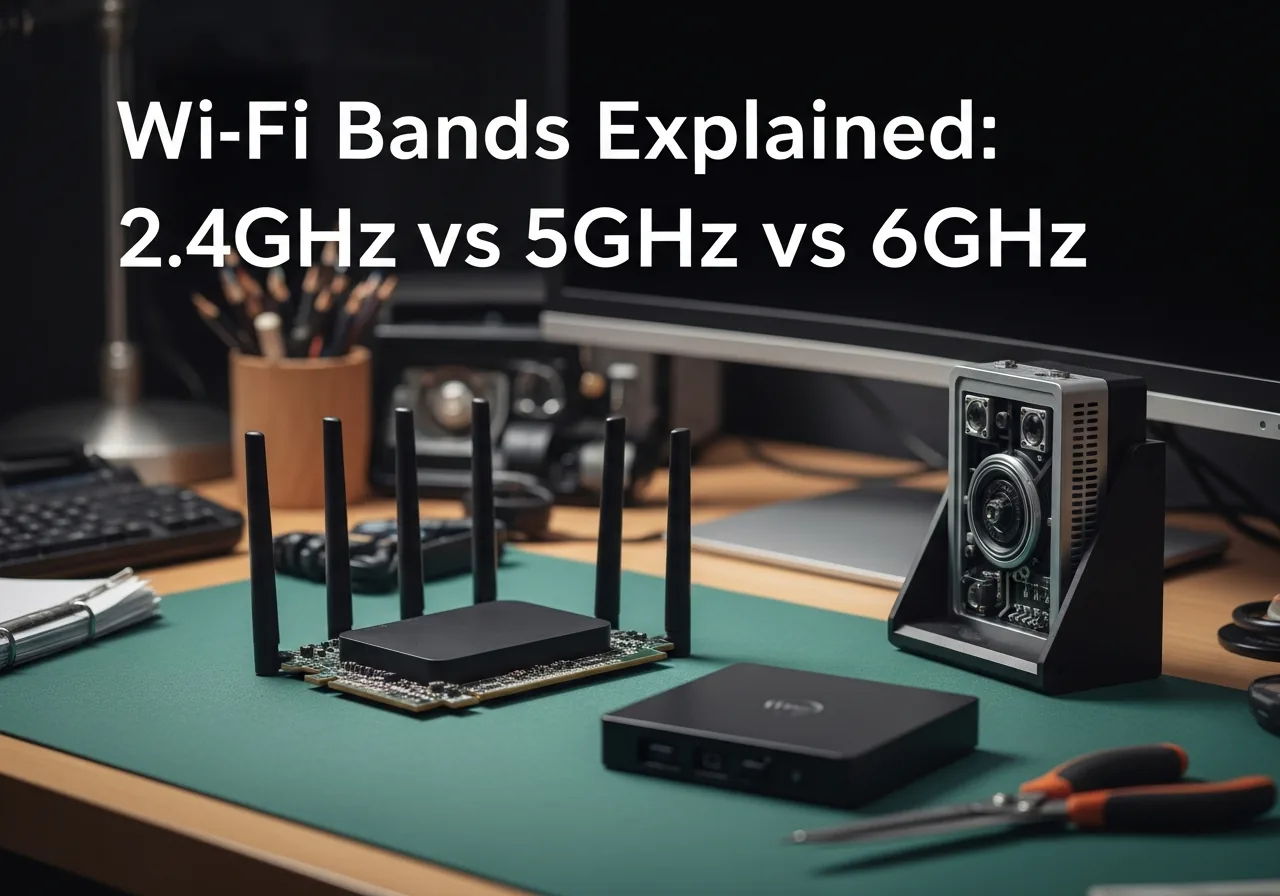
- The 2.4 GHz band travels further but is slower and more crowded; 5 GHz is faster but doesn't penetrate walls as well; 6 GHz (Wi-Fi 6E and 7) is even faster but with the shortest range.
- A wired Ethernet connection is almost always faster and more reliable than Wi-Fi, even on a high-end mesh system. Use cables wherever the device doesn't move.
- Most "slow internet" complaints turn out to be Wi-Fi problems, not actual ISP issues — testing with a wired connection straight to the modem is the fastest way to tell which.

Common Mistakes People Make
When the internet feels slow, most people blame their ISP first. In reality, it's almost always Wi-Fi: an old router, a poor channel choice, interference from neighbours, distance from the access point, or a device stuck on the wrong band. Plug a laptop directly into the modem with an Ethernet cable and run a speed test — if you get the speed you're paying for, the problem is Wi-Fi, not the connection. Another common mistake is buying a more powerful router and expecting it to fix coverage problems. A single more powerful router rarely improves coverage as much as a properly placed mesh system or a dedicated access point in a problem area.

Practical Tips You Can Apply Today
- Run a speed test (fast.com or speedtest.net) over Wi-Fi and again with an Ethernet cable plugged directly into the modem. The difference tells you whether the problem is your ISP or your wireless setup.
- Reboot your router every few months. Routers run hot, accumulate memory issues, and benefit from a fresh start more than most people realise.
- If your router is more than five years old, it likely doesn't support Wi-Fi 6 or modern security standards — replacing it usually produces a bigger improvement than upgrading your internet plan.
- Place the router in an open, central location, ideally elevated, and away from large metal objects, fish tanks, and microwaves.
- Use the 5 GHz or 6 GHz band for devices in the same room as the router (faster); use 2.4 GHz only for devices far away or in another room (better range).
- For gaming, video calls, or any latency-sensitive task, plug the device into Ethernet if at all possible. The reliability difference compared to Wi-Fi is dramatic.
Frequently Asked Questions
Why is my Wi-Fi slow even though my plan is fast?
In almost all cases, the bottleneck is Wi-Fi itself, not your internet connection. Test by plugging directly into the modem with an Ethernet cable and running a speed test — if you get the speed you're paying for, the issue is wireless. Common causes include an old router, channel congestion, distance, walls, and being connected to the wrong band.
Do I need a separate router and modem?
You need both functions, but they can be combined into one device or kept separate. Many ISPs supply combined modem-routers; you can usually replace the router function with a better one (running the ISP unit in "bridge mode") if your needs are more demanding. Separate units are more flexible to upgrade and replace independently.
Should I use 2.4 GHz or 5 GHz Wi-Fi?
5 GHz where possible — it's faster and less crowded. 2.4 GHz only for older devices that don't support 5 GHz, or for devices far enough from the router that the better range of 2.4 GHz wins out over the higher speed of 5 GHz.
Is mesh Wi-Fi worth it?
For larger homes (over about 150 m²) or homes with thick walls, yes — properly placed mesh nodes give consistent coverage that a single router can't match no matter how powerful. For smaller spaces, a single quality router is usually enough.
Related Articles & Categories
Apply this knowledge to your Wireless Routers & Modems and Wi-Fi Mesh Systems, or explore the related tutorials and guides below.