 NationRepair
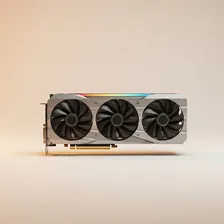
Graphics cards (GPUs) are specialised processors designed to render 3D graphics, accelerate video encoding, and increasingly to run AI workloads. The two dominant brands are NVIDIA and AMD, with Intel as a growing third option. Modern consumer GPUs range from $200 entry-level cards capable of 1080p gaming to $2,000+ flagship cards designed for 4K gaming, professional 3D rendering, and large language model inference. Beyond gaming, GPUs are now critical for video editing (export speeds depend heavily on GPU encoding), 3D modelling, and any AI workload running locally.
A graphics card is essentially a computer-within-a-computer — its own processor (the GPU), its own memory (VRAM), its own power delivery, and its own cooling solution mounted on a PCIe expansion card that plugs into a desktop motherboard. Power consumption ranges from 75 watts (small cards that draw all power from the slot) to 450+ watts (high-end cards that need multiple dedicated power connectors). This power and thermal output is why graphics cards are physically the largest single component in most modern desktops.