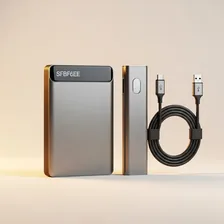
External Hard Drives & SSDs

External Hard Drives & SSDs

Complete repair, recovery and maintenance guide for external storage

External hard drives and SSDs hold the photos, videos, documents, and backups that matter most — making their reliability genuinely critical. Whether you use a portable USB drive for travel or a large desktop drive for media storage, these devices face wear from being plugged and unplugged, jolted, dropped, and run for long periods. Drives not being recognised, slow transfer speeds, clicking noises, file system errors, and dropped connections are the most common complaints. Many are fixable with software tools or simple cable swaps, but some warn of failing hardware that demands immediate backup. This guide covers what to do for every external storage symptom.

Understanding External Hard Drives & SSDs

External storage covers two distinct technologies: traditional spinning hard drives (HDDs) that use magnetic platters and read/write heads, and solid-state drives (SSDs) that use flash memory chips with no moving parts. Both serve the same role — extending storage beyond what a laptop or desktop offers internally — but with very different characteristics. HDDs offer enormous capacity at low cost ($30 per terabyte) but are slow, noisy, fragile when running, and use more power. SSDs are 5–20 times faster, silent, shock-resistant, and use less power, but cost 4–6 times more per terabyte.

External drives serve three primary purposes: backup of important files, expansion of storage for media libraries (photos, videos, games), and portable transport of large files between computers. The right choice depends on the use case: backups can use cheap large HDDs since speed doesn't matter, working scratch space for video editing demands fast SSDs, and portable use favours rugged SSDs that can survive being dropped in a backpack.

Common Problems

1

Drive Not Recognised When Plugged In

A drive that is not detected by the computer is most commonly caused by a faulty USB cable, an unpowered USB hub being used between the drive and computer, or — for desktop external drives — a failed external power adapter. Direct connection to a rear USB port resolves most detection issues.

2

Slow Data Transfer Speeds on USB

Slow transfer speeds typically indicate the drive is connected to a slower USB port than it supports, the cable does not match the drive's USB version, or the file system has fragmented to the point where read/write performance is compromised on mechanical drives.

3

Clicking or Grinding Noise from Drive

Mechanical clicking or grinding from a hard drive is a serious sign of imminent failure — typically caused by a damaged read/write head or failing motor bearings. Backing up data immediately is critical, as drives showing these symptoms can fail completely within hours or days.

4

File System Error Preventing Access

File system errors that prevent access to drive contents are usually caused by improper drive removal during writing, sudden power loss, or file system corruption from age. Built-in disk repair tools can often recover access without data loss when run promptly.

5

Drive Disconnecting During File Transfer

Disconnections during transfers are typically caused by insufficient power being supplied through the USB port, a cable that has become damaged or is too long, or USB selective suspend power saving in Windows interrupting active transfers.

6

Drive Becoming Very Hot During Use

External drives running hot during sustained use are experiencing thermal stress that accelerates wear and increases failure risk over time. Poor enclosure ventilation, hot ambient temperatures, and continuous heavy use without breaks all contribute to drive overheating.

Why External Hard Drives & SSDs Fail

External hard drives fail in distinctly different ways from SSDs. HDDs have moving parts — spinning platters and floating read/write heads — that wear out mechanically. The classic HDD failure mode is the 'click of death' (heads parking and unparking repeatedly because they can't read), often preceded by SMART warnings if the user is monitoring them. Drops while running are catastrophic for HDDs; even minor impacts can cause head crashes. After 5–7 years, even healthy HDDs become statistically risky for sole storage of important data.

SSDs fail much less often but more suddenly. Flash memory has a finite number of write cycles per cell — modern consumer SSDs are rated for 150–600 terabytes written, which is far more than most users will ever reach in a decade. The more common SSD failures are controller chip faults (the drive becomes invisible to the computer overnight) and connector damage (especially on USB-C external SSDs where the connector is flush with the case). Both technologies suffer from cable problems — bad USB cables cause data corruption that looks like drive failure but isn't.

Repair & Fix Guides

Maintenance Tips

  • Always safely eject external drives before unplugging to prevent file system corruption
  • Keep drives away from magnets, speakers, and other devices that emit electromagnetic interference
  • Avoid bumping or dropping drives during use — mechanical drives are particularly fragile
  • Use SMART monitoring software to catch early warning signs of drive failure
  • Keep multiple backups of important data — single drives can fail without warning

Repair, Replace & Buying Advice

A working external drive that's less than 3 years old is genuinely fine to keep using for non-critical data. For irreplaceable files (family photos, work documents), don't trust any single drive regardless of age — use the 3-2-1 rule: three copies, on two different media types, with one off-site. Drives older than 5 years should be migrated to fresh storage even if they appear healthy.

When buying new, the choice between HDD and SSD comes down to use case. For backup and archival storage, large HDDs (4–18 TB) are the obvious value. For portable working storage, SSDs justify their premium with speed and shock resistance. For system backups, an external SSD makes restore operations dramatically faster. USB 3.2 Gen 2 (10 Gbps) or Thunderbolt connectivity is worth seeking out for SSD-class drives — a slow USB connection wastes the SSD's speed.

Long-Term Care & Best Practices

External storage devices live or die by how they're handled and how they're connected. The single most important habit is using the operating system's eject or safely-remove function before unplugging — pulling a drive out while data is being written corrupts the file system and is the single most common cause of supposedly random drive failures. Keep portable drives in a soft pouch when transporting them, especially traditional spinning hard drives, which are extremely sensitive to drops and vibration while running. SSDs are far more shock-resistant but still benefit from being kept away from extreme heat, moisture, and static electricity.

Backups are a maintenance habit, not a one-time event. The widely accepted 3-2-1 rule — three copies of important data, on two different media, with one copy stored off-site or in the cloud — protects against every common failure mode. External drives should never be the only copy of irreplaceable photos or documents, because they can fail without warning, get lost, or be stolen. Run a verification scan every six months using your operating system's built-in disk-check tool, and replace any drive that begins reporting SMART errors or running unusually warm. A failing drive often gives weeks of warning if you know to look.

External drives have practical lifespans of about five to ten years for SSDs and three to seven years for traditional spinning hard drives, after which the risk of failure climbs steeply enough that they shouldn't be trusted with critical data. Repurpose ageing drives for non-critical storage like media archives, system images you can recreate, or temporary working space. Wipe drives securely before disposing of them — for SSDs, use the manufacturer's secure-erase utility; for spinning drives, multiple-pass overwrites are the safest software approach. Recycle through certified e-waste channels and never throw a drive in regular household waste.

Quick Tips

Back up immediately if you hear clicking — drives making noise can fail within hours

Use the rear USB ports on a desktop for the most stable drive connections

Always safely eject — pulling the cable mid-write causes most file system corruption

Frequently Asked Questions

How long does an external hard drive typically last?

Mechanical HDDs typically last 3–5 years of regular use, sometimes 7–10 years with light intermittent use. SSDs last 5–10 years for most users — the write endurance limits matter only for users doing very heavy daily writes (video editors, database servers). For irreplaceable data, plan for failure regardless of age and keep at least two copies on different drives.

Why does my external drive show less storage than advertised?

Manufacturers count storage in decimal terabytes (1 TB = 1,000,000,000,000 bytes) while operating systems count in binary (1 TiB = 1,099,511,627,776 bytes). A '1 TB' drive shows about 931 GB in Windows. This is correct, not a defect. Plus the drive's file system reserves a small amount for indexing, typically 1–3% of capacity.

Is it safe to unplug an external drive without ejecting first?

Modern operating systems with quick removal enabled are usually safe, but it's still good practice to eject first. The risk is that data still in the write cache hasn't been physically written to the drive yet. Ejecting forces a flush. Without it, you risk file corruption — particularly for documents you just saved.

Why is my external drive slower than the manufacturer claims?

USB and cable speed limits are the most common bottleneck. A USB 3.2 Gen 2 drive (10 Gbps) connected to a USB 3.0 port (5 Gbps) runs at half speed. Old or cheap USB cables also limit speeds even when the ports support faster transfer. For maximum speed, use the cable that came with the drive and verify your computer's port supports the drive's speed standard.

Should I get HDD or SSD for backup?

For backup, HDDs are usually the better value — backups don't need speed, they need capacity, and a 4 TB HDD costs $80 versus $200 for the equivalent SSD. The exception is if you need to restore quickly from the backup (replacing a system drive, recovering from disaster) — then SSD restore time can be minutes versus hours. For most users, HDD backup is fine.

Step-by-Step Repair Tutorials

Hands-on tutorials covering the most common External Hard Drives & SSDs repairs.

Recommended Learning Guides

Background knowledge from the Learning Center to help you understand and care for External Hard Drives & SSDs.

Related Guides

Related Driver Guide

Storage Driver Guide

Drive not detected, SSD running slowly, or controller showing an error? Our storage driver guide covers each scenario step by step.

Read the Storage Driver Guide