 NationRepair
Cloud vs Local Storage: Pros and Cons
What each option actually costs, what happens when a service shuts down, and how to build a reliable backup strategy. This guide explains the key concepts in plain language — no jargon, no marketing fluff, and no assumed prior knowledge. By the end you'll understand the underlying ideas well enough to make better decisions, troubleshoot common problems, and avoid the mistakes that cost most users time, money, or both. Everything below is written for everyday users who want to understand their devices a bit better, not for engineers or IT professionals.
Why This Topic Is Worth Understanding
Where you store your files determines who can reach them, what happens when something goes wrong, and how much you'll spend over time. The trade-offs between cloud and local storage are real, and the right answer depends on the type of file, how irreplaceable it is, and how you use it day to day. Most people end up with a mix of both — but they often arrive there by accident rather than by design, which leads to gaps where important files have no real backup at all. A small amount of upfront thought saves a lot of grief later.
How It Actually Works
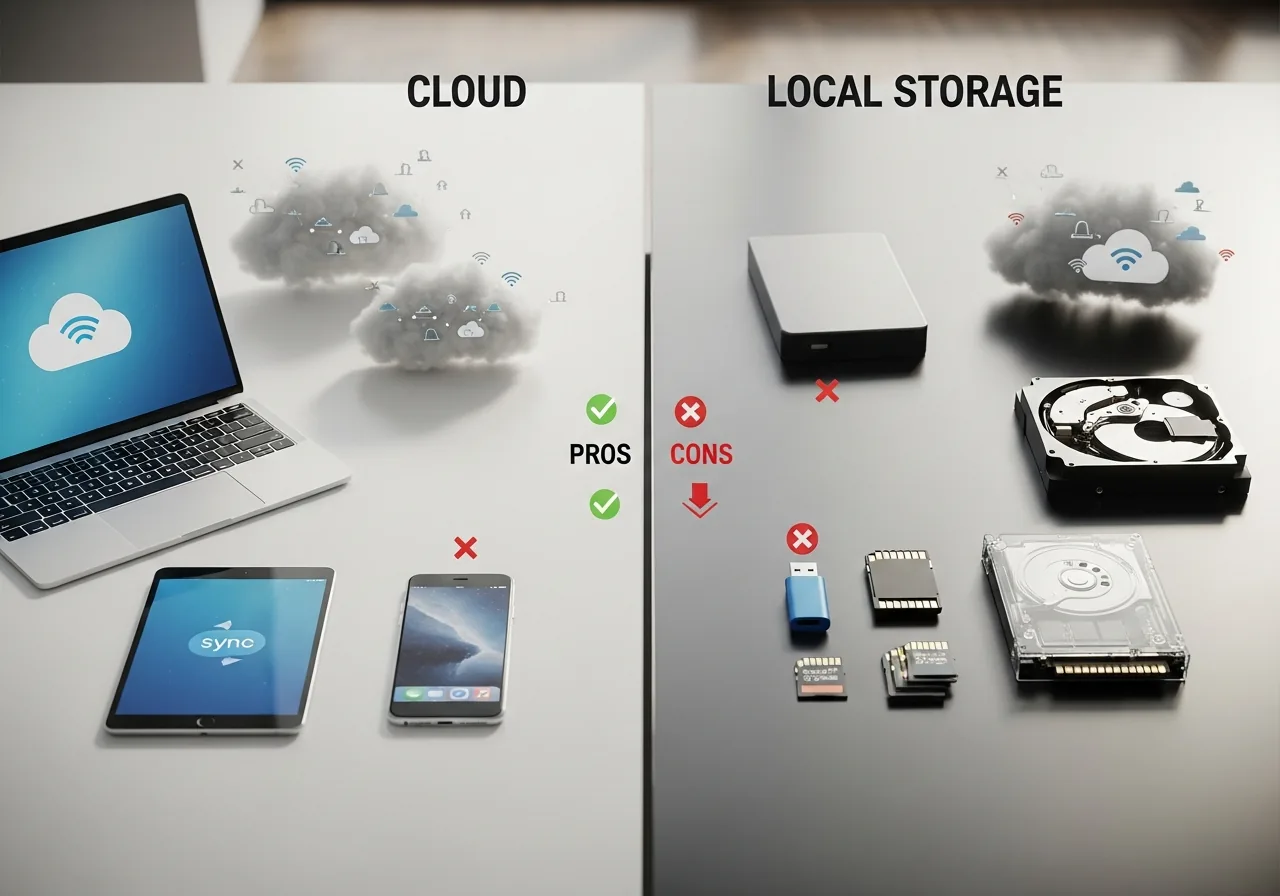
Local storage means your files live on a drive physically inside or attached to your device — an internal SSD or HDD, an external USB drive, or a network-attached storage (NAS) box on your home network. Cloud storage means your files live on servers run by a provider (Google, Apple, Microsoft, Dropbox, Backblaze) and are synced or downloaded over the internet whenever you need them. Most people use both: some files only ever live locally, others sync across devices via the cloud, and a third category lives only in the cloud and is downloaded on demand. The right balance depends on what each file is for and how much you'd lose if it disappeared.
The Key Concepts You Need to Know
- Cloud storage is usually billed monthly per gigabyte; local storage is a one-time purchase. Over a 5-year horizon, local typically wins on cost-per-gigabyte by a wide margin — but only if the drives don't fail.
- Cloud storage gives you off-site redundancy automatically. A house fire, theft, or ransomware attack that destroys your local copies leaves your cloud copies intact. This is the single biggest advantage of cloud over local.
- Local storage gives you faster access (no internet bottleneck), works offline, and keeps your data private from third-party servers. For large media libraries, video editing, or anything latency-sensitive, local is dramatically better day-to-day.
- Most cloud services are sync, not backup. If you delete a file from your device, the deletion replicates to the cloud copy too. Many providers offer version history that retrieves recent past versions, but it's not the same as a true offline backup.
- Cloud providers can shut down, change pricing, or lock you out of your account. Plans change, companies get acquired, free tiers shrink. Anything you can't easily export to another provider is a long-term lock-in risk.
Common Mistakes People Make
The biggest mistake is treating cloud sync as backup. Services like iCloud, Google Drive, OneDrive, and Dropbox replicate changes — including accidental deletions and ransomware encryption — across all your devices and the cloud copy. If you delete a folder by mistake, the deletion syncs everywhere within seconds. Most providers offer a window of recovery (30 days for deleted items, file version history for some plans), but the protection is much weaker than a real backup. The second common mistake is keeping your only copy of important data in a single cloud service: providers do shut down, accounts get locked, plans change. The third is the opposite — keeping everything local with no off-site copy, which leaves you exposed to fire, theft, and ransomware. Each of these is preventable by combining cloud storage for convenience with periodic backups to media that's not always connected to your device.
Practical Tips You Can Apply Today
- Use cloud storage for files you need to access from multiple devices, share with other people, or want automatic off-site protection for. Documents, contacts, calendars, and important photos are good candidates.
- Use local storage for large media libraries, video projects, game installs, virtual machines, and anything where speed and offline access matter more than redundancy.
- For irreplaceable data (family photos, important documents), use both: a local copy on your device, a synced cloud copy at a major provider, and ideally a separate backup to an external drive that isn't always plugged in.
- Periodically download a copy of your most important cloud-stored files to a local backup. If you ever lose access to your account, this local archive is your only fallback.
- Read the terms carefully on free tiers — many cloud services delete inactive accounts after 12-24 months, and "unlimited" plans almost always come with hidden throttling.
- If you depend on cloud sync, treat your cloud account credentials as the most important thing to protect: strong unique password, 2FA enabled, and recovery options up to date.
Frequently Asked Questions
Is cloud storage actually safe?
For most users, reputable cloud providers offer better security than they could achieve at home — encrypted data centres, regular security audits, redundant copies across regions. The main risks are losing access to your account (use 2FA, keep recovery options current) and the provider going out of business or making major policy changes. The bigger risk than the cloud being hacked is your account being compromised because of a weak password.
How much cloud storage do I actually need?
For most people, 200 GB to 2 TB covers everything they care about syncing — documents, photos, contacts, and a small media library. Large media collections, raw photo libraries, or video projects usually live better on local storage with selective cloud backup of the most important files. Pay for what you actually use; bigger plans rarely justify their cost for typical home use.
Can I just use cloud storage as my only backup?
Not by itself. Most cloud services replicate deletions, ransomware encryption, and corrupted file overwrites just like any other change. A genuine backup strategy combines synced cloud storage (for convenience) with separate, versioned backups that can't be silently overwritten — either through services like Backblaze that explicitly do backup, or through periodic local copies to an external drive.
What happens to my cloud files if a service shuts down?
Reputable providers usually give months of notice and offer export tools, but smaller services have closed with little warning before. The mitigation is straightforward: never put your only copy of important data in a single cloud service. Either keep local copies of anything irreplaceable, or use two independent cloud providers for the highest-value data.
Related Articles & Categories
Apply this knowledge to your External Hard Drives & SSDs, or explore the related tutorials and guides below.