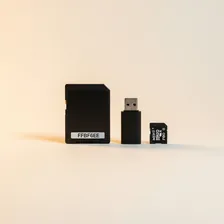
Card Readers & Flash Drives

Card Readers & Flash Drives

Complete repair and data recovery guide for card readers and flash drives

Card readers and flash drives bridge the gap between cameras, phones, computers, and external storage — making them genuinely essential for photographers, videographers, and anyone moving files between devices. Their compact design and frequent plug-and-unplug use means they take more wear than larger storage devices. Drive recognition failures, file transfer corruption, slow read and write speeds, capacity reporting errors, write protection issues, and file corruption or disappearance are the most common complaints. Many of these issues are fixable through reformatting, careful handling, or reader replacement before considering data recovery. This guide covers every common issue with clear, practical fixes.

Understanding Card Readers & Flash Drives

Card readers and USB flash drives provide portable file storage and the only practical way to access data on memory cards from cameras, drones, action cameras, and other devices. The categories overlap somewhat — a USB-C flash drive with a fold-out connector can serve as both a thumb drive and a card reader, while dedicated multi-card readers handle SD, microSD, CompactFlash, XQD, and CFexpress cards from cameras. The right choice depends entirely on what cards you need to read and what computers you connect to.

Modern flash drives have improved dramatically. USB 3.2 Gen 2 drives reach 1,000+ MB/s read speeds — fast enough to make backup and large file transfers genuinely quick. The form factor has shrunk while capacity has grown — 1 TB USB-C flash drives are now common at $80–$150, providing substantial portable storage in something the size of a car key. Card readers have evolved similarly, with high-end CFexpress readers transferring photo and video files from professional cameras at speeds that previously required dedicated SAS controllers.

Common Problems

1

Drive Not Recognised When Plugged Into Computer

Drive recognition failures are typically caused by USB port power issues, the drive having developed corruption that prevents the file system from being read, or — for very small drives — the connector becoming worn from frequent plug-and-unplug cycles.

2

Files Not Transferring or Transferring Corrupted

File transfer corruption is most commonly caused by the drive being removed during writing without proper ejection, USB power fluctuations interrupting the transfer, or — for cheaper drives — internal flash memory cells reaching end of life and failing.

3

Read and Write Speeds Much Slower Than Expected

Slow speeds compared to advertised ratings are typically caused by the drive being plugged into a slower USB port than it supports, the file system being heavily fragmented, or — for cheaper drives — sustained write speeds being significantly lower than burst speeds.

4

Drive Showing Incorrect or Zero Capacity

Incorrect capacity reporting is most commonly caused by file system corruption, the drive being a counterfeit product with falsely advertised capacity, or — for genuine drives — partition issues that disk management tools can resolve through reformatting.

5

Write Protection Error Preventing File Changes

Write protection errors are typically caused by physical write-protect switches on SD cards being engaged, file system corruption setting read-only attributes, or — for some drives — security features that have been activated and need to be disabled in the drive software.

6

Files Appearing Corrupted or Disappeared

File corruption and disappearance are usually caused by the drive being removed during writing, file system damage from improper ejection over time, or — most concerning — flash memory cell failures that indicate the drive is approaching end of life.

Why Card Readers & Flash Drives Fail

Flash drives and SD cards have a finite number of write cycles per memory cell — typically 1,000–10,000 cycles for consumer-grade flash, more for professional cards. For everyday use (occasionally moving files), this limit is essentially never reached. For applications that constantly write data (running an OS from flash, continuous logging), wear is real and drives should be considered consumable. Counterfeit cards and drives — common from suspicious online sellers — often fail within months because they use rejected memory chips that real manufacturers wouldn't sell.

Beyond memory wear, the most common failures are USB connector damage from physical stress, controller chip failures (the drive becomes invisible to the computer overnight), and card slot wear in card readers. Card readers used heavily in professional photo/video workflows may fail after 1–2 years of intensive use; consumer-grade readers used occasionally last a decade or more.

Repair & Fix Guides

Maintenance Tips

  • Always safely eject flash drives before unplugging to prevent file system corruption
  • Buy from reputable brands — counterfeit drives are common and fail catastrophically
  • Avoid storing important files only on flash drives — they fail without warning
  • Keep flash drives away from extreme heat which damages flash memory cells
  • Format drives every few months to maintain file system integrity for frequent users

Repair, Replace & Buying Advice

Working flash drives and card readers should be kept until they fail — there's rarely a compelling upgrade reason short of needing more capacity, faster speeds, or new card format support (CFexpress, SD Express). Always replace older USB 2.0 drives with at least USB 3.0; the speed difference is dramatic and the cost difference is small.

When buying new, the most important specifications are capacity (256 GB minimum for current uses), speed rating (USB 3.2 Gen 1 minimum, Gen 2 for serious photo/video work), connector type (USB-C is increasingly necessary; dual USB-A and USB-C drives offer compatibility), card format support (for card readers — verify it handles all the cards you actually use), and brand reputation. Avoid no-name drives from suspicious sellers — counterfeit storage with fake capacity is common.

Long-Term Care & Best Practices

Card readers and flash drives are tiny, easy-to-lose devices that quietly carry important data, and the single most useful habit is treating them with more care than their physical size suggests they deserve. Always use the operating system's eject or safely-remove function before unplugging — pulling a drive out during a write operation corrupts the file system and is the single most common cause of supposedly random data loss. Keep flash drives in a small zippered pouch or on a keychain rather than loose in pockets and bags, where they accumulate lint in the connector that prevents reliable contact. A wooden toothpick (never metal) clears most lint problems in seconds.

Backups and data hygiene determine how much it actually matters when a flash drive eventually fails — and they all eventually fail. Treat any individual flash drive as a temporary transport medium rather than long-term storage, and keep critical files on at least two other devices or in cloud storage as a baseline. Run a verification scan every few months on any drive you carry regularly, and replace any drive that begins showing read errors, unusually slow transfer speeds, or corrupted files even on healthy computers. Quality flash drives last for thousands of write cycles in normal use, but counterfeit drives sold cheaply online often fail within months and may even falsely report large capacities they don't actually have.

Card readers benefit from clean contacts and stable physical design. The pins inside SD and CF card slots can accumulate dust or get bent by careless insertion, and the symptom is usually intermittent recognition of cards that work fine in other readers. A blast of compressed air clears most dust issues, but bent pins generally require replacing the reader. When upgrading, choose readers that match the speeds of the cards you actually use — a UHS-II or CFexpress reader unlocks transfer speeds that older USB 2.0 readers can't deliver. Recycle older readers and dead flash drives through certified e-waste channels rather than household waste, even though the devices themselves are tiny.

Quick Tips

Always safely eject — pulling the drive mid-write causes most corruption issues

Buy from reputable brands — counterfeit flash drives lie about capacity and fail

Test new drives with verification software before storing important files on them

Frequently Asked Questions

Why is my flash drive slower than advertised?

Several reasons: USB port limits (a USB 3.0 drive in a USB 2.0 port runs at one-quarter speed), the file size and quantity (small files transfer slower than large ones due to overhead), the source drive's read speed (transferring from a slow source to a fast drive is bottlenecked by the source), and write vs. read speed (write is typically slower than read on most drives). Verify all components in the chain support the speed you're expecting.

How long can I trust a flash drive to keep my files safe?

Flash storage is not archival — data on unpowered flash can degrade after 1–10 years depending on conditions, especially heat and the quality of the memory cells. For long-term archives, copy files between multiple drives every few years and verify with checksums. Critical files should also exist on at least one other type of storage (mechanical hard drive, optical disc, cloud) for true safety.

Why does my computer say my flash drive needs to be formatted?

Almost always file system corruption from ejecting the drive without 'safely removing' it first. Sometimes recoverable with data recovery software (TestDisk, Recuva), often not. Occasionally the controller chip has failed, in which case the drive is unrecoverable without professional service costing far more than the drive is worth. Replace and improve your eject habits.

Are SD cards or flash drives more reliable?

Quality SD cards from established brands (SanDisk, Samsung, Lexar) are generally more reliable than flash drives because cameras and devices write to them in patterns optimised for flash longevity. USB flash drives are often used more abusively (constantly inserted/removed, dropped, sat on). Both technologies have similar underlying chip reliability — the difference is mostly about how they're used.

How do I tell if a flash drive or memory card is counterfeit?

Counterfeit storage often has correct labelling but actual capacity far below claimed. Tools like H2testw or F3 (Linux/Mac) write data across the entire claimed capacity and verify it reads back correctly. If a 256GB drive can only successfully store 8GB before showing errors, it's counterfeit. Always buy storage from reputable retailers — no-name brands from suspicious online sellers have very high counterfeit rates.

Step-by-Step Repair Tutorials

Hands-on tutorials covering the most common Card Readers & Flash Drives repairs.

Recommended Learning Guides

Background knowledge from the Learning Center to help you understand and care for Card Readers & Flash Drives.

Related Guides