USB Hubs & Docking Stations

USB Hubs & Docking Stations

Complete repair and maintenance guide for USB hubs and docking stations

USB hubs and docking stations expand a single laptop port into a complete workstation — connecting monitors, keyboards, drives, charging cables, and network connections through one cable. They have become essential for hybrid working, but the convenience comes with reliability challenges as more devices share a single connection. Devices not being recognised, monitors not displaying properly, charging failures, hub overheating, intermittent port disconnections, and driver conflicts are the most common complaints. Most issues stem from insufficient power delivery or cable problems rather than failed hubs. This guide explains every common docking issue and the practical fix that resolves it.

Understanding USB Hubs & Docking Stations

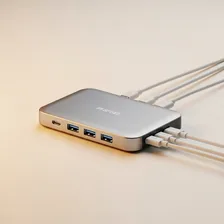
USB hubs and docking stations expand the limited port count on modern laptops, especially ultrabooks and Chromebooks that often ship with just one or two USB-C ports. A simple USB hub adds two to four extra USB-A ports for mice, keyboards, and storage. A docking station goes further — adding HDMI/DisplayPort outputs for external monitors, Ethernet for wired networking, SD card readers, audio jacks, and power delivery to charge the connected laptop, all through a single cable.

The category has grown important because the trend toward thinner laptops removed many ports while users still need to connect monitors, drives, peripherals, and chargers simultaneously. A good docking station turns a one-cable laptop disconnect into a one-cable workspace — close the laptop in the morning, walk to a meeting, return and reconnect the dock with a single USB-C cable to instantly resume the full multi-monitor setup. This is genuinely transformative for hybrid work.

Common Problems

1

Connected Devices Not Being Recognised

Devices failing to be recognised through a hub are typically caused by the hub exceeding its power budget when too many devices are connected at once, a damaged USB cable between hub and computer, or driver conflicts that require a reset to resolve.

2

Monitor Not Displaying Through Dock

Monitor display failures through a docking station are usually caused by the monitor cable being damaged, the monitor being on the wrong input source, or — most commonly — the dock not supporting the monitor's required resolution and refresh rate combination.

3

Charging Not Working Through Docking Station

Charging failures through a dock are typically caused by the laptop requiring more wattage than the dock can deliver, a damaged USB-C or Thunderbolt cable, or a dock that has overheated and reduced its power output for self-protection.

4

Hub Overheating During Extended Use

Hub overheating happens when many active devices draw significant power simultaneously, when the hub is placed in poor ventilation, or when the hub itself has a power supply running near its maximum output continuously.

5

Ports Dropping Connection Intermittently

Intermittent connection drops on individual hub ports are usually caused by loose cable connections, devices drawing more power than the port can supply, or USB selective suspend power saving in Windows interrupting connections.

6

Driver Conflicts Causing System Instability

Driver conflicts from a docking station typically appear as system freezes, blue screens, or device disconnections that did not occur before the dock was installed. Updating dock firmware and reinstalling drivers from the manufacturer resolves most conflicts.

Why USB Hubs & Docking Stations Fail

The most common failure mode for hubs and docks is the connector itself — a USB-C plug that gets repeatedly inserted at slight angles eventually loosens, causing intermittent connection drops that look like random monitor blackouts or device disconnections. Cable strain at the dock end (where the cable enters the hub) is another common failure point as users coil and uncoil cables daily.

Internal failures are rarer but happen — power delivery circuits in docking stations can fail, cutting off charging while leaving data and video working (or vice versa). HDMI controller chips occasionally fail, killing video output to one or more displays while the rest of the dock works fine. Cheap unbranded hubs often run hot and degrade quickly; quality docks from reputable brands (CalDigit, Anker, Plugable, Caldigit, OWC) generally last 5+ years of daily use.

Repair & Fix Guides

Maintenance Tips

  • Use a powered hub when connecting multiple high-power devices like external drives
  • Keep the dock in well-ventilated space — heat reduces port reliability significantly
  • Update dock firmware when manufacturer releases improvements for compatibility
  • Use high-quality USB-C or Thunderbolt cables that match the dock's specifications
  • Restart the dock periodically by unplugging for 30 seconds to clear connection issues

Repair, Replace & Buying Advice

When a hub or dock fails, replacement is almost always more economical than repair — these devices are sealed, low-margin, and rarely worth opening. The investment to make is in buying quality the first time. A $200 docking station from a reputable brand will outlast three $50 generic ones, and provides better protection for the connected devices through proper power management.

When buying, the key specifications are the upstream connection (USB-C with Thunderbolt or USB4 enables the most ports and bandwidth), power delivery wattage (60W for ultrabooks, 90–100W for larger laptops), number and type of monitor outputs, Ethernet speed (gigabit minimum, 2.5 GbE is increasingly available), and pass-through power so the dock doesn't slow down the laptop's own charging. Confirm compatibility with your specific laptop model before buying — some laptops have quirky USB-C implementations.

Long-Term Care & Best Practices

USB hubs and docking stations are forgettable accessories that quietly do enormous amounts of work, and the best maintenance habit is also the simplest: keep them on a hard surface with airflow around them. Modern docks transferring 4K video, gigabit Ethernet, and 100W of power generate real heat — buried under papers on a cluttered desk, they throttle, drop connections intermittently, and shorten their own lifespan. A small space and a few minutes of monthly dusting keeps everything running cool and reliable. For docks with a dedicated power supply, route the power cable so it isn't constantly tugged or stepped on; a damaged power brick takes the entire dock out of service.

Cable selection matters more than most people realise. Use the cables that came with the dock, or replace them with reputable USB-IF certified cables when they wear out — cheap unbranded cables often skip the resistors and shielding that high-speed USB-C requires, causing exactly the intermittent disconnect symptoms that get blamed on the dock itself. Label each cable with what it connects to, especially when the dock has multiple identical-looking ports. Inspect connectors monthly for bent pins or accumulated lint and clean them with a wooden toothpick (never metal) and a dry brush.

When a dock starts behaving unreliably, the troubleshooting order should always be: power supply first, cable second, dock firmware third, host operating system fourth, and the dock itself last. Most docks support firmware updates through a manufacturer utility that runs on the connected computer; checking for updates once or twice a year often resolves issues that have been silently accumulating for months. As docks age, they tend to become limited not by hardware failure but by missing support for newer connection standards. Keep older docks for travel use, secondary workstations, or as backup units, and recycle through certified e-waste channels when they finally fail.

Quick Tips

Use a powered hub for multiple drives — bus power often cannot supply enough current

Update dock firmware before assuming hardware failure — fixes most compatibility issues

Unplug and reconnect the dock to clear most intermittent connection problems

Frequently Asked Questions

Will any USB-C hub work with my laptop?

Most do, but compatibility quirks exist. Some laptops only support video output through specific USB-C ports (often labelled with a Thunderbolt or DisplayPort symbol). Some restrict the resolution or refresh rate available through hubs. Some don't accept charging from third-party hubs. Check your laptop's USB-C port specification before buying, especially for video output and charging requirements.

Why does my external monitor flicker through the dock?

Usually a bandwidth or signal integrity issue. Try connecting the monitor to a different port on the dock, using a higher-quality HDMI or DisplayPort cable, reducing the monitor's refresh rate or resolution, and ensuring the dock is connected to a Thunderbolt or USB4 port rather than a basic USB-C port. Long cables (3+ metres) often cause flickering; switch to active cables for longer runs.

Can a hub power both my laptop and external drives?

Yes, if the dock has its own external power adapter and sufficient wattage. Bus-powered hubs (no separate power input) are limited to about 4.5 watts shared across all ports — enough for a mouse and keyboard but not for charging laptops or running multiple drives. Always pick powered docks for serious multi-device use.

Why is my Ethernet through the dock slower than expected?

Most docks include gigabit Ethernet (1 Gbps), which is faster than most home internet connections but slower than the fastest local network speeds. If you have a 2.5 Gbps or 10 Gbps network, you need a dock with matching Ethernet speed. Also verify that the dock's USB connection has enough bandwidth — gigabit Ethernet needs about 1 Gbps of available USB bandwidth, which most modern docks easily provide.

Is Thunderbolt worth the price premium over USB-C?

For docks driving two or more external monitors at high resolution, daisy-chained drives, or capture cards, yes — Thunderbolt provides 40 Gbps of bandwidth versus USB-C's 5–20 Gbps. For docks driving a single monitor and basic peripherals, USB-C is fine and saves significant money. Match the dock's interface to your actual workload requirements.

Step-by-Step Repair Tutorials

Hands-on tutorials covering the most common USB Hubs & Docking Stations repairs.

Recommended Learning Guides

Background knowledge from the Learning Center to help you understand and care for USB Hubs & Docking Stations.

Related Guides