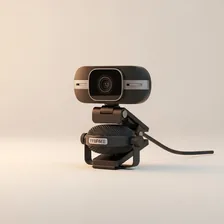
Webcams & Microphones

Webcams & Microphones

Complete repair and maintenance guide for webcams and microphones

Webcams and microphones became essential the moment remote work, video calls, and online meetings became part of daily life. Whether you use a basic plug-and-play webcam or a professional broadcast microphone, the reliability of these devices directly affects how others see and hear you. Camera detection failures, blurry video, missing audio, background noise, app conflicts, and dropped USB connections are the most common complaints. The vast majority of these issues are software-related — driver conflicts, app permissions, or settings problems — rather than hardware failures. This guide walks through every common webcam and microphone issue and the practical fix that gets you back online quickly.

Understanding Webcams & Microphones

Webcams and external microphones became essential equipment overnight when remote work shifted millions of professionals to video conferencing in 2020, and they've remained core gear since. Most laptops include built-in webcams and microphones, but the quality is universally poor — small sensors, basic optics, single-mic noise pickup, and harsh built-in processing. An external webcam ($60–$300) and dedicated microphone ($50–$200) immediately produce a more professional impression in any video call.

The category has split into clear tiers. Entry-level USB webcams and condenser microphones cover basic Zoom calls. Mid-range options add 1080p or 4K capture, autofocus, low-light performance, and microphone polar patterns suitable for podcasting. High-end gear includes mirrorless cameras used as webcams via HDMI capture cards, broadcast-quality XLR microphones, and dedicated audio interfaces. The right level depends entirely on how much your appearance and audio quality affect your work.

Common Problems

1

Webcam Not Detected by Computer or App

Webcam detection failures are most commonly caused by Windows or macOS privacy settings blocking app access to the camera, outdated drivers, or USB port issues. App-specific permission settings are the leading cause of cameras working in one app but not another.

2

Blurry or Low Quality Video Image

Blurry video is typically caused by a dirty camera lens, autofocus settings being misconfigured, or low ambient lighting forcing the camera to use higher ISO that introduces noise and softness. Cleaning the lens and improving lighting resolves most quality complaints.

3

Microphone Not Picking Up Any Sound

Microphone failures are usually caused by the wrong input device being selected in the operating system or app settings, microphone permissions being disabled, or — for hardware microphones — a mute switch or gain knob being set incorrectly.

4

Excessive Background Noise in Audio

Background noise pickup is typically caused by microphone gain being set too high for the room, the microphone being too far from the speaker, or noise suppression features being disabled in the calling app or operating system.

5

Camera Working in One App But Not Another

When a camera works in one application but not another, the issue is almost always app-specific permission settings or a software conflict with a virtual camera driver from streaming software. App reinstallation and permission resets resolve most cases.

6

USB Connection Dropping During Video Calls

USB disconnections during calls are typically caused by Windows selective suspend power saving turning off the USB port, a damaged cable, or insufficient power delivery when using a hub. Disabling USB power saving resolves most call disconnection issues.

Why Webcams & Microphones Fail

Webcams fail in predictable ways: USB connector wear from repeated plugging and unplugging, autofocus motor failure (image goes permanently blurry or hunts constantly), and sensor degradation from years of use producing colour drift or noise in low light. Built-in laptop webcams suffer from cable wear inside the screen hinge — a webcam that suddenly disappears in Device Manager is often a hinge cable breaking from years of opening and closing.

Microphones have their own failure modes. USB condenser microphones fail at the connector first, then at the internal power supply or USB controller. Cardioid and other directional microphones can develop sensitivity loss as the diaphragm ages. XLR microphones are extremely durable — 30-year-old broadcast microphones are still in active use — but the cables and connectors that feed them often need replacement long before the microphone itself fails. Pop filters, shock mounts, and boom arms all wear out from repeated adjustment.

Repair & Fix Guides

Maintenance Tips

  • Clean the webcam lens monthly with a microfibre cloth to maintain image clarity
  • Test camera and microphone before important calls using your operating system's test feature
  • Position the microphone close to your mouth for the cleanest audio with the lowest gain
  • Keep webcam drivers updated for compatibility with newer apps and operating systems
  • Use a USB cable extender to position the webcam at eye level for the most flattering angle

Repair, Replace & Buying Advice

A working webcam that produces acceptable image quality should be kept. Webcam technology has plateaued — a 4K webcam from 2021 is essentially identical to a 4K webcam from 2024. The only real upgrade reasons are autofocus speed, low-light performance, or specific features like AI background removal or auto-framing.

When buying new, for video calls a 1080p webcam with autofocus and a wide field of view covers 95% of needs at $80–$120. For 4K capture or streaming, expect to spend $200+. For audio, a USB cardioid condenser microphone like the Blue Yeti or HyperX QuadCast covers most podcasting and streaming uses at $100–$140. For interview-quality audio, look at dynamic microphones (Shure MV7, RODE PodMic) which reject room noise far better than condensers.

Long-Term Care & Best Practices

Webcams and microphones live on top of monitors, on desk arms, and on shelves where dust accumulates faster than almost anywhere else in a home. The single most useful habit is wiping the lens of any webcam weekly with a dry microfibre cloth, because even a thin layer of dust softens the image noticeably and gets blamed on the camera being low quality. Keep a privacy shutter closed when the camera isn't in use — physical shutters protect both privacy and the lens itself from accumulating debris and the slow yellowing that some lens coatings develop under continuous fluorescent or LED light exposure.

Microphone hygiene matters more on detachable boom mics and on lavalier or USB stand microphones than people realise. The foam windscreen or pop filter is a consumable part that absorbs breath moisture, oils, and dust over months of use, gradually muffling the sound you've been blaming on the microphone itself. A new foam windscreen or a washable pop filter ($3–$10) restores clear sound instantly. For headset and earbud microphones, a soft brush across the mic port once a month is usually all that's needed. Keep all mic equipment in a drawer or covered position when not in use rather than leaving it sitting out collecting cooking aerosols and skin flakes.

Software setup is the silent factor that determines how long a webcam or microphone feels good to use. Run the manufacturer's calibration and noise-reduction utilities once after setup and again every six months as software updates bring improvements. Position the camera at eye level (raise your laptop on a stand or use a separate webcam) and the microphone within thirty centimetres of your mouth — both choices dramatically improve perceived quality without spending a penny. When the equipment finally feels outclassed by newer offerings, repurpose old webcams as security cameras using free software, or donate them to schools and community centres where any working webcam still has years of useful life.

Quick Tips

Check app camera permissions first when a webcam stops working — most common cause

Clean the lens before assuming the camera has failed — fixes most quality complaints

Disable USB selective suspend in Windows to prevent webcam dropouts during calls

Frequently Asked Questions

Why does my webcam look grainy in low light?

Webcam sensors are tiny compared to phone or camera sensors, and they need bright light to produce clean images. The fix is more light, not better software. A small ring light or desk lamp aimed at your face produces dramatically better webcam image without any new equipment. South-facing windows during the day are even better — natural light is the most flattering source available.

My USB microphone has a constant background hum — what causes it?

Almost always a ground loop or interference from nearby electronics. Try moving the microphone cable away from power cables, monitors, and Wi-Fi routers. If hum persists, the microphone's USB connection may be picking up noise from the computer's power supply — using a powered USB hub or moving to a different USB port often resolves this.

Can I use my phone as a webcam?

Yes. Apps like Camo, Continuity Camera (iPhone), and Iriun let your phone act as a webcam over USB or Wi-Fi. Phone cameras vastly outperform built-in laptop webcams thanks to larger sensors and better processing. The main downsides are battery drain, the need to mount the phone on a tripod or arm, and occasional latency issues over Wi-Fi.

What's the difference between condenser and dynamic microphones?

Condenser microphones are more sensitive and pick up subtle vocal nuance, but they also pick up room reverb, keyboard clicks, and air conditioning. Dynamic microphones are less sensitive and reject background noise much better, making them ideal for untreated home offices. For podcasting in a quiet room, condenser is great. For streaming with mechanical keyboards or noisy environments, dynamic is better.

Why does my webcam keep losing focus?

Autofocus 'hunting' (constantly searching for focus) is usually triggered by movement in the background, low contrast, or low light. Disable autofocus and lock focus manually if your webcam allows it, increase room lighting, or place a textured background behind you that gives the autofocus stable reference points. Many webcam software packages include manual focus controls hidden in advanced settings.

Step-by-Step Repair Tutorials

Hands-on tutorials covering the most common Webcams & Microphones repairs.

Recommended Learning Guides

Background knowledge from the Learning Center to help you understand and care for Webcams & Microphones.

Related Guides

Related Driver Guide

USB & Peripheral Driver Guide

Webcam or microphone not recognised? Most issues trace back to a USB controller or peripheral driver problem with a simple fix.

Read the USB & Peripheral Driver Guide