 NationRepair
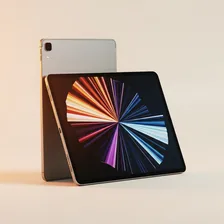
Tablets occupy a unique middle ground between smartphones and laptops — large enough for comfortable reading, video, and casual productivity, but light enough to hold in one hand for hours. The category spans everything from $80 budget Android tablets aimed at children to $1,500 iPad Pro models that genuine creative professionals use for illustration, video editing, and music production. Despite huge price differences, almost all tablets share the same core architecture: a large touchscreen, a thin lithium-ion battery, an ARM-based processor, and a sealed body that prioritises thinness over repairability.
Most tablets in active use today are second devices rather than primary computers — kept on the coffee table for browsing, used in bed for reading, taken on flights for movies, or handed to children for homework. That intermittent usage pattern affects how they fail. Where a smartphone gets used heavily every single day for years, a tablet often sits at 100% charge for weeks at a time, then gets drained completely on a long trip. Both extremes are hard on lithium-ion chemistry, which is why tablets often see battery problems sooner than expected for their actual screen-on hours.