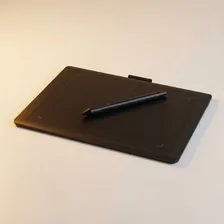
Drawing Tablets

Drawing Tablets

Complete repair and maintenance guide for drawing tablets

Drawing tablets unlock professional-quality digital art and design on any computer — providing pressure-sensitive precision that mice and trackpads cannot approach. Whether you use a basic graphics tablet for digital sketching or a high-end display tablet for professional illustration, they share the same set of common issues that come from constant pen contact and computer integration. Pen pressure failures, cursor offset problems, tablet detection issues, driver conflicts, surface scratching, and worn pen nibs are the most common complaints. Most are fixable through driver reinstall, calibration, or nib replacement rather than buying new hardware. This guide covers every common drawing tablet issue with clear fixes.

Understanding Drawing Tablets

Drawing tablets convert hand motion into digital drawing, replacing or supplementing the mouse for digital artists, designers, photo editors, and architects. The category divides into pen tablets (a touch-sensitive surface used with a stylus that sends input to the computer's normal display — Wacom Intuos, XP-Pen Deco), pen displays (a screen with stylus input that combines drawing surface and display — Wacom Cintiq, Huion Kamvas), and standalone tablets that run their own apps (iPad Pro with Apple Pencil, Wacom MobileStudio, Microsoft Surface Pro).

The technology has matured dramatically. Even budget drawing tablets now offer 8,000+ levels of pen pressure sensitivity, tilt detection, and accuracy that rivals professional gear from a decade ago. The main differentiators in the current market are display quality (for pen displays), pen feel (Apple Pencil and Wacom Pro Pen 2 set the standard), software compatibility (Adobe Creative Suite, Procreate, Clip Studio Paint, Krita), and ergonomics for long sessions.

Common Problems

1

Pen Pressure Not Working in Applications

Pen pressure failures are typically caused by the application not having pressure sensitivity enabled in its settings, driver conflicts between the tablet driver and operating system pen support, or — for newer tablets — drivers needing updates for the application version being used.

2

Cursor Appearing Offset from Pen Tip

Cursor offset from the pen tip is most commonly caused by display scaling issues between the tablet and monitor, calibration drifting over time and needing to be redone, or — for display tablets — the tablet driver not correctly mapping to the active display.

3

Tablet Not Being Detected by Computer

Tablet detection failures are typically caused by USB port power issues, driver corruption requiring clean reinstall, or — for some tablets — operating system updates having disabled the older driver versions that were previously working correctly.

4

Driver Conflicts After System Updates

Driver conflicts after operating system updates are most commonly caused by Windows or macOS replacing manufacturer drivers with generic versions, security updates disabling certain driver features, or app-specific tablet support needing manual reconfiguration after updates.

5

Tablet Surface Scratched Affecting Tracking

Surface scratching on drawing tablets is typically caused by sharp pen nibs being used past their recommended replacement schedule, abrasive cleaning materials damaging the tablet surface, or sand and grit on the pen tip during use.

6

Pen Nib Worn Down and Skipping on Surface

Worn pen nibs are inevitable with regular use — typical replacement intervals range from monthly for heavy users to annually for casual use. Replacement nibs are inexpensive and easy to swap, restoring smooth tracking and protecting the tablet surface from damage.

Why Drawing Tablets Fail

Drawing tablet failures are usually pen-related. The pen tip wears down from use against the tablet surface — most pens use replaceable nibs that need swapping every 3–12 months depending on usage. Wireless pens that contain batteries develop battery degradation over 2–3 years; rechargeable pens (Apple Pencil, newer Wacom pens) are limited by their charging cycles. Pen tilt and pressure sensors degrade slightly over years of use, leading to less precise drawing.

Beyond pens, pen displays develop the same screen issues as any LCD: backlight degradation after 5+ years, dead pixels, and surface scratches from years of pen contact. The matte texture that gives the screen the right pen friction also wears smooth over time, changing the drawing feel. Tablet surfaces (the working area on pen tablets) develop wear patterns where the pen has spent the most time, eventually reducing accuracy in those zones.

Repair & Fix Guides

Maintenance Tips

  • Replace pen nibs every 1-3 months depending on use intensity to prevent surface damage
  • Clean the tablet surface with a barely-damp microfibre cloth — never household cleaners
  • Update tablet drivers when manufacturer releases updates for new application support
  • Use a screen protector film to prevent surface scratching from worn nibs
  • Store the pen in its stand or holder to prevent damage to the pen tip

Repair, Replace & Buying Advice

Drawing tablets with working pens, accurate input, and (for pen displays) acceptable display quality are worth keeping for 5–8 years. Replacement reasons usually involve display quality, pen feel improvements, screen size (artists tend to want larger working areas as they progress), or software compatibility issues with very old hardware.

When buying new, the most important factors are pen feel (try in person if possible — different brands feel quite different), pressure sensitivity levels (8,000+ is more than enough for most users), parallax (the visual offset between pen tip and where the line appears — lower is better, especially on pen displays), display quality and colour accuracy (for pen displays — look for sRGB coverage above 95%, Delta E under 2 for colour-critical work), software compatibility, and ergonomics.

Long-Term Care & Best Practices

Drawing tablets and pen displays are precision input devices with surprisingly long lifespans when treated reasonably. The single most useful habit is using a screen protector and replacing it when it shows wear, because the active drawing surface is the part that ages fastest under daily use. Matte tablet protectors typically last six to twelve months for heavy users before the texture wears smooth and the pen-feel changes noticeably; replacement protectors cost $20–$40 and refresh the entire tablet feel instantly. For pen displays with built-in screens, the surface texture is part of the original glass — using a replaceable protector is the difference between a tablet that feels great for a decade and one that feels worn out in three years.

Pen and nib maintenance is the second key factor. Pen nibs are designed as consumable parts, wear down with use, and should be replaced before they wear flat enough to scratch the screen. Most quality tablets come with five to ten spare nibs in the box, and replacement packs cost $5–$15. Inspect your nib monthly — when the tip looks flattened, beveled on one side, or short enough that the pen feels different to use, swap it for a fresh one immediately. Continuing to use a worn nib can leave permanent micro-scratches on the screen surface that no protector or cleaning can remove.

Driver and software management determines how the tablet feels in years three through five. Manufacturer drivers occasionally regress on specific operating system versions, and the fix is almost always reverting to a slightly older driver version from the manufacturer's website rather than relying on the latest. Keep a working installer for a known-good driver version saved somewhere you can find it. As tablets age, the underlying hardware almost always remains capable — only the software interfaces change. Older tablets often work perfectly well for years after their original software stops being updated, particularly for hobbyist and beginner use cases. Recycle responsibly through certified e-waste channels eventually.

Quick Tips

Replace pen nibs before they wear flat — sharp nibs damage the tablet surface

Recalibrate after monitor or scaling changes to keep cursor and pen aligned

Use a screen protector to prevent surface scratching from worn pen nibs

Frequently Asked Questions

Pen tablet vs. pen display vs. iPad — which should I choose?

Pen tablets are the cheapest entry point and best for users who already have good monitors. Pen displays offer the most natural drawing experience by drawing directly on the display, but cost significantly more and are best for users with dedicated drawing setups. iPads with Apple Pencil offer the best portability and an excellent drawing experience for many artists, but lock you into Procreate and a few other iPad apps rather than full desktop software like Photoshop.

How often should I replace my pen nibs?

Depends on how much you draw and how hard you press. Heavy daily users replace nibs every 1–3 months; casual users every 6–12 months. Replace when you notice the nib has flattened, cracked, or developed a sharp edge that could damage the tablet surface. Most tablets ship with a few spare nibs; replacements are typically $10–$30 for a pack of 5–10.

Why does my drawing have lag or jitter?

Lag is usually caused by the computer not being powerful enough for the drawing software, or by very high resolution canvases that strain the GPU. Jitter (wavy or shaky lines instead of smooth ones) can be from electromagnetic interference, USB cable issues, or driver problems. Try a different USB port, restart with the latest tablet drivers, and ensure you're not near other 2.4 GHz wireless devices.

Can I use a drawing tablet for normal computer use, not just art?

Yes — drawing tablets work as full mouse replacements once configured. Most users find them slower than a mouse for productivity tasks but faster for navigating large documents and zooming around interfaces. Some professionals use a drawing tablet alongside a mouse, switching between them based on the task. The pen is much better than a mouse for tasks involving fine selections, masking, and curve adjustments.

Is it worth getting a Wacom over a cheaper alternative?

Wacom dominated the market for two decades and remains the professional standard, but the gap has narrowed dramatically. Brands like XP-Pen, Huion, and Gaomon offer pen tablets at 30–60% of Wacom prices with comparable specifications. Wacom still leads in pen feel quality, software ecosystem support, and parts replacement services. For professionals doing colour-critical work or earning income from their tablet, Wacom's premium can be justified. For students and hobbyists, alternatives offer excellent value.

Step-by-Step Repair Tutorials

Hands-on tutorials covering the most common Drawing Tablets repairs.

Recommended Learning Guides

Background knowledge from the Learning Center to help you understand and care for Drawing Tablets.

Related Guides