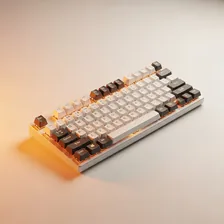
Mechanical Keyboards

Mechanical Keyboards

Complete repair, cleaning and maintenance guide for mechanical keyboards

Mechanical keyboards deliver typing experiences that membrane keyboards simply cannot match — tactile feedback, durability over decades, customisable switches, and the satisfying sound that makes typing genuinely enjoyable. Their open construction makes them more serviceable than most peripherals but also more vulnerable to dust, crumbs, and liquid spills that membrane keyboards are sealed against. Keys not registering, scratchy switch feel, loose keycaps, RGB lighting failures, USB connection problems, and post-spill stickiness are the most common complaints. Most are fixable through cleaning, switch replacement, or simple cable swaps. This guide covers every common mechanical keyboard issue.

Understanding Mechanical Keyboards

Mechanical keyboards have transformed from niche enthusiast equipment into mainstream computer accessories valued for their tactile feedback, longer lifespan, and customisability. Where rubber-dome membrane keyboards (the type that ships with most pre-built computers) feel mushy and wear out after a few million keystrokes, mechanical keyboards use individual switches under each key that provide distinct tactile or audible feedback and last 50–100 million keystrokes per switch.

The category covers everything from $40 entry-level mechanical keyboards to $500+ custom-built boards with hand-lubricated switches and aftermarket keycaps. Major switch manufacturers include Cherry MX (the original mechanical switch), Gateron (popular budget alternative), Kailh (Logitech and others), and dozens of boutique brands. Switch types divide into linear (smooth keystroke), tactile (bump partway through), and clicky (audible click — best for offices where you don't share space with others). Layouts range from full-size (104+ keys with numpad) through tenkeyless (without numpad) to compact 60% and 65% layouts.

Common Problems

1

Keys Not Registering When Pressed

Keys not registering are typically caused by debris under the keycap blocking switch travel, dirty switch contacts after years of use, or — for hot-swappable keyboards — switches that have come loose from the socket and lost electrical contact.

2

Switches Feeling Scratchy or Inconsistent

Scratchy or inconsistent switch feel is most commonly caused by dust contamination inside the switch housing, factory lubrication wearing off after heavy use, or — for cheaper switches — manufacturing inconsistencies that lubrication can mask but not fully resolve.

3

Keycaps Loose or Wobbly on Switches

Keycap wobbling is typically caused by the keycap stems being slightly worn from frequent removal, switch stems having minor manufacturing variations, or — for keycaps with deep stems — natural play that is normal for that style.

4

RGB Lighting Not Working or Flickering

RGB lighting issues are most commonly caused by software conflicts between keyboard companion apps and other RGB management software, USB power delivery issues, or — for individual key failures — LED hardware faults requiring switch or PCB repair.

5

USB Connection Dropping Intermittently

USB connection dropouts are typically caused by USB selective suspend in Windows interrupting the keyboard, a damaged USB cable internally, or — for keyboards with detachable cables — the cable connector at the keyboard becoming loose with use.

6

Keys Sticky or Unresponsive After Liquid Spill

Liquid spill aftermath ranges from sticky keys (sugary drinks) to dead keys (water and electrolyte damage) to total keyboard failure (corrosion). Immediate disconnection, drying, and isopropyl alcohol cleaning prevent most spill damage from becoming permanent.

Why Mechanical Keyboards Fail

Mechanical keyboards are among the longest-lasting computer peripherals. Individual switch failure is rare — most switches reach 50–100 million keystrokes before any noticeable wear. The most common failures involve the USB cable (especially USB-C connectors at the keyboard end), the keycap stems (which crack on cheap ABS plastic keycaps after years of heavy use), and stabilizers under larger keys (space bar, Enter, Shift) that develop rattle as the original lubricant dries out.

Cleaning is the more common maintenance need than repair. Crumbs, dust, hair, and pet fur accumulate underneath keycaps and around switches, gradually affecting key feel and sometimes causing keys to stick or bounce (registering multiple presses for one keystroke). Annual deep cleaning — removing all keycaps, cleaning the board with a brush and compressed air, then washing keycaps in mild soap — restores most keyboards to like-new feel.

Repair & Fix Guides

Maintenance Tips

  • Vacuum or compressed air clean the keyboard monthly to remove crumbs and dust
  • Remove and wash keycaps every 6-12 months for deep cleaning of grime and oils
  • Use a wrist rest to reduce keyboard wear from forearm pressure during typing
  • Avoid eating or drinking near the keyboard — most spills become permanent damage
  • Update keyboard firmware periodically for new features and bug fixes

Repair, Replace & Buying Advice

A working mechanical keyboard with intact switches and clean stabilizers should last 7–10+ years of regular use. Replacement reasons are usually changing preferences (switch type, layout, RGB lighting), specific feature gaps (wireless capability, hot-swap switches), or the desire for higher-end build quality. Many mechanical keyboards now offer hot-swappable switches, allowing you to change individual switches without soldering — extending the keyboard's useful life almost indefinitely.

When buying new, the most important factors are switch type (try multiple types before committing — feel preferences vary widely between users), layout (full-size for spreadsheet work, tenkeyless or 65% for compact desks), build material (aluminum is significantly more solid than plastic), key cap material (PBT is far more durable than ABS), connection type (wired, 2.4 GHz wireless, Bluetooth — multipoint is increasingly available), and software compatibility for customisation.

Long-Term Care & Best Practices

Mechanical keyboards are designed to last decades, and a small amount of routine cleaning is the single most useful habit for keeping them feeling good for that entire time. Every month or two, turn the keyboard upside down over a bin and gently shake or tap it to dislodge crumbs, hair, and pet fur from between the keycaps. Use a can of compressed air to blow out anything that remains, and wipe the keycap tops with a slightly damp microfibre cloth. Once or twice a year, pull all the keycaps off (a keycap puller costs $5 and ships with most enthusiast keyboards), wash them in warm soapy water, dry thoroughly, and reinstall. The keyboard will look and feel new again.

Switch maintenance separates a good keyboard from a great one over many years of use. Most quality mechanical switches are rated for 50 to 100 million keypresses, which translates to genuine decades of typing — but the lubrication on the switch stems and springs gradually breaks down, leading to scratchy feel and inconsistent activation. For hot-swappable keyboards, individual switches can be pulled, lubed, or replaced in minutes. For soldered keyboards, switch replacement is a more involved soldering job but still much cheaper than replacing the whole keyboard. Stabiliser maintenance under the larger keys (space bar, shift, enter) is the most impactful single upgrade — a tiny amount of dielectric grease on stabiliser bars eliminates rattle and dramatically improves feel.

Cable and connector care matters on detachable-cable keyboards because the cable becomes the most-stressed part of the entire device. Use a USB-C cable with a strong connector and protective strain relief, route the cable so it isn't repeatedly tugged or stepped on, and replace the cable rather than the keyboard if connection problems develop. As keyboards age, software support occasionally drops away when newer operating systems no longer recognize older driver utilities. Most quality keyboards work as basic input devices without their custom software, so keep using them; the lighting and macro features may simply revert to defaults. Recycle through certified e-waste channels eventually arrives.

Quick Tips

Compressed air monthly prevents most key failures from debris accumulation

Disconnect immediately after a spill and dry thoroughly before plugging back in

Hot-swappable keyboards make switch replacement a 30-second fix per key

Frequently Asked Questions

Are mechanical keyboards really worth the extra cost?

For anyone who types or games for more than an hour per day, almost certainly yes. The tactile feedback reduces typing fatigue, the durability means you won't replace it for a decade or more, and the customisability lets you dial in exactly the typing experience you want. The cost difference between a $30 membrane keyboard and a $100 mechanical keyboard amortizes over 5+ years to almost nothing per day.

What's the difference between linear, tactile, and clicky switches?

Linear switches (Cherry MX Red, Black) have a smooth straight keystroke with no bump — preferred for fast typing and competitive gaming. Tactile switches (Cherry MX Brown, Clear) have a noticeable bump partway through the keystroke that signals key activation — popular for typing where you want feedback without noise. Clicky switches (Cherry MX Blue, Green) add an audible click on top of the tactile bump — satisfying but loud, best avoided in shared offices.

How do I clean my mechanical keyboard?

For surface cleaning, turn the keyboard upside down and shake out debris, then use a soft brush and compressed air to clear remaining particles. For deep cleaning, remove keycaps with a keycap puller, clean keycaps with mild soap and water (don't use the dishwasher despite popular myth — heat warps cheap keycaps), and clean the board itself with a brush and IPA on cotton swabs around the switches. Allow everything to dry completely before reassembly.

What's a 'hot-swappable' keyboard and why does it matter?

Hot-swappable keyboards use sockets that allow you to remove and replace switches without soldering. This means you can change switch types whenever you want, replace a single failed switch easily, and progressively upgrade the keyboard over time. Non-hot-swap keyboards have switches soldered directly to the PCB, requiring desoldering equipment and skill to change. Hot-swap is one of the best modern keyboard features.

Why are some keyboards so much more expensive than others?

The price differences come from build quality (aluminum case vs. plastic), switch quality (factory-lubed vs. unlubed, hot-swap sockets vs. soldered), keycap material (PBT vs. ABS, double-shot vs. dye-sub vs. printed legends), wireless capability, RGB lighting quality, software customisation options, and brand. A $300 keyboard typically lasts longer and feels significantly better than a $50 keyboard, but the law of diminishing returns kicks in around $150 for most users.

Step-by-Step Repair Tutorials

Hands-on tutorials covering the most common Mechanical Keyboards repairs.

Recommended Learning Guides

Background knowledge from the Learning Center to help you understand and care for Mechanical Keyboards.

Related Guides

Related Driver Guide

Input Device Driver Guide

Keyboard losing custom shortcuts after a Windows update? Reinstall the manufacturer driver to restore full functionality.

Read the Input Device Driver Guide