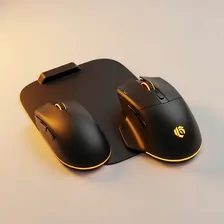
Gaming Mice & Trackpads

Gaming Mice & Trackpads

Complete repair and maintenance guide for gaming mice and trackpads

Gaming mice and precision trackpads are the most-used input devices on any computer — clicked thousands of times daily, dragged across surfaces continuously, and pushed to performance limits during competitive games. Their high-precision sensors and frequently-pressed switches eventually develop the issues that come from millions of operations. Double-clicking on single clicks, erratic cursor movement, scroll wheel failures, side button problems, sensor stuttering, and wireless dropouts are the most common complaints. Most are fixable through switch replacement, surface cleaning, or simple driver updates rather than buying new hardware. This guide covers every common gaming mouse and trackpad issue with clear fixes.

Understanding Gaming Mice & Trackpads

Gaming mice are precision pointing devices optimised for the demands of competitive gaming — high sensor accuracy (no jitter, no acceleration), fast polling rates (1000Hz to 8000Hz, vs. 125Hz for office mice), low click latency, and durable switches rated for tens of millions of clicks. The category divides into wired mice (lowest latency, no battery management), wireless 2.4 GHz mice (functionally identical to wired in modern flagship models), and Bluetooth-only mice (best for laptops, slightly higher latency but freedom from any dongle).

Trackpads remain primarily a laptop input device, though Apple's Magic Trackpad and a small number of standalone trackpads serve desktop users who prefer gestures. The Apple trackpad ecosystem in particular has progressed remarkably — multi-finger gestures, pressure sensing, and haptic feedback combine to create a pointing experience that many users prefer to mice for everyday tasks (though gaming and detailed work like photo editing still favour mice).

Common Problems

1

Mouse Double Clicking on Single Click

Double-clicking on single clicks is the classic mechanical failure of mouse switches — caused by the metal contacts inside the switch becoming worn, dirty, or oxidised after millions of operations. Switch replacement permanently resolves the issue and is achievable at home with basic soldering.

2

Cursor Jumping or Moving Erratically

Cursor jumping is typically caused by sensor confusion from glossy or transparent mouse surfaces, dirt or hair on the sensor lens itself, or — for wireless mice — interference from other wireless devices disrupting the connection during movement.

3

Scroll Wheel Skipping or Not Scrolling

Scroll wheel issues are most commonly caused by debris accumulating in the scroll wheel encoder mechanism, the encoder itself reaching end of life after years of use, or — for tactile scroll wheels — the spring mechanism degrading over time.

4

Side Buttons Not Registering Clicks

Side button failures are typically caused by the side switches becoming dirty or worn, the button mechanisms above the switches losing alignment, or — for some mice — software needing to have side button mapping enabled in the companion app.

5

Sensor Stuttering at Low DPI Settings

Sensor stuttering at low DPI is most commonly caused by the mouse being moved on a surface that the sensor cannot read consistently, dust on the sensor lens, or — for some sensors — angle snapping settings interfering with precise movements.

6

Wireless Connection Dropping Mid-Use

Wireless mouse dropouts are typically caused by interference from other 2.4 GHz devices, the dongle being plugged into a USB hub instead of directly into the computer, or low battery in the mouse causing transmission instability.

Why Gaming Mice & Trackpads Fail

Mouse failures cluster around clicks. The mechanical switches under the left and right buttons are rated for 20–80 million clicks but often start double-clicking (registering two clicks for one press) much earlier due to switch wear or contact contamination. Replacing the switches is possible with basic soldering skills and $5 in parts, but most users find replacement easier than repair. Sensor failure is rare; cable failures are more common in wired mice (especially at the strain relief where the cable enters the mouse), and battery degradation affects all wireless mice over years.

Trackpad failures are different. The glass surface of premium trackpads can crack from impact. The tactile click mechanism wears out after years of use. Wireless connectivity issues are common, especially with the rechargeable battery in standalone Magic Trackpads. Some laptop trackpads develop dead spots where touch is no longer detected — usually a hardware issue requiring laptop service.

Repair & Fix Guides

Maintenance Tips

  • Clean the sensor lens monthly with compressed air for accurate cursor tracking
  • Replace mouse feet when they wear smooth — significantly improves glide quality
  • Use a mouse pad with consistent surface texture for the most reliable sensor performance
  • Update mouse drivers periodically for new features and game compatibility
  • Charge wireless mice nightly to maintain battery health long-term

Repair, Replace & Buying Advice

A working gaming mouse with reliable clicks and accurate sensor should last 4–7 years. Replacement reasons are usually wireless upgrade (current wireless gaming mice are essentially identical to wired in performance), better sensor capabilities, lighter weight (which reduces fatigue), or specific ergonomic preferences. Don't replace a working mouse just for incremental sensor improvements — the difference between a 16,000 DPI sensor and a 26,000 DPI sensor is invisible in actual use.

When buying new, the most important factors are weight (lighter is better for FPS gaming, around 60–80g for competitive use), shape and grip style (palm grip, claw grip, fingertip grip — try multiple shapes), sensor quality (most modern flagship sensors are excellent), connection type (wired or wireless 2.4 GHz are both excellent for gaming), button programmability, and durability ratings on the click switches.

Long-Term Care & Best Practices

Gaming mice are precision instruments that benefit from a small amount of regular cleaning to maintain the responsiveness that justified their original price. The single most useful habit is wiping the bottom feet and sensor lens with a slightly damp microfibre cloth weekly, particularly if the mouse is used on a fabric mousepad that sheds fibres. The PTFE feet on the underside accumulate skin oil and dust that turns smooth glide into sticky drag, and a clean sensor lens prevents the cursor jitter and tracking issues usually blamed on the mouse ageing. Replacement mouse feet are available for most popular models for $5–$15 and can dramatically restore the feel of a mouse that has lost its smoothness.

Switch and scroll wheel maintenance addresses the most common long-term failures. Mouse switches are mechanical components rated for tens of millions of clicks, but the click feel can deteriorate from accumulated grease and dust at the switch actuator. For high-end mice with hot-swappable switches, replacement is a five-minute job; for soldered switches, the repair requires basic soldering skills but is well within reach for anyone who has done electronics work before. The scroll wheel encoder is the second common failure point — when scrolling becomes erratic or skips lines, the encoder is usually at fault and is often replaceable with patience.

Cable and software management round out the long-term care list. For wired mice, the cable braiding wears at the entry points where the cable leaves the mouse and where it enters any cable management system; replacing the cable rather than the mouse is often possible on premium models. For wireless mice, battery management follows the same patterns as other lithium devices — avoid keeping the mouse on its dock at 100% indefinitely. Software profiles are worth backing up periodically because manufacturer software occasionally resets settings during updates. Recycle older mice through certified e-waste channels when retirement arrives, or pass them to younger family members for casual use.

Quick Tips

Switch replacement permanently fixes double-click issues — the universal mouse failure

Use a mouse pad with consistent texture for the most reliable sensor tracking

Plug wireless dongles directly into the computer, not USB hubs for stable connection

Frequently Asked Questions

Why is my mouse double-clicking when I only press once?

Almost always a worn-out micro-switch under the button. Switches are rated for 20–80 million clicks but often fail earlier from internal contact contamination. Replacing the switch costs $1–$5 in parts but requires soldering skills. For most users, mouse replacement is easier. Some software solutions can debounce clicks at the OS level as a temporary workaround, but this slightly affects responsiveness.

What's mouse polling rate and does it matter?

Polling rate is how often the mouse reports its position to the computer per second. Office mice typically poll at 125Hz (every 8ms); gaming mice at 1000Hz (every 1ms); flagship gaming mice at 4000Hz or 8000Hz (every 0.25–0.125ms). The visible difference between 1000Hz and higher is debatable; the difference between 125Hz and 1000Hz is noticeable for fast cursor movements. For most gamers, 1000Hz is the practical sweet spot.

Do I need a wireless gaming mouse?

If you currently have wired and aren't bothered by the cable, no — modern wireless 2.4 GHz mice perform identically to wired but cost more. If cable drag bothers you or you frequently move the mouse between locations, wireless is worth the upgrade. Bluetooth-only mice have noticeably higher latency than 2.4 GHz dongle mice and are not recommended for competitive gaming.

Why do some gaming mice cost so much more than others?

Premium gaming mice have better sensors with no jitter or acceleration across all DPI ranges, more durable switches, lighter weight construction, longer battery life in wireless models, more programmable buttons, and software customisation. The differences are real but diminishing — a $50 gaming mouse covers 80% of what a $150 mouse offers. Above $100, you're paying for marginal improvements rather than core capability.

Are trackpads suitable for gaming?

Generally no. Trackpads work well for casual point-and-click games, strategy games, and turn-based games where speed isn't critical. For first-person shooters, MOBAs, or any game requiring precise fast aiming, trackpads are dramatically less effective than mice. Use a mouse for any serious gaming; reserve the trackpad for productivity work where it can actually be more efficient than mouse for some tasks.

Step-by-Step Repair Tutorials

Hands-on tutorials covering the most common Gaming Mice & Trackpads repairs.

Recommended Learning Guides

Background knowledge from the Learning Center to help you understand and care for Gaming Mice & Trackpads.

Related Guides