 NationRepair
Complete Guide to Diagnosing an Overheating PC
An overheating computer doesn't always announce itself dramatically. Sometimes it shuts down without warning mid-task. Sometimes it just gets noticeably slower over time as the processor reduces its speed to stay cool — a process called thermal throttling. Either way, overheating is one of the most common causes of PC performance problems, and understanding how to measure temperatures, interpret the numbers, and address the root cause is a genuinely useful skill for any PC owner. This guide walks you through the complete diagnostic process from measuring temperatures to applying the right fix.
Understanding Normal vs. Problematic Temperatures
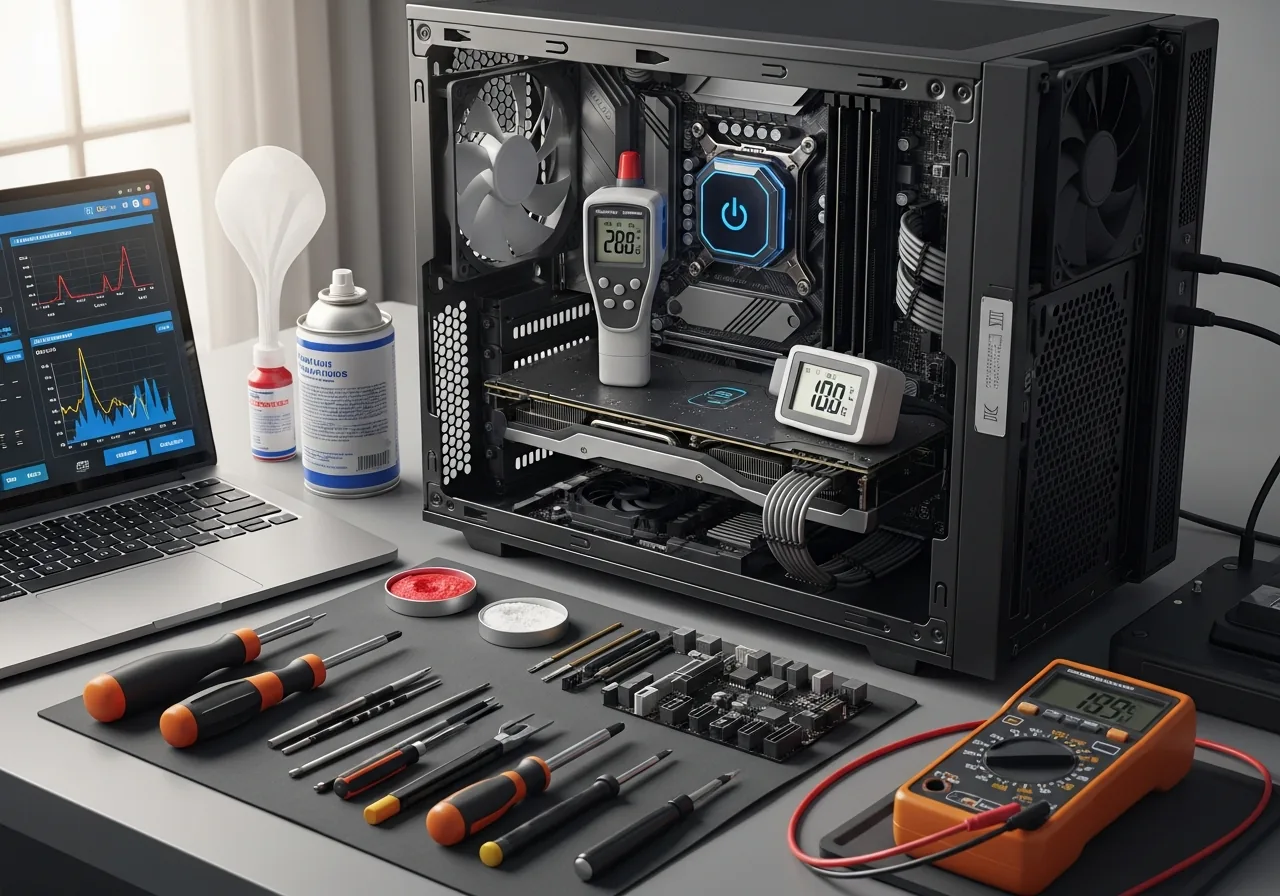
Not all heat is a problem. Modern processors are designed to run at high temperatures, and different components have different thermal envelopes. Here are general guidelines for common temperature ranges:
- CPU idle (no load): 30–50°C is normal; above 60°C at idle indicates a problem.
- CPU under load (gaming, rendering, compiling): 70–85°C is normal for most modern CPUs; above 95°C indicates thermal throttling is occurring or will occur soon.
- GPU under load: 70–85°C is typical; above 90°C on a sustained basis indicates inadequate cooling.
- Laptop CPU under heavy load: 85–95°C is common in thin-and-light laptops due to limited cooling headroom; sustained 100°C+ indicates a problem.
- SSD: 30–50°C is normal; NVMe SSDs can run to 70°C; above 70°C throttles NVMe performance significantly.
Tools for Measuring PC Temperatures
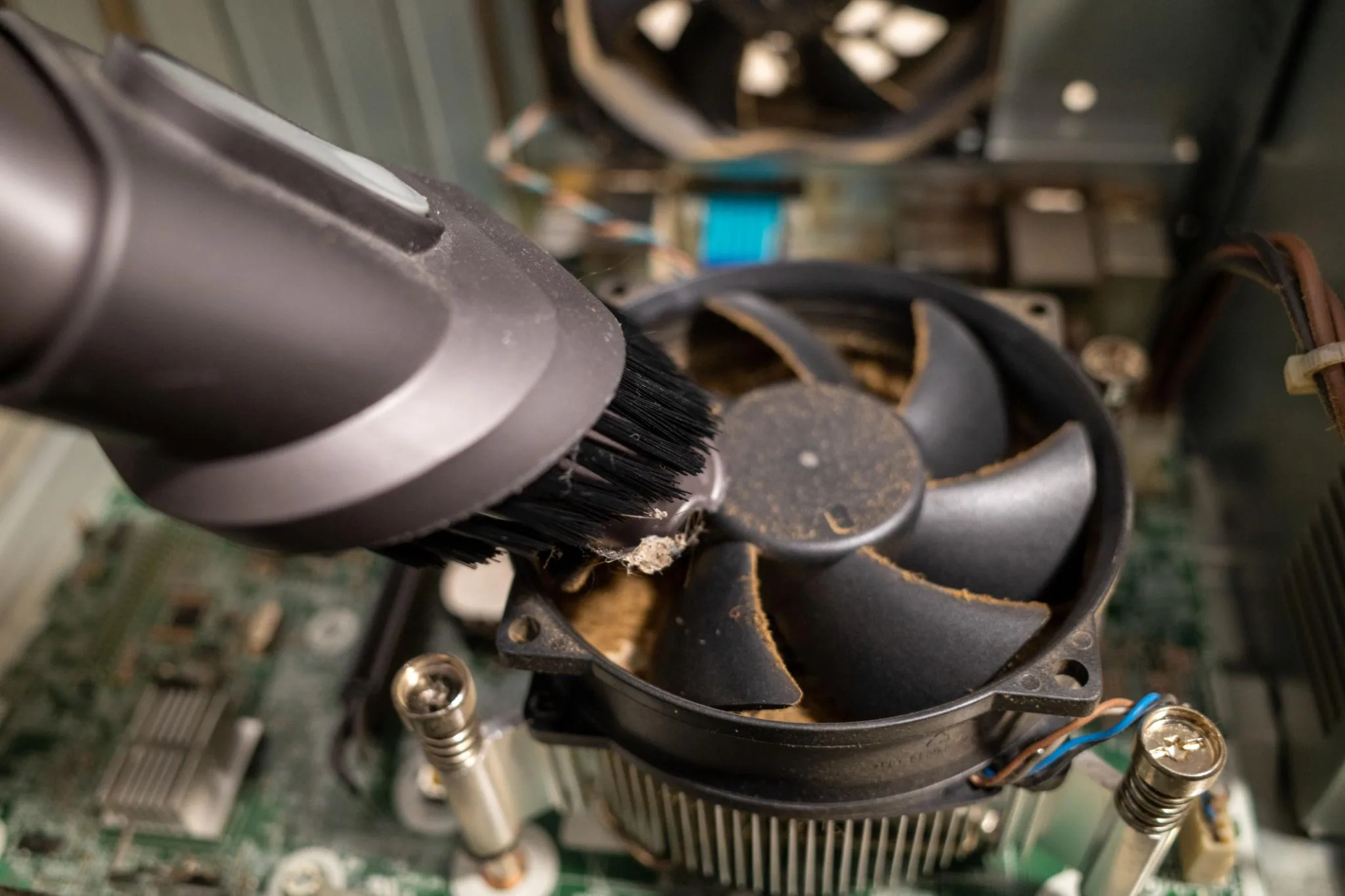
You need software to read your system's temperature sensors. Here are the best free options:
- HWiNFO64 (Windows): The most comprehensive free option — shows CPU, GPU, motherboard, SSD, and RAM temperatures in real time with minimum/maximum tracking. Download from hwinfo.com.
- HWMonitor (Windows): Simpler interface showing peak temperatures across all sensors. Good for quick checks.
- MSI Afterburner (Windows): Best for GPU temperature monitoring during gaming, with on-screen display overlay.
- iStat Menus (macOS): The best option for Mac temperature monitoring ($11.99, with a free trial). Shows CPU, GPU, drive, and battery temperatures with graph history.
- Macs Fan Control (macOS, free): Shows temperatures and allows manual fan speed control for diagnostic purposes.
Step-by-Step Diagnostic Process
No tools needed for software steps. A screwdriver and compressed air are needed for hardware steps. Difficulty: easy to moderate.
-
Step 1: Install a temperature monitor and record baseline temperatures
Install HWiNFO64 (Windows) or iStat Menus (Mac). Let the computer sit idle for 10 minutes, then note the CPU and GPU temperatures. Now run a stress test — for CPU, download Cinebench R24 (free from Maxon) and run the multi-core test. For GPU, run a gaming benchmark or FurMark. Record peak temperatures during the stress test. High peak temps (CPU above 95°C, GPU above 90°C sustained) confirm overheating. Note whether temperatures climb continuously or stabilise at a high level — continuous climbing indicates the heatsink isn't removing heat at all; stabilising at high levels indicates borderline cooling.
-
Step 2: Check whether performance is dropping under load
Install HWiNFO64 and watch the CPU Clock Speed column during your Cinebench run. If the clock speed starts high (e.g., 4.5 GHz) and drops significantly mid-test (e.g., to 2.0 GHz), this is thermal throttling — the CPU is reducing speed to cool down. Cinebench's final score will be noticeably lower than the expected range for your processor. This confirms that overheating is directly impacting your performance, not just causing minor discomfort.
-
Step 3: Clean the heatsink and fans
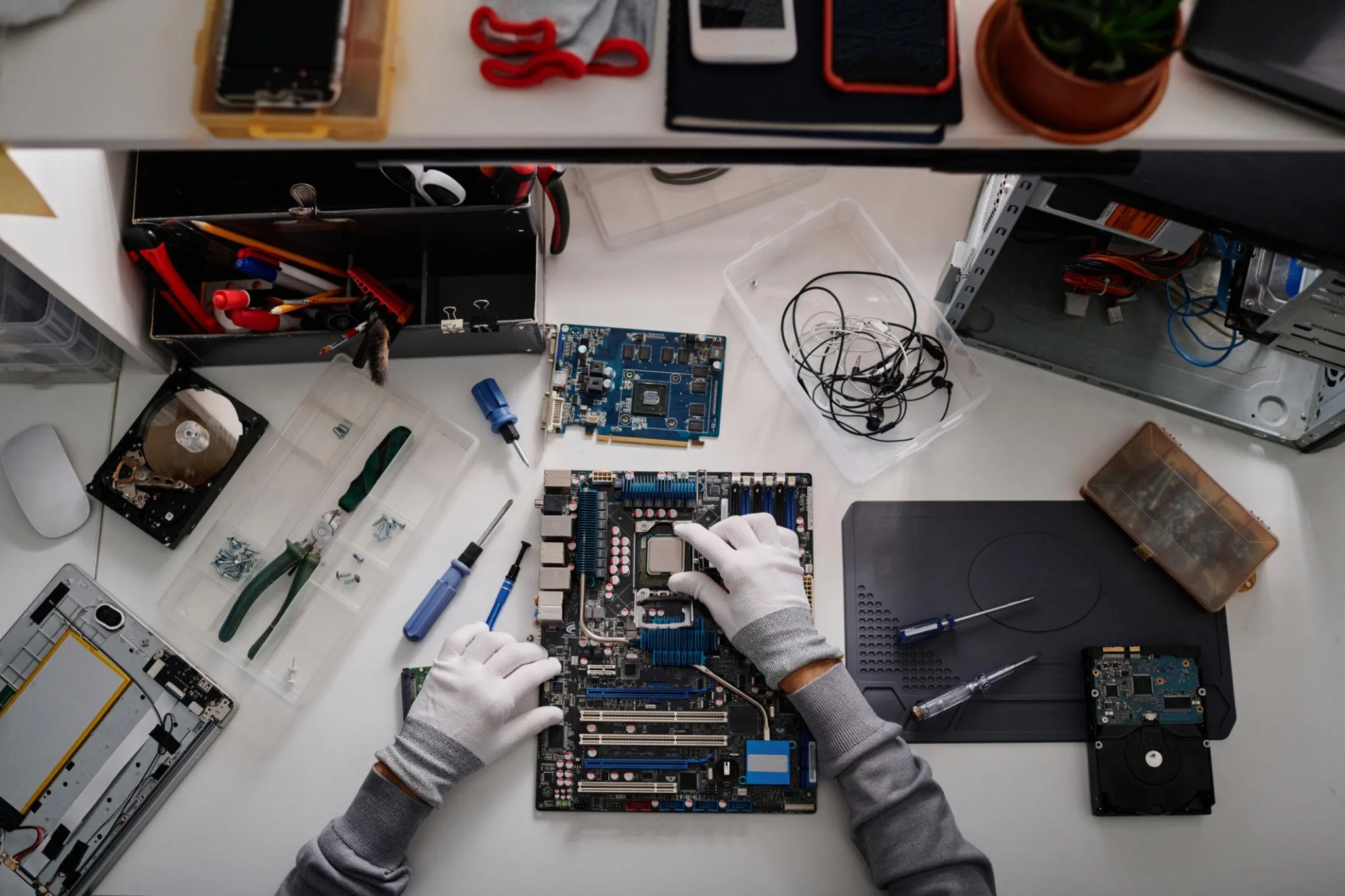
The most common cause of overheating is dust. Power off and unplug. For desktops: remove the side panel and use compressed air to clean the CPU cooler fins, GPU heatsink, and all case fans — holding each fan stationary while blowing. For laptops: remove the bottom panel and clean the heatsink exhaust vents and fan blades. After cleaning, repeat the stress test temperature measurement. A 10–20°C drop in temperatures is typical after thorough cleaning of a dusty system.
-
Step 4: Check airflow configuration (desktops)
In desktop builds, incorrect airflow causes hot air to recirculate. Open your case and check that intake fans (front/bottom) blow air in and exhaust fans (rear/top) pull air out — fan labels show airflow direction. Cables should be managed away from the CPU cooler airpath. If your front intake fans have dust filters, clean or replace them — clogged filters reduce airflow as much as a dirty heatsink.
-
Step 5: Replace thermal paste if temperatures remain high
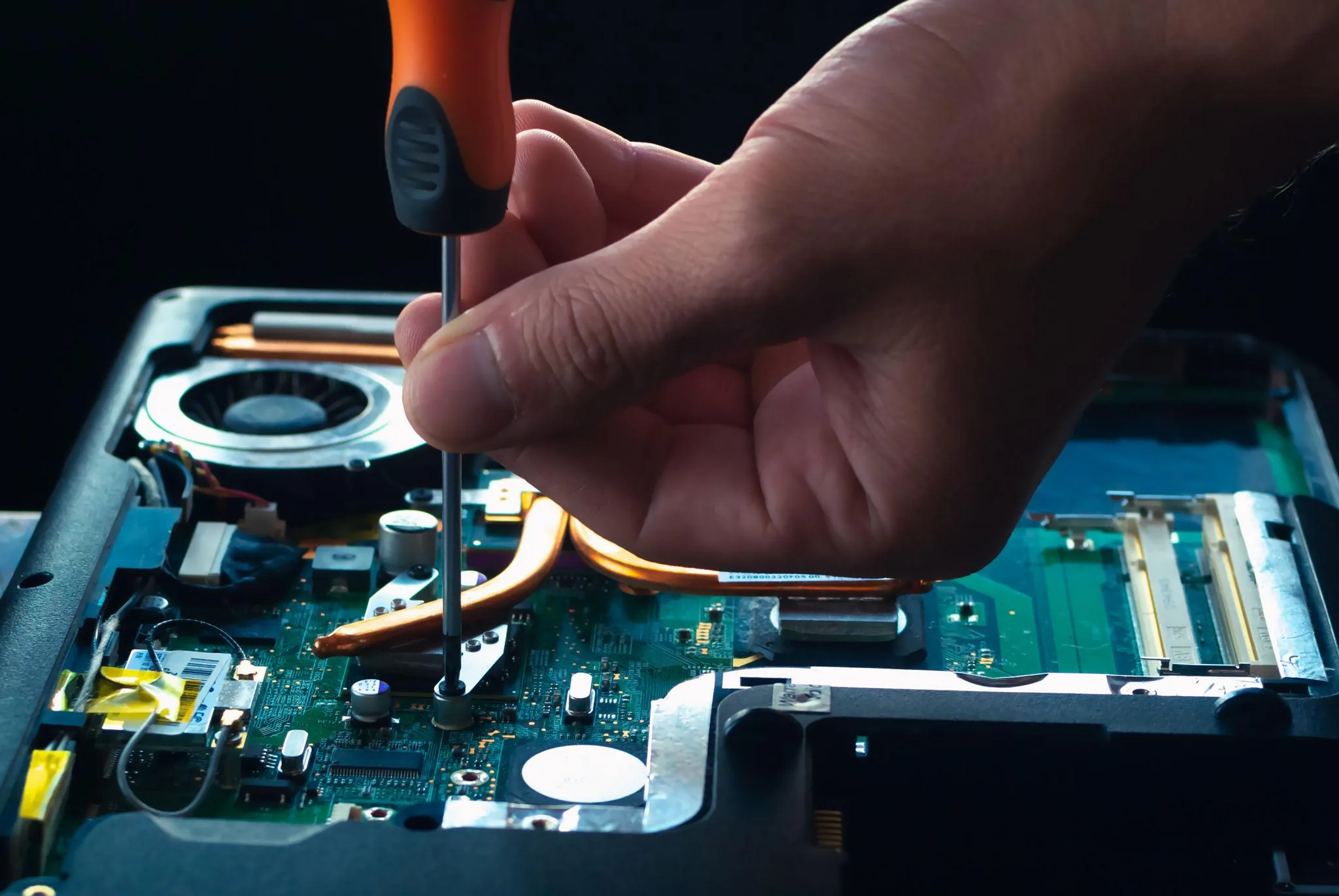
Thermal paste between the CPU and heatsink dries and cracks after 3–5 years, significantly increasing thermal resistance. If cleaning didn't reduce temperatures adequately, replace the thermal paste. You'll need: isopropyl alcohol (90%+), cotton swabs, and quality thermal paste (Arctic MX-4, MX-6, or Kryonaut). Remove the CPU cooler (consult your cooler's manual or iFixit for your laptop model), clean old paste from both the CPU die and heatsink base with isopropyl and a cotton swab, apply a pea-sized amount of new paste to the centre of the CPU, and remount the cooler firmly. This commonly reduces temperatures by 5–15°C.
-
Step 6: Improve case ventilation or upgrade cooling (desktops)
If cleaning and new thermal paste still leaves temperatures too high, the root cause may be inadequate cooling for your hardware. Options include: adding case fans (focus on front intakes and rear exhaust), upgrading from the stock CPU cooler to a third-party air cooler (DeepCool AK400, be quiet! Dark Rock 4) or an AIO liquid cooler, and ensuring your case has adequate panel ventilation for your hardware tier. Modern high-end CPUs (Intel Core i9, AMD Ryzen 9) often need at minimum a 240mm AIO or a large tower air cooler to avoid throttling.
Prevention Tips
- Clean your PC's heatsink and fans every 6 months (more frequently in dusty or pet-filled environments) — this single habit prevents most overheating problems from developing.
- Replace thermal paste every 3–4 years proactively rather than waiting for temperatures to spike — it's a 30-minute task that significantly extends processor longevity.
- Keep desktop PCs elevated off the floor when possible — floor-level positioning dramatically increases dust ingestion from carpets and floor surfaces.
- Ensure your case has at least one filtered intake fan; filters trap dust before it reaches the heatsink and significantly extend cleaning intervals.
- Monitor temperatures periodically (even if you're not having obvious problems) — catching a gradual temperature increase early is far easier than dealing with an overheating emergency.
Frequently Asked Questions
How do I know if my PC is overheating?
The most reliable way is to install HWiNFO64 (Windows) and monitor CPU temperature under load. Signs that suggest overheating without monitoring: unexpected shutdowns during heavy tasks, the computer running noticeably slower than it used to (especially during gaming or video editing), fans spinning at maximum speed constantly, or the laptop chassis being too hot to hold. Any CPU temperature sustained above 95°C under load indicates overheating that needs addressing.
Why does my PC keep shutting down randomly?
Random unexpected shutdowns during heavy tasks are the clearest symptom of thermal shutdown — the motherboard cuts power to prevent CPU damage when temperatures exceed a safe threshold (typically 100–105°C for modern CPUs). Check HWiNFO64 before or during a crash to see peak temperatures. If you can't read temperatures before it shuts down, check the Windows Event Viewer (search "Event Viewer" in Start Menu) after a restart — critical thermal events are often logged there as kernel power errors (Event ID 41).
What temperature is too hot for a CPU?
Most modern Intel and AMD desktop CPUs have a "Tjmax" (junction temperature maximum) of 100–105°C — the hardware shutdown threshold. Running at 90–95°C sustained under load is within specs but stresses components and indicates cooling is marginal. For long-term reliability, aim for CPU temperatures below 85°C under full load. Idle temperatures should be well below 50°C. AMD Ryzen 5000/7000 series chips are designed to run up to 95°C at turbo speeds and are fine at that temperature briefly, but should not sustain it.
Does overheating permanently damage a PC?
Brief overheating events — the kind that cause a single thermal shutdown — rarely cause permanent damage; the shutdown mechanism exists specifically to prevent damage. However, sustained operation near maximum temperature over months and years accelerates electromigration in the CPU silicon and degrades capacitors on the motherboard, shortening overall component lifespan. Repeated thermal shutdowns without addressing the cause also risk data corruption if a shutdown occurs during a write operation. Address overheating promptly to protect both short-term stability and long-term component health.
Should I use liquid cooling to fix overheating?
Liquid cooling (AIO or custom loop) is the most effective cooling solution for high-end desktop CPUs, but it's not the only option. For most overheating situations, cleaning and thermal paste replacement solves the problem without any hardware upgrade. If you've done both and temperatures are still too high, a quality third-party tower air cooler (be quiet! Dark Rock Pro 4, Noctua NH-D15) typically performs on par with a 240mm AIO at lower cost and with better long-term reliability. AIOs make the most sense for mid-tower cases where large air coolers conflict with RAM height.
Related Articles & Categories
Apply this knowledge to your Desktop PCs and Windows Laptops, or explore the related tutorials and guides below.