 NationRepair
How to Back Up Your Data Before a Repair
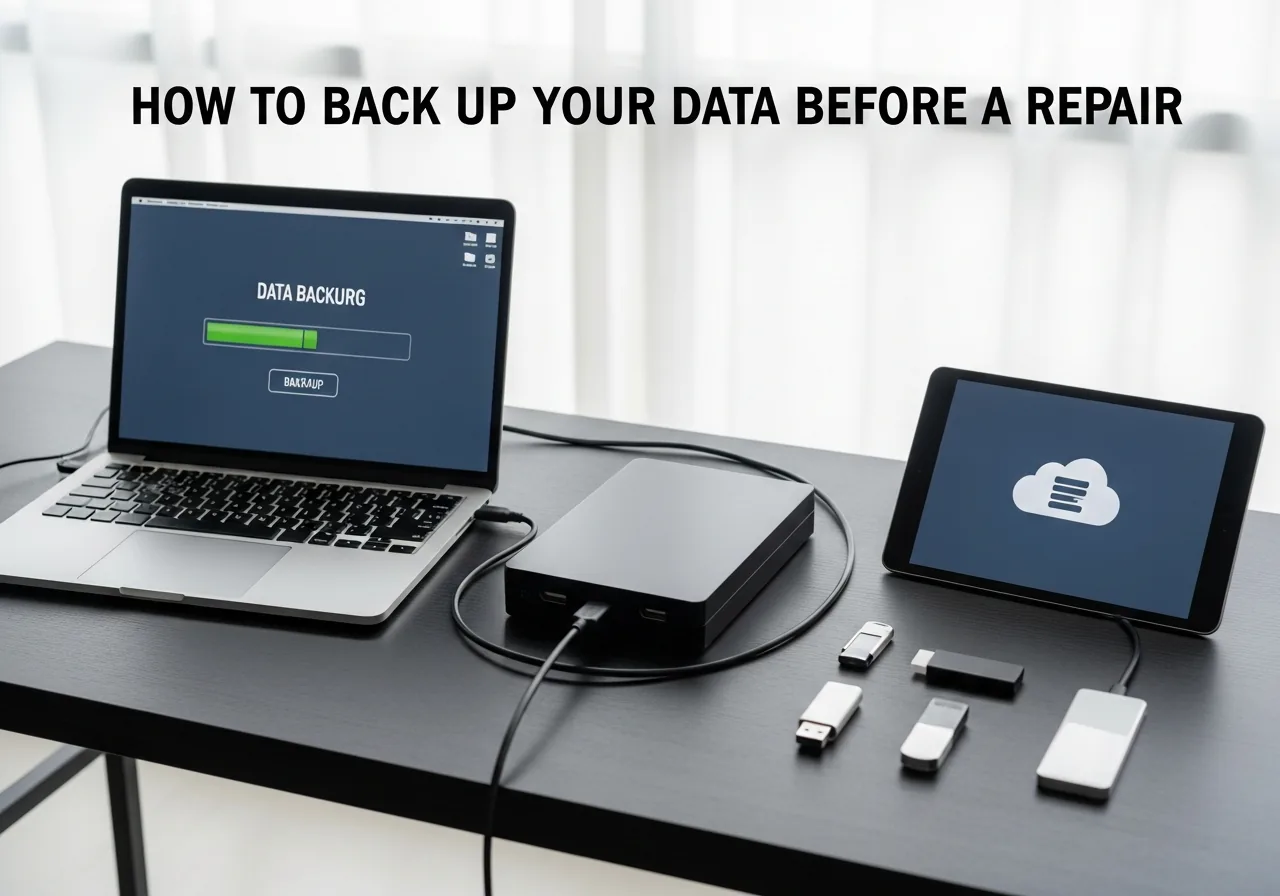
Device repairs occasionally require a factory reset, and occasionally something goes wrong. A professional repairer will always recommend backing up your data before they touch the device — and they're right to do so. This guide gives you the complete backup procedure for every major device and platform: iPhone and iPad, Android phones, Windows laptops, and Mac computers. Each method takes 15–30 minutes and ensures that even if the worst happens during a repair, every photo, contact, app, and document can be restored to a new or repaired device.
Why Backing Up Before a Repair Is Non-Negotiable
There are several scenarios during a repair where data can be lost: a factory reset required to test software issues, a failed component that takes the storage with it (rare but possible), accidental damage to the storage chip during a motherboard repair, or a software flash to update firmware that wipes the device. Even if none of these happen, having a backup means you can hand over the device without anxiety — and you can hand it back to the repairer for a second attempt if the first fix doesn't work, without worrying about data. Think of backup as the $0 insurance policy that takes 20 minutes.

Backing Up an iPhone or iPad
Method 1: iCloud Backup (Easiest)
-
Step 1: Check iCloud storage
Go to Settings → your Apple ID → iCloud → Manage Account Storage. You need enough free space to hold your backup — most people need 5–20 GB. If storage is full, delete old backups from old devices in the same menu, or purchase additional storage (£0.99/month for 50 GB) temporarily.
-
Step 2: Connect to Wi-Fi and start the backup
Go to Settings → your Apple ID → iCloud → iCloud Backup → Back Up Now. Keep the screen on and stay connected to Wi-Fi until the backup completes. For a large library (many photos, apps), this may take 15–45 minutes on your first backup. The progress shows under "Back Up Now."
-
Step 3: Verify the backup completed
After completion, check Settings → your Apple ID → iCloud → iCloud Backup. The "Last Successful Backup" time should show the current date and time. Note this timestamp before handing over the device.
Method 2: Computer Backup via Finder or iTunes (Most Complete)
Connect your iPhone to a Mac (use Finder) or Windows PC (use iTunes). In Finder, select your iPhone in the sidebar and click "Back Up Now" under the General tab. Enable "Encrypt backup" with a password you'll remember — encrypted backups also save passwords, Health data, and Wi-Fi settings that unencrypted backups omit. This backup lives locally on your computer and is the most complete recovery option available.
Backing Up an Android Phone
Google One Backup
-
Step 1: Enable Google backup
Go to Settings → Google → Backup (exact path varies by manufacturer — Samsung, Pixel, and OnePlus all have slightly different Settings layouts). Enable "Back up to Google Drive." This backs up contacts, calendar, app data, SMS messages, and device settings. Note: app data backup is at each app's discretion — not all apps support Google backup.
-
Step 2: Back up photos to Google Photos
Open Google Photos → tap your profile picture → Photos Settings → Backup → enable "Backup" and set to "High quality" (unlimited storage) or "Original quality" (uses Google One quota). Tap "Back up now" and wait for the upload to complete. Check the backup status in the same menu — it should show "Backup is on — All photos backed up."
-
Step 3: Export contacts separately
Open the Contacts app → Settings → Export. Save the VCF file to your Google Drive or email it to yourself. This creates a standalone backup of all your contacts that doesn't rely on any app-specific restore process — the most universally compatible contact backup format.
Samsung-Specific: Samsung Cloud
Samsung phones have an additional backup layer via Samsung Cloud. Settings → Accounts and backup → Back up data. This backs up Samsung-specific data that Google backup misses: Samsung Health, Samsung Pay settings, and Samsung Notes. Enable and run a backup here in addition to Google backup.

Backing Up a Windows Laptop
Method 1: File History (Ongoing Backup)
Connect an external drive (at least as large as your Documents, Pictures, Desktop, and Downloads folders combined). Search "File History" in Start Menu → Turn on. Select the external drive. File History automatically backs up your personal files every hour while connected. Before a repair, connect the drive and verify the last backup time in the File History settings.
Method 2: Manual Copy (Quickest Before a Repair)
Connect an external drive and copy these folders manually in File Explorer: C:\Users\[your username]\Documents, Desktop, Downloads, Pictures, Music, and Videos. This takes 10–30 minutes depending on how much you have. It's not as automated as File History but it's immediate and guaranteed.
Method 3: Create a System Image (Most Complete)
Control Panel → Backup and Restore (Windows 7) → Create a System Image. This creates a complete clone of your entire drive — OS, apps, and files — to an external drive or network location. Restoring from this brings back everything exactly as it was, not just your personal files. This takes 1–3 hours depending on drive size but is the most comprehensive recovery option.
Backing Up a Mac
Time Machine (Recommended)
-
Step 1: Connect a Time Machine drive
Connect an external drive (at least 2× the size of your Mac's storage for long backup history). macOS will prompt you to use it for Time Machine — click "Use as Backup Disk." If it doesn't prompt, go to System Settings → General → Time Machine → Add Backup Disk.
-
Step 2: Run a manual backup before the repair
In the menu bar (if Time Machine icon is showing), click it and select "Back Up Now." Or go to System Settings → General → Time Machine → click "Back Up Now." Wait for the backup to complete — first-time backups take significantly longer (30 minutes to several hours); subsequent backups update only changed files and typically take 5–15 minutes.
-
Step 3: Verify the backup
In System Settings → General → Time Machine, confirm the latest backup shows today's date and time. If restoring from this backup ever becomes necessary, you can do so during macOS installation by selecting "Restore from Time Machine Backup" from the Recovery menu.
iCloud Drive (Supplementary)
For quick access to critical files, ensure iCloud Drive is enabled (System Settings → your Apple ID → iCloud → iCloud Drive → toggle on). This continuously syncs your Desktop and Documents folders to iCloud if you enable that option — providing an always-current cloud copy of your most important work files independently of Time Machine.

What to Tell the Repair Shop
When you drop off your device: explicitly state that you've backed up your data. Write down the date and time of your most recent backup. Ask the technician whether the repair will require a factory reset (some software repairs do). For significant repairs (motherboard work, complex water damage), ask them to confirm data integrity before and after repair if possible. Keep your backup drive at home, not in the same bag as the device being repaired.
Frequently Asked Questions
Does a repair shop need my passcode to repair my device?
For most physical repairs (screen replacement, battery swap), the shop doesn't need your passcode and shouldn't ask for it. For software repairs, diagnostic testing, or data recovery work, they may need access to the device. If you're uncomfortable sharing your passcode, ask whether they can complete the repair without it. For data recovery, they will likely need access. If you must share a passcode, change it immediately after the device is returned — use a temporary passcode just for the repair period if your device supports quick passcode changes.
What data is NOT backed up by iCloud backup?
iCloud backup excludes: data already stored in iCloud (like Photos in iCloud Photo Library and iCloud Drive documents — these don't need to be in the backup because they're already in the cloud), Touch ID and Face ID data (these are hardware-specific and cannot be transferred), and Apple Pay card information (payment cards must be re-added after restoration). Everything else — app data, messages, settings, and purchased media — is included in a complete iCloud backup.
How do I restore from a backup after a repair?
iPhone: when setting up the repaired phone, select "Restore from iCloud Backup" or "Restore from Mac or PC" depending on your backup method. Follow the setup wizard — it walks you through the full restoration process. Android: sign in to your Google account during setup and select the backup to restore from. Windows: for a System Image restore, boot from a Windows installation USB and select "Repair your computer" → "Troubleshoot" → "System Image Recovery." Mac: restart and hold Command+R to enter Recovery Mode, then select "Restore from Time Machine."
Can the repair shop recover data if I didn't back up?
Sometimes — if the storage device itself is intact, a technician can often extract data from a phone or laptop even if the rest of the hardware is damaged. However, this data recovery service is expensive (£100–500+), not always successful, and typically involves specialised equipment. It's worth asking the repair shop about data recovery options before they start work, as some repair processes (like motherboard reflashing) are irreversible if data was not previously backed up. Prevention through backup is always cheaper and more reliable than recovery.
How often should I back up my phone normally?
Enable automatic backup on your phone and ensure it runs successfully at least once per week. For iPhones: iCloud backup runs automatically overnight when the phone is plugged in, connected to Wi-Fi, and locked — as long as you have adequate iCloud storage. For Android: Google backup runs periodically in the background automatically. Check backup status once a month to confirm it's running. Before any repair, run a manual backup regardless of automatic backup status to ensure you have the most current version of your data.
Related Articles & Categories
Apply this knowledge to your Smartphones and Windows Laptops, or explore the related tutorials and guides below.