 NationRepair
Understanding Your Router's Lights and What They're Telling You
Your router communicates its status through a panel of LEDs, and once you know what each one means you can diagnose most internet connection problems in seconds — without logging into any admin panel or calling your ISP. Different router brands use different colours, positions, and labels, but all routers indicate the same core set of connection states. This guide decodes every major router LED, explains what its colour and pattern mean, and tells you what action to take when something looks wrong.
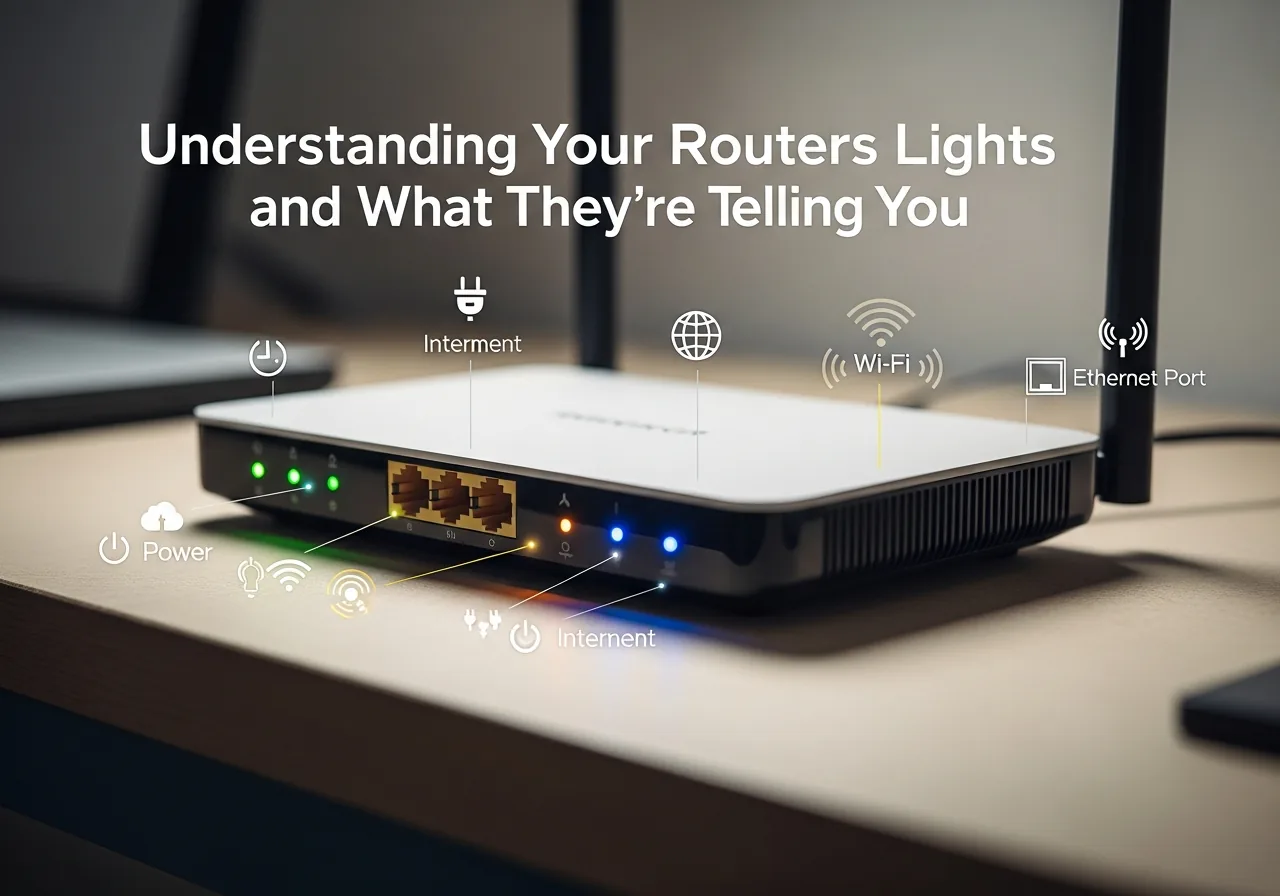
The Five Core Router LEDs
Despite different physical designs, virtually every consumer router has LEDs for five core functions. Here's what each indicates:
1. Power Light
Solid green/white: Router is powered on and operating normally. Solid orange/amber: Router is booting up; wait 2 minutes. Flashing: Firmware update in progress — do not unplug. Off: No power — check the power adapter and wall socket. Red: Hardware fault or boot failure; try unplugging for 30 seconds and reconnecting. If red persists after two restarts, the router may need replacement.
2. Internet / WAN Light
This is the most important light for diagnosing internet problems. It shows whether the router is successfully connected to your ISP. Solid green/white: Active internet connection. Everything is working. Solid orange/amber: Connected to modem/ISP but no internet authentication — this often means your ISP is having an outage, or the router needs to re-authenticate (restart it). Flashing: Active data transfer between router and ISP. Normal during browsing or downloads. Off: No physical WAN connection — the cable from your wall socket to the router's WAN port is disconnected, damaged, or your ISP line is down. Red: Authentication failure — PPPoE credentials may have expired or changed. Contact your ISP.
3. Wi-Fi Lights (2.4 GHz and 5 GHz)
Newer dual-band and tri-band routers have separate LEDs for each frequency band. Solid green/white: That Wi-Fi band is active and broadcasting. Flashing: Devices are actively transmitting or receiving data on that band — normal during use. Off: That Wi-Fi band has been disabled in the router settings. To re-enable, log into the admin panel and check Wireless settings. Some routers have a physical Wi-Fi button that toggles the radio — check if it was accidentally pressed. Amber/orange solid: Wi-Fi is active but in a reduced performance mode (some routers show this during 2.4 GHz operations when the 5 GHz band is more heavily loaded).
4. LAN Port Lights
These LEDs are next to each Ethernet port and show the status of wired connections. Solid green: A device is connected via Ethernet and the link is active. Flashing: Active data transfer on that Ethernet connection. Off: No device connected to that port, or the connected device is powered off. If a device is connected and the light is off, try a different Ethernet cable — cable failure is common and easy to miss.
5. WPS Button Light
WPS (Wi-Fi Protected Setup) allows devices to connect to Wi-Fi without entering a password. Flashing: WPS pairing mode is active — a device is attempting to connect. This should resolve within 2 minutes. Solid: WPS session established successfully. Off: WPS is inactive (normal state between pairings). Red/flashing red: WPS session failed — the device couldn't pair within the time limit. Try again or connect manually with the password instead.
Diagnosing Problems from LED Patterns
Use this quick-reference guide to diagnose common connection problems from LED status:
- No internet on any device, internet LED off: Check the cable from your wall socket/modem to the router's WAN port. Try a different cable. If the internet LED stays off with a known-good cable, the issue is with your modem or ISP line — call your ISP.
- No internet on any device, internet LED amber/orange: The router is connected but can't authenticate with your ISP. Restart the router and wait 2 minutes. If the orange persists, there may be an ISP outage — check your ISP's status page or call their support line.
- Internet works but Wi-Fi light is off: The Wi-Fi radio has been disabled. Log into your router admin panel and re-enable the wireless radio, or check whether the physical Wi-Fi button was pressed.
- Wi-Fi light is on but devices can't connect: Try forgetting and reconnecting to the network on your device. If no device can connect, the router may have lost its Wi-Fi password (after a partial configuration corruption) — log into the admin panel and verify the SSID and password settings.
- Power LED flashing continuously after startup: Continuous flashing (not the brief flashing during boot) can indicate a firmware corruption. Check if your router has a firmware recovery mode — many routers support TFTP-based recovery for failed firmware situations.
- Everything looks normal but internet is slow: All green lights with slow speeds point to ISP-side issues, congestion, or a problem with your specific device rather than the router. Run a speed test directly via an Ethernet cable from the router to rule out Wi-Fi as the bottleneck.
Brand-Specific LED Variations
While the functions are universal, different manufacturers use different colour conventions:
- BT Hub (UK): Blue = everything normal; Orange flashing = connecting to internet; Pink = connection problem; Red = broadband fault requiring ISP contact.
- Sky Hub: Steady white = connected; Flashing amber = connecting; Flashing red = no broadband signal; Pink = ready to connect new device.
- Virgin Media Hub: White = connected; Amber = no internet; Red = critical error; Green = low power mode.
- ASUS routers: Blue = normal operation; Red = no internet/WAN fault; Pulsing = firmware update in progress.
- Netgear Nighthawk: White = normal; Amber = WAN connection problem; Flashing = traffic. The Power LED being amber after full boot indicates a firmware error.
- TP-Link: Blue/green = normal; Orange = starting up or problem; Red = no internet. TP-Link also uses solid + flash patterns that are documented in the quick start guide included with the router.

Prevention and Maintenance
- Restart your router weekly — most connectivity problems are prevented entirely by regular reboots that clear memory and refresh ISP authentication.
- Keep your router firmware updated via the admin panel — firmware updates improve LED status reporting accuracy as well as fixing connectivity bugs.
- Keep the router in an open, ventilated position — a hot router is an unstable router; positioning matters for both LED status reliability and hardware longevity.
- Photograph your router's LED pattern when everything is working perfectly — having a reference "all-OK" state makes diagnosing future problems faster.
Frequently Asked Questions
Why is my router's internet light orange instead of green?
An orange internet light (sometimes amber) typically means the router has a physical WAN connection but can't authenticate with your ISP or get a valid IP address from their network. Try restarting the router and waiting two full minutes. If the light stays orange, check whether there's a reported outage from your ISP (most ISPs have a status page or Twitter account for outage updates). If you recently changed ISPs or reset the router, you may need to re-enter PPPoE credentials in the router admin panel.
What does a blinking internet light mean?
A blinking or flashing internet light during normal use is healthy — it shows active data transfer between your router and the internet. However, if the internet LED was solid and has started blinking very rapidly and consistently without any heavy internet use on your network, this can indicate the router is dealing with high protocol-level traffic (such as a connected device repeatedly trying and failing to connect), which may warrant investigation into which device is causing it via the router's client list in the admin panel.
Can I turn off my router's LED lights without affecting performance?
Many modern routers let you disable LEDs via the admin panel under LED Control or Night Mode settings — useful for bedroom placement. Some routers also have a physical LED button. Disabling the LEDs has no effect on router performance or connectivity. The only trade-off is losing the visual diagnostic information they provide — if you disable them and then have a connectivity issue, you'll need to log into the admin panel to check status.
My router has no internet light — only power and Wi-Fi. How do I diagnose?
Some budget routers combine WAN status into a single system LED that uses colour coding (green = ok, orange = partial, red = problem) rather than separate labelled lights. Check your router's quick start guide for the specific LED meanings. Alternatively, log into the admin panel (usually at 192.168.1.1) and look at the status or home page — it will show internet connection status, WAN IP address, and connection type explicitly, giving you more detail than any LED can.
Why is my router's Wi-Fi light off even though Wi-Fi is working?
Some routers — particularly those with stealth or night modes — disable LEDs separately from the radios. If Wi-Fi is working on your devices but the LED is off, the LED has been turned off in the admin panel, not the radio itself. Go to your router admin panel and check LED settings. On some TP-Link and ASUS models, there's a dedicated LED button that disables all indicator lights simultaneously without affecting any router functions.
Related Articles & Categories
Apply this knowledge to your Wireless Routers & Modems, or explore the related tutorials and guides below.