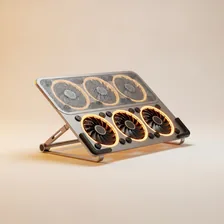
Laptop Cooling Pads

Laptop Cooling Pads

Complete repair and maintenance guide for laptop cooling pads

Laptop cooling pads address one of the fundamental tradeoffs of portable computing — laptops generate significant heat in compact spaces with limited airflow. Adding a cooling pad with active fans can meaningfully reduce CPU and GPU temperatures, prevent thermal throttling during heavy use, and extend laptop lifespan by reducing thermal stress on internal components. Fans not spinning, USB power failures, insufficient cooling, fan noise problems, laptop sliding off the pad, and fan speed control issues are the most common complaints. Most are fixable through cable swaps, cleaning, or pad selection. This guide covers every common laptop cooling pad issue with clear fixes.

Understanding Laptop Cooling Pads

Laptop cooling pads sit underneath a laptop to provide additional airflow to its bottom intake vents. They range from passive aluminum pads (no fans, just better airflow) to active 4-fan models with adjustable speeds and integrated USB hubs ($15–$80). The case for a cooling pad depends entirely on the laptop's stock cooling — gaming laptops often run their internal fans at maximum during heavy work, with thermal throttling kicking in despite the noise. A quality cooling pad can lower CPU and GPU temperatures by 5–15°C, allowing the laptop to maintain higher clock speeds for longer.

The category sits in a strange space. For everyday office work and web browsing, no laptop needs additional cooling — built-in fans handle modest workloads easily. For sustained heavy work (video editing, compiling code, gaming), even quality laptop cooling is often inadequate, and a cooling pad can extend usable performance significantly. The frustrating reality is that the laptops that need cooling pads most (gaming laptops, mobile workstations) are also the heaviest and least portable — defeating the laptop's main advantage.

Common Problems

1

Cooling Pad Fans Not Spinning at All

Cooling pad fan failures are typically caused by USB power issues from the laptop port being used, the on/off switch on the pad being in the wrong position, or — for older pads — the fan motors themselves reaching end of life after years of operation.

2

USB Power Not Working to Run Fans

USB power failures to cooling pads are most commonly caused by the laptop USB port not delivering enough current for the pad's fan motors, a damaged USB cable internally, or — for pass-through USB pads — the pass-through circuitry having failed.

3

Laptop Temperature Not Reducing Enough

Insufficient cooling effectiveness is typically caused by the cooling pad not aligning with the laptop's actual air intake locations, fans being too slow or too small for the laptop's heat output, or the laptop's internal cooling needing service that no external cooler can address.

4

Fan Making Loud Grinding or Rattling Noise

Fan noise problems are most commonly caused by dust accumulation in the fan blades and bearings, fan bearing wear after long use, or debris caught in the fan blades that needs to be carefully removed for quiet operation to return.

5

Laptop Sliding Off Pad Surface During Use

Laptop sliding is typically caused by the cooling pad surface being too smooth for the laptop's feet to grip, the laptop being placed at too steep an angle, or rubber grip pads on the cooling pad having worn smooth or fallen off entirely.

6

Fan Speed Not Adjustable as Expected

Fan speed control failures are most commonly caused by the speed control knob or button having failed, the cooling pad simply not supporting variable speed despite advertising it, or — for software-controlled pads — driver issues with the companion application.

Why Laptop Cooling Pads Fail

Cooling pad failures are mechanical. Fan bearings wear out after 2–4 years of heavy use, leading to noise increases, decreased airflow, or complete fan failure. Cheaper cooling pads use sleeve bearings that fail much faster than ball-bearing fans in premium models. The USB cables connecting the pad to the laptop wear at strain points, and the LED lighting circuits on RGB cooling pads occasionally fail before the fans do.

Beyond hardware failures, cooling pads can become ineffective if their intake vents (on the bottom of the pad) get blocked by dust accumulation, by the pad sitting directly on a soft surface like a bed, or by the laptop being positioned incorrectly relative to its bottom vents. A pad that worked well for years can suddenly seem inadequate when these conditions develop.

Repair & Fix Guides

Maintenance Tips

  • Vacuum cooling pad fans monthly to remove dust accumulation that reduces airflow
  • Inspect the USB cable for damage every few months to prevent power failures
  • Replace rubber grip pads when they wear smooth to prevent laptop sliding
  • Test fan operation periodically to catch fan motor failures before cooling is needed
  • Position the cooling pad on hard flat surfaces — soft surfaces block fan intake

Repair, Replace & Buying Advice

Cooling pads are inexpensive enough that replacement is almost always more economical than repair. Upgrade reasons usually involve quieter operation (premium cooling pads use better fans), more powerful airflow (for newer laptops with higher heat output), or different sizes to accommodate larger laptops.

When buying new, the most important factors are fan size (larger fans move more air at lower noise — 140mm fans are quieter than 80mm fans at the same airflow), fan count (3–4 fans are typical), bearing type (ball bearings or fluid dynamic bearings outlast sleeve bearings dramatically), height adjustability (taller stands provide more space for airflow but worsen typing ergonomics), USB pass-through ports, and noise levels at maximum speed.

Long-Term Care & Best Practices

Laptop cooling pads are simple devices with a single job, but a small amount of attention dramatically improves how well they do that job over years of use. The single most useful habit is dusting the fan blades and intake mesh monthly, because dust accumulates faster on cooling-pad fans than almost anywhere else due to their direct exposure to air movement. A few seconds with a soft brush or compressed air keeps the fans spinning freely and quietly, and prevents the gradual loss of cooling performance that often gets blamed on the laptop being old rather than the cooling pad being clogged. Match the cleaning to whatever schedule you use for cleaning your laptop's own fans.

Surface and placement choices matter more than most owners realise. A cooling pad needs unobstructed airflow underneath itself as well as into the laptop, which means using it on a hard flat surface like a desk rather than on a soft surface like a bed or couch cushion that blocks the underside intakes. The laptop itself should sit firmly on the pad without overhanging the edges in a way that lets hot air recirculate; cooling pads are designed to be slightly larger than the laptop they cool, and using a laptop that's too big partially defeats the purpose. Some users prefer cooling pads with raised lips that cradle the laptop in place, particularly for use on a couch or in bed.

Power and connection management closes out the long-term care list. Cooling pads draw power from a USB port, which can add up if the laptop is also charging phones and external drives from the same ports. A self-powered cooling pad with its own USB power adapter avoids this competition and runs at full speed regardless of what else is connected. Many pads include adjustable fan speeds and lighting; saving a setting that suits both quiet office work and louder gaming gives flexibility without daily fiddling. Recycle older cooling pads through e-waste channels when they fail, because they contain motors and electronics that should never end up in regular household waste.

Quick Tips

Match cooling pad fans to laptop air intake locations for maximum effectiveness

Vacuum fan blades monthly to prevent dust buildup that kills airflow

Use the rear USB ports on a laptop for the most stable cooling pad power

Frequently Asked Questions

Do laptop cooling pads actually work?

For laptops that run hot under sustained workloads, yes — quality cooling pads typically reduce CPU and GPU temperatures by 5–15°C, allowing the processor to maintain higher clock speeds for longer before thermal throttling. For laptops that don't run particularly hot (most office laptops, ultrabooks under modest workloads), the benefit is minimal because the laptop's stock cooling is already adequate.

Will a cooling pad damage my laptop?

No — cooling pads are entirely passive from the laptop's perspective and don't interfere with how the laptop manages its own cooling. Some users worry that condensation could form on a cold laptop placed back on a cooling pad after being used cold, but this is essentially never an issue in normal indoor use. The risk-benefit ratio strongly favors using a cooling pad if you have heat issues.

Why is my laptop still hot even with a cooling pad?

If the laptop is still throttling despite a cooling pad, the bottleneck is often the laptop's internal heatsink and thermal paste rather than airflow. Many gaming laptops benefit dramatically from internal cooling maintenance — repasting with quality thermal compound and cleaning dust from the heatsink can drop temperatures more than any external cooling. Also check that the pad's airflow isn't blocked by the laptop's positioning or by debris.

Should I get a cooling pad with USB ports?

USB pass-through ports are convenient but require the pad to consume one of the laptop's USB ports. If you already use a docking station or have plenty of free USB ports on the laptop, the integrated USB ports are nice. If your laptop has limited USB ports (most ultrabooks), the cooling pad's USB requirement may eliminate a port you actually need for other peripherals.

How loud are cooling pads?

Quality cooling pads with large slow-spinning fans are typically quieter than the laptop's own fans under load. Cheap cooling pads with small fast-spinning fans can be noticeably louder. Look for noise specifications under 25 dB at typical operation. Adjustable fan speed controls let you choose between maximum cooling (loud) and quiet operation (less cooling) based on your current workload.

Step-by-Step Repair Tutorials

Hands-on tutorials covering the most common Laptop Cooling Pads repairs.

Recommended Learning Guides

Background knowledge from the Learning Center to help you understand and care for Laptop Cooling Pads.

Related Guides