 NationRepair
Heat Management: Practical Ways to Keep Your Devices Cool
Room temperature, airflow, desk setup, and case choices that silently affect how hot your hardware runs every day. This guide explains the key concepts in plain language — no jargon, no marketing fluff, and no assumed prior knowledge. By the end you'll understand the underlying ideas well enough to make better decisions, troubleshoot common problems, and avoid the mistakes that cost most users time, money, or both. Everything below is written for everyday users who want to understand their devices a bit better, not for engineers or IT professionals.
Why This Topic Is Worth Understanding
Most device problems can be prevented entirely with a few minutes of routine maintenance every few months. The problem is that nobody teaches you what that maintenance looks like, so the first time most people encounter the topic is after something has already broken. The habits below add up to a meaningful difference in how long your devices last and how reliably they perform.
How It Actually Works
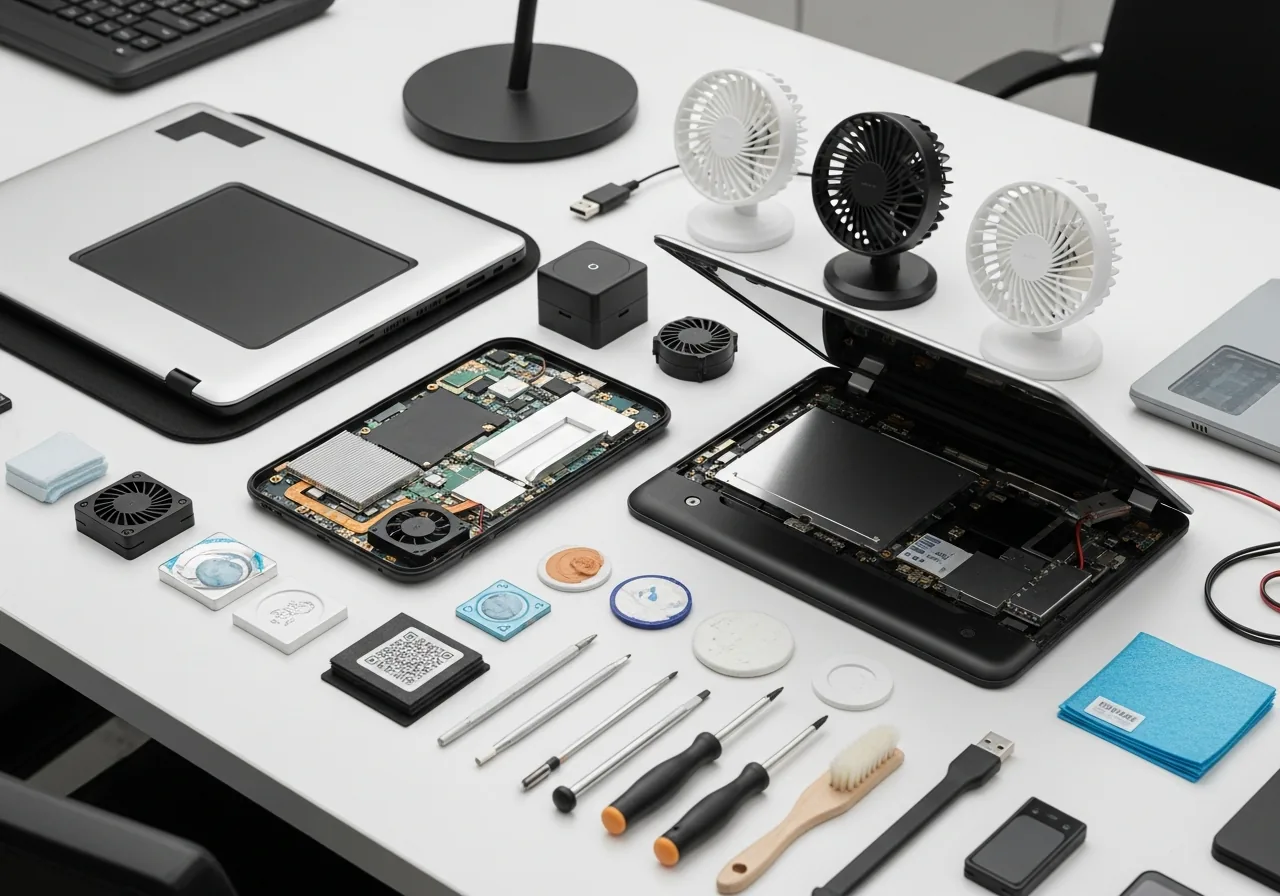
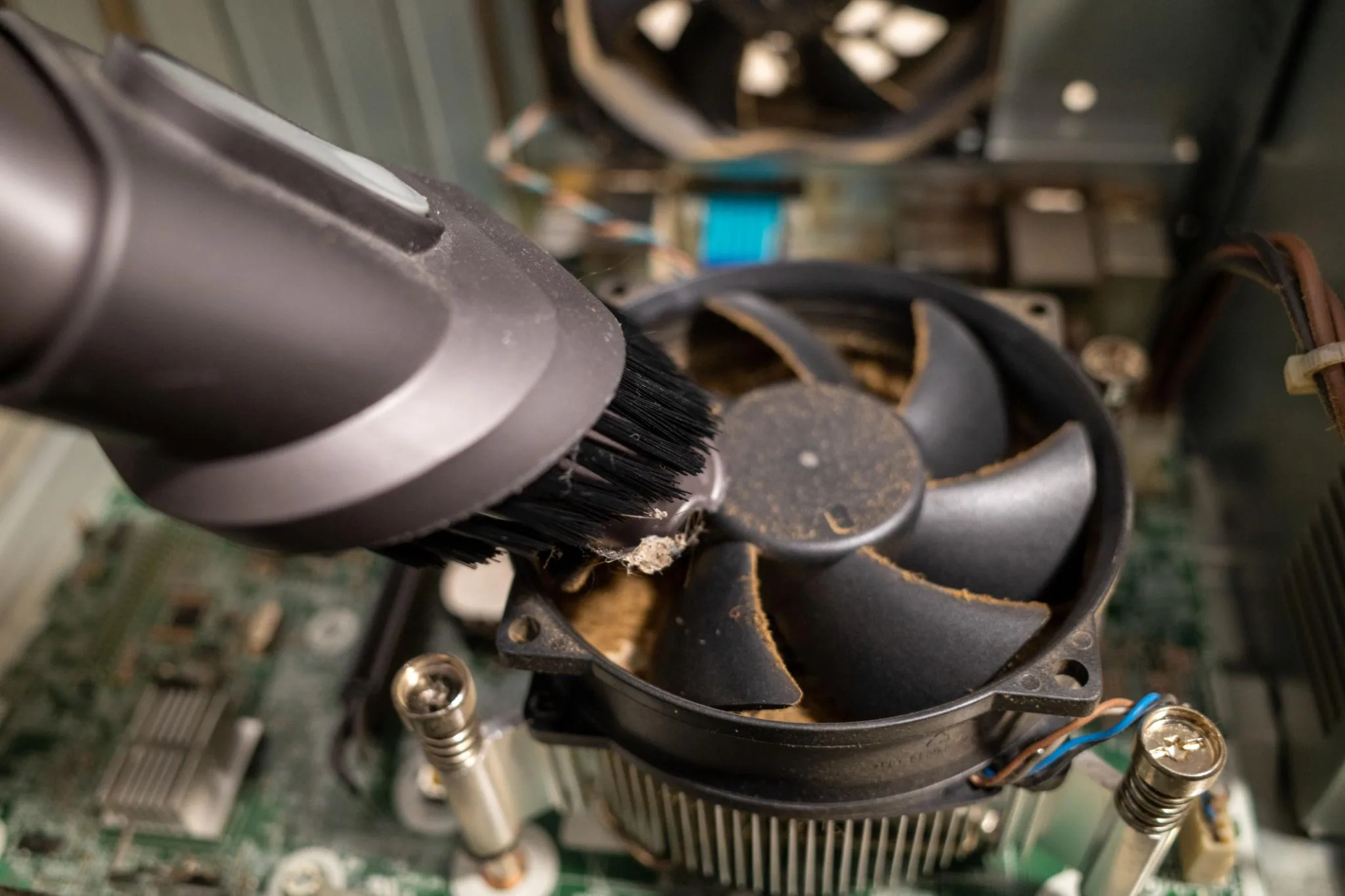
Devices wear out in predictable ways. Dust accumulates inside cases and laptops, blocking airflow until temperatures climb high enough to slow the system down or shut it off. Thermal paste between processors and heatsinks dries out over years, becoming less effective at transferring heat. Batteries degrade with every charge cycle. Storage drives eventually fail — SSDs usually wear out their write capacity, HDDs eventually suffer mechanical failure. Software accumulates background processes, scheduled tasks, browser extensions, and start-up entries that gradually slow boot times. None of this is dramatic on a single day, but the cumulative effect over years is what makes a device feel old.
The Key Concepts You Need to Know
- Dust is the most common cause of overheating in older devices; cleaning fans and heatsinks every 6 months prevents most thermal problems from developing.
- Operating system updates often include performance and reliability improvements alongside security patches; deferring them indefinitely creates problems over time.
- Storage drives benefit from being kept below 80% full; SSDs need free space for housekeeping and HDDs slow down dramatically when nearly full.
- Batteries last longer when kept between 20% and 80% charge most of the time, and when not exposed to high temperatures during charging.
- Browser extensions, startup programs, and background apps accumulate over time; an annual review and cleanup typically restores noticeable speed without any other changes.
Common Mistakes People Make
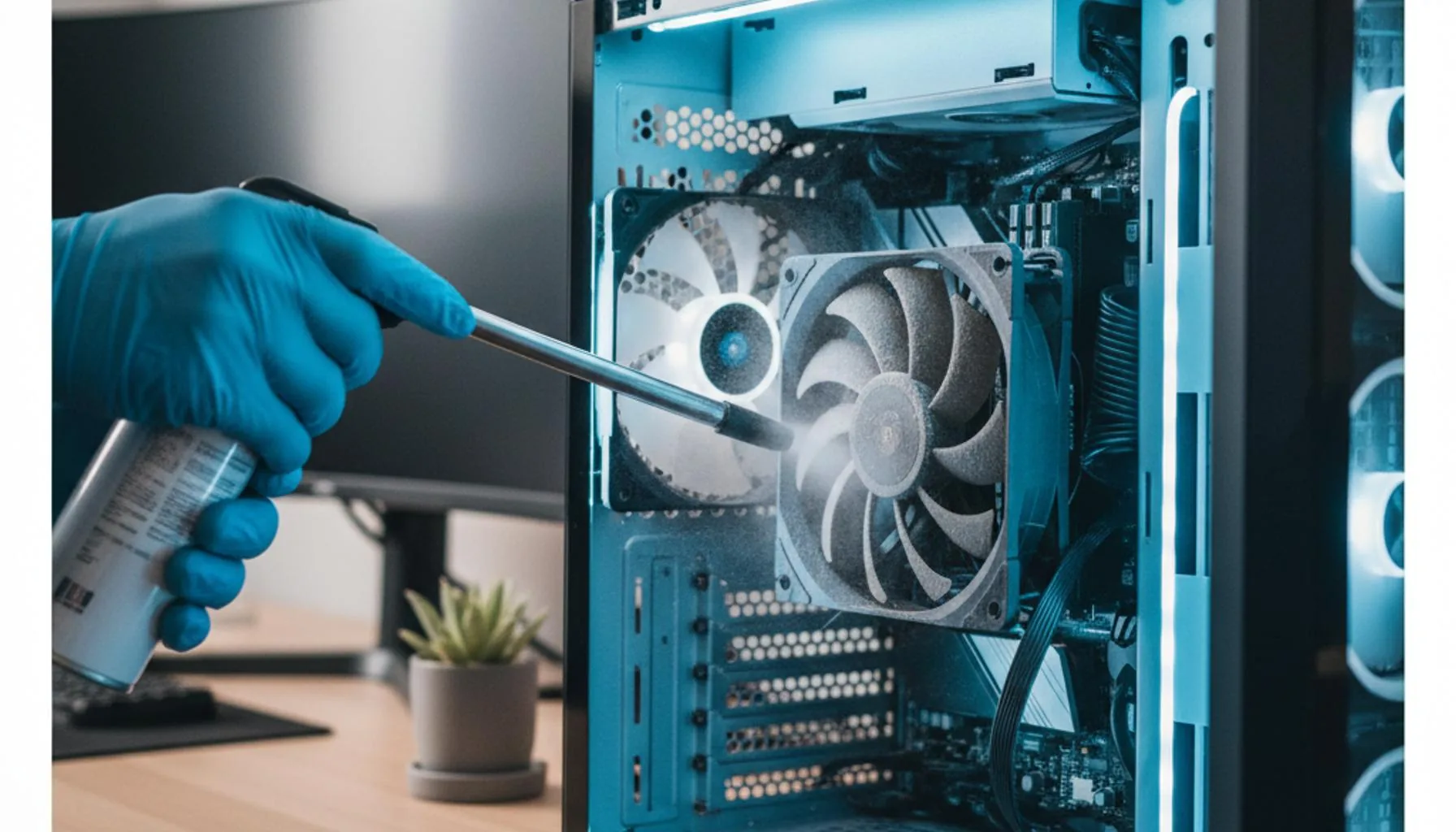
The most common maintenance mistake is doing nothing until something breaks. By the time a device is overheating noticeably, the dust inside has been building for months or years and may have already caused thermal damage. The second mistake is using the wrong cleaning materials — household cleaners, paper towels, and excessive moisture cause more damage than they prevent. Use compressed air, microfibre cloths, and isopropyl alcohol where appropriate. The third mistake is deferring software updates because they "might break something." On any reasonably modern device, deferring updates causes far more problems than installing them.
Practical Tips You Can Apply Today
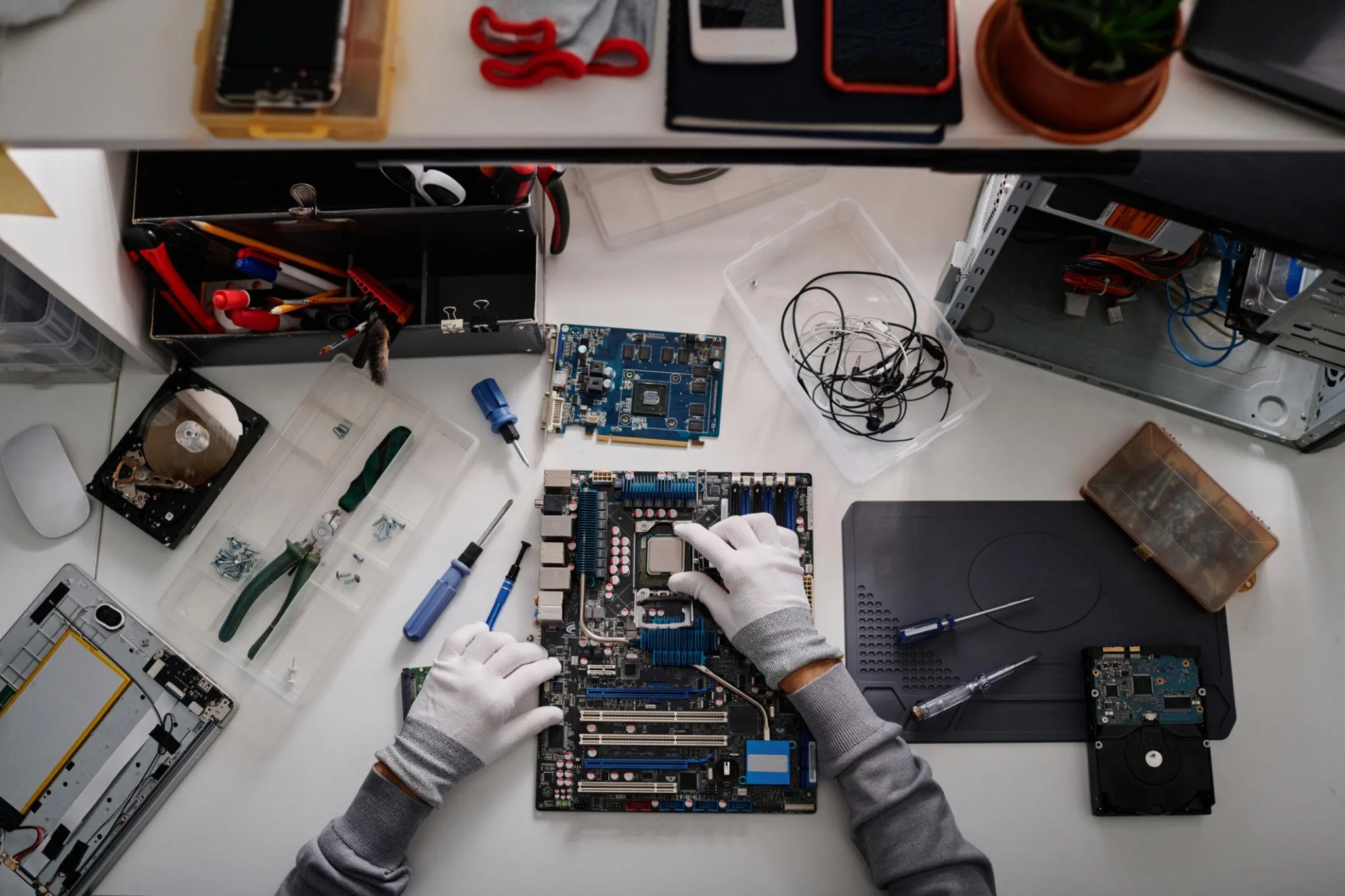
- Clean the fans and heatsinks of desktop PCs and gaming consoles every 6 months. For laptops, every 12 months is usually sufficient unless you're in a dusty environment.
- Use compressed air, not a vacuum cleaner, for cleaning electronics — vacuums generate static electricity that can damage components.
- Wipe screens and chassis with a microfibre cloth, lightly dampened with isopropyl alcohol if needed. Avoid household cleaners and paper towels.
- Update operating systems, drivers, and firmware regularly. Set automatic updates to install at convenient times rather than disabling them.
- Review installed apps, browser extensions, and startup programs annually and remove anything you no longer use.
- Back up important data on a schedule rather than only when you remember. Automated backups to a local drive plus a cloud service handle this with no ongoing effort.
Frequently Asked Questions
How often should I clean my computer?
Desktops every 6 months in normal environments, every 3 months if you have pets or live in a dusty area. Laptops every 12 months. Gaming consoles every 6 months. The bottom panel of a laptop only needs full opening every couple of years — you can blow out exhaust vents from outside more frequently.
Do I need to update drivers?
For most components, no — the drivers that come via Windows Update or your operating system are sufficient and stable. The exceptions are graphics drivers (worth keeping current for gaming) and sometimes networking or audio drivers when you're troubleshooting a specific problem.
Should I install a "PC cleaner" utility?
No. Most of them do nothing useful and many actively cause problems by deleting registry entries or system files they shouldn't touch. The genuinely effective maintenance tasks (uninstalling unused programs, clearing browser caches, removing startup entries) can all be done with built-in tools.
When should I replace a device rather than repair it?
A useful rule of thumb: if a repair would cost more than 50% of the price of a comparable new device, replacement is usually the better choice. Below that threshold, repair is almost always more economical and substantially better for the environment.
Related Articles & Categories
Apply this knowledge to your Desktop PCs and Windows Laptops, or explore the related tutorials and guides below.