 NationRepair
What RAM Does and When to Upgrade It
Understand memory in plain terms and find out whether more RAM will actually help your specific device or just waste money. This guide explains the key concepts in plain language — no jargon, no marketing fluff, and no assumed prior knowledge. By the end you'll understand the underlying ideas well enough to make better decisions, troubleshoot common problems, and avoid the mistakes that cost most users time, money, or both. Everything below is written for everyday users who want to understand their devices a bit better, not for engineers or IT professionals.
Why This Topic Is Worth Understanding
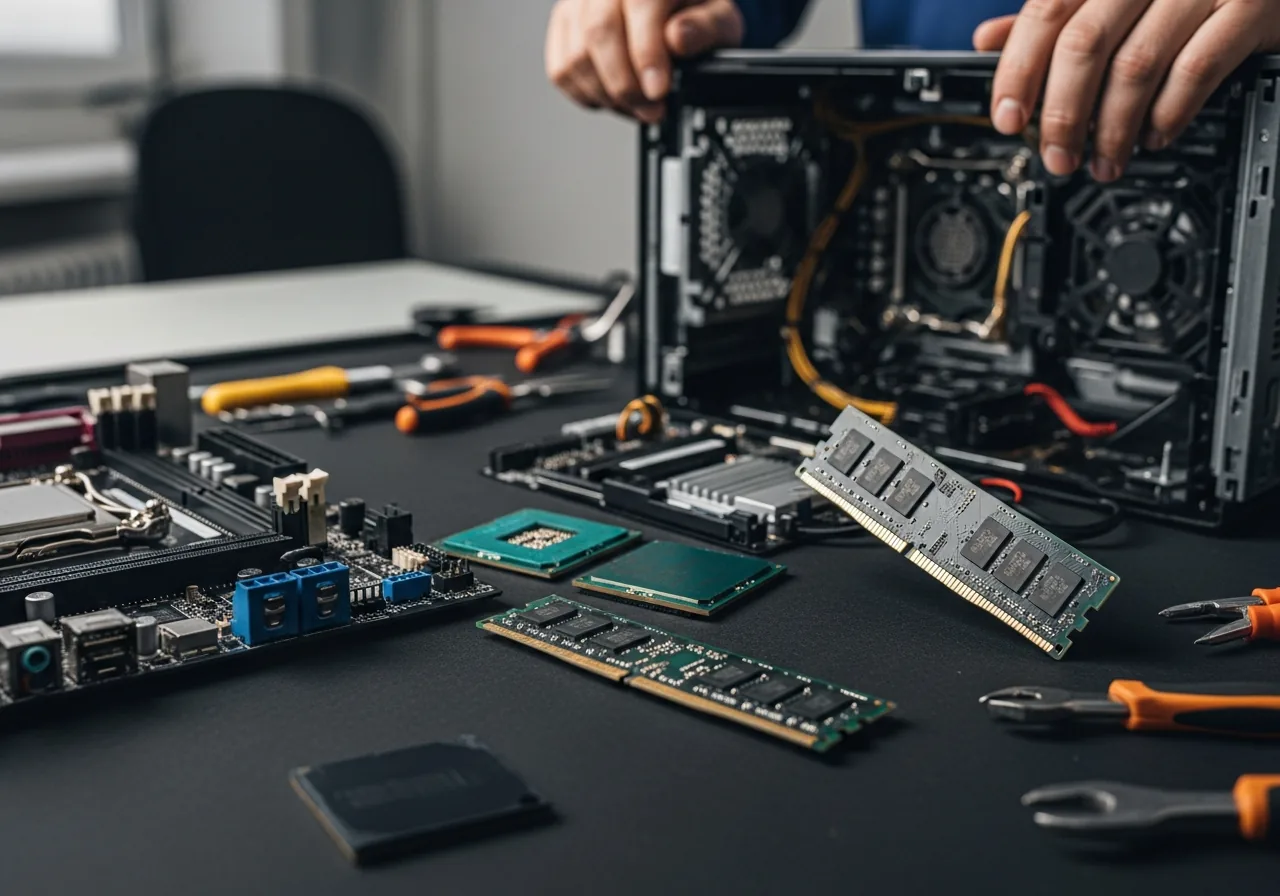
Computer hardware is more accessible than most people realise. Once you understand what each component does and how they communicate, the language used in product reviews and repair guides starts to make sense. You don't need to become an electrical engineer to make better buying decisions and to understand what's happening when something goes wrong.
How It Actually Works
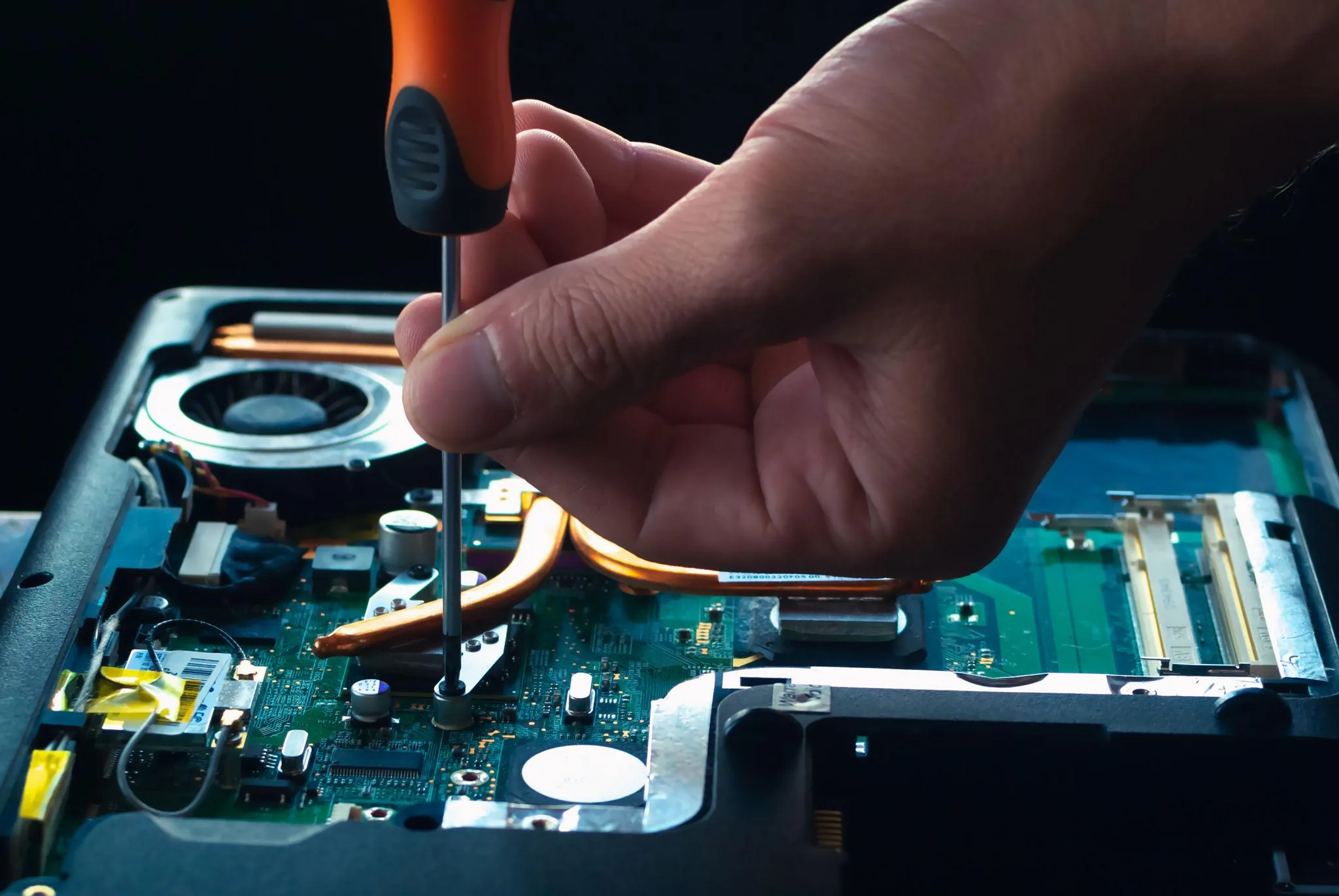
Every modern computer is a coordination of specialised components, each doing one job well. The motherboard is the wiring that connects everything. The CPU does the calculations. RAM holds the data the CPU is currently working on. Storage holds everything else. The GPU handles graphics and increasingly some AI workloads. The power supply (or battery) provides electricity at the right voltages. Cooling — fans, heatsinks, sometimes liquid — removes the waste heat all of this generates. When any of these is slower or smaller than the others, it caps the performance of the whole system, which is why upgrading the wrong component often produces no noticeable change.
The Key Concepts You Need to Know
- The motherboard determines what other components are compatible — CPU socket, RAM type, expansion slots, and storage interfaces all depend on it.
- CPUs are characterised by core count, clock speed, cache size, and power draw (TDP); higher numbers help, but only up to the point where another component becomes the bottleneck.
- GPUs handle graphics and increasingly AI workloads; integrated graphics share system RAM, while dedicated GPUs have their own much faster VRAM.
- Power supplies should be sized for the components they power, with about 20–30% headroom for reliability and efficiency.
- Cooling capacity (fans, heatsinks, liquid loops) sets the practical performance ceiling — components throttle when they get too hot, regardless of how powerful they are on paper.
Common Mistakes People Make
The most common hardware mistake is over-spending on one component while under-spending on another, ending up with a system that has an expensive bottleneck. A high-end CPU paired with a slow hard drive will feel slower than a mid-range CPU paired with an NVMe SSD. The second common mistake is ignoring cooling and the power supply, which are unglamorous but determine whether the rest of the system actually performs as expected. A great GPU in a hot, poorly ventilated case will throttle and underperform; an undersized power supply causes random crashes that look like every other kind of problem.
Practical Tips You Can Apply Today
- Identify the actual bottleneck before upgrading. Tools like CPU-Z, GPU-Z, and Task Manager show what's being maxed out during the workloads that frustrate you.
- When buying a new component, check compatibility carefully — CPU socket, RAM type and speed, motherboard chipset, and PSU connectors all need to match.
- Don't cheap out on the power supply or cooling. These two unglamorous components determine the reliability and longevity of everything else.
- For RAM, match what your motherboard supports rather than buying the fastest available — DDR5-6000 in a board that supports DDR5-4800 is wasted money.
- Buy quality cables (USB, HDMI, Ethernet) from reputable brands. Cheap cables are a surprising source of intermittent problems that look like other failures.
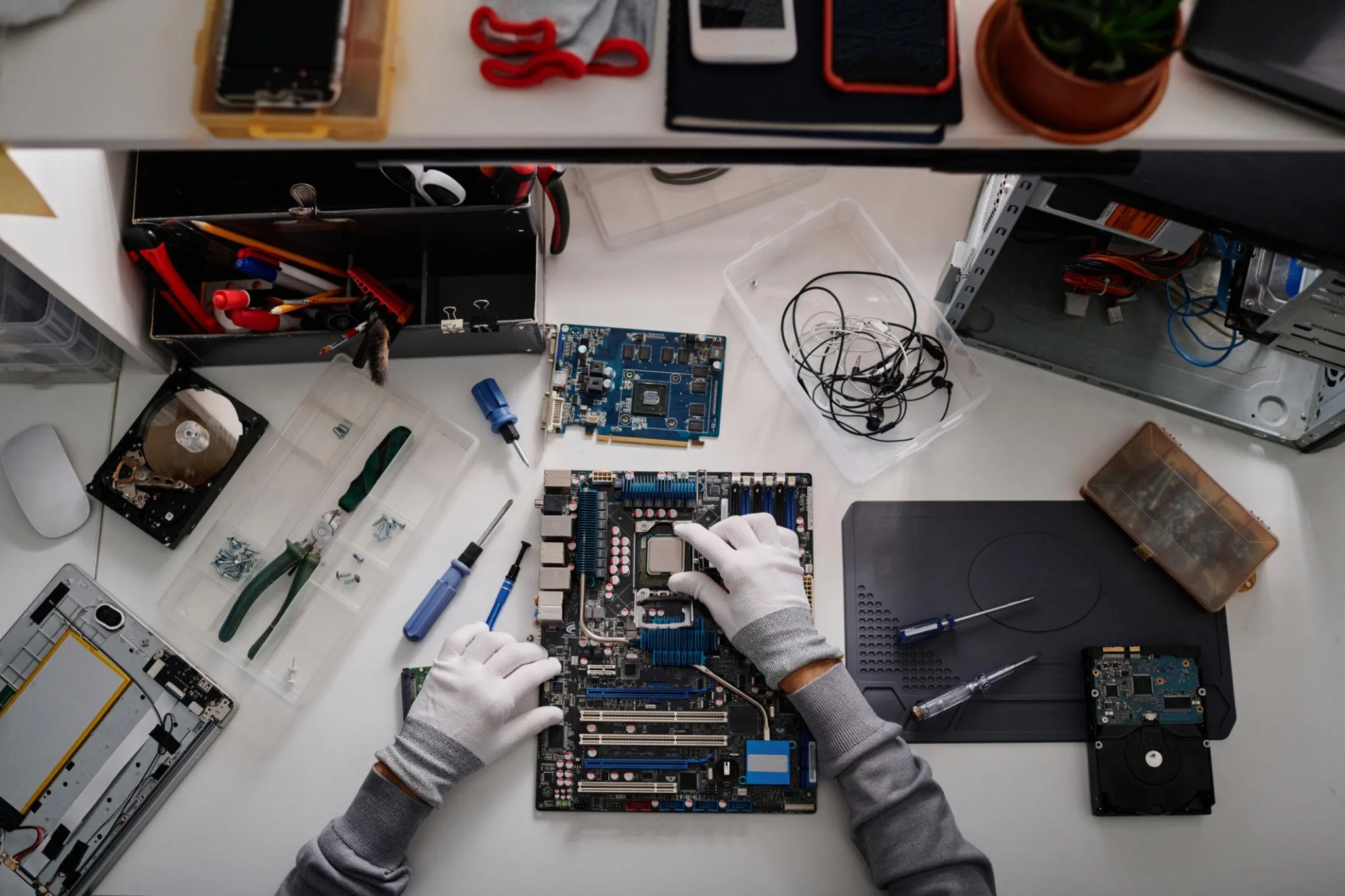
- Keep a record of your build — component models, BIOS version, drive layouts. Future-you will be grateful when troubleshooting or upgrading.
Frequently Asked Questions
Which component matters most for general use?
For most everyday computing, storage speed has the biggest impact on how fast a computer feels. After that, having enough RAM (16 GB for modern productivity work). CPU and GPU only matter once those two are sorted, and only for specific workloads.
How long does a desktop PC last?
A well-built desktop typically remains useful for 7–10 years for general work, with the option to swap individual components (storage, RAM, GPU) along the way to extend its life further. Laptops last 5–7 years on average due to limited upgradeability and battery wear.
How can I tell if a component is failing?
Different symptoms point to different components: random blue screens often indicate RAM or storage issues; graphical artifacts point to GPU or driver problems; unexpected shutdowns suggest power or cooling failures. Memtest86, CrystalDiskInfo, and your motherboard's built-in diagnostics can help isolate failing parts.
Should I build my own PC?
For desktops, yes — building your own typically saves money, gives you better-quality components, and makes future upgrades and repairs much easier. The build process itself is well documented and not as difficult as it appears. Laptops are the opposite: prebuilt is usually the better choice due to the integrated nature of the design.
Related Articles & Categories
Apply this knowledge to your Desktop PCs and Windows Laptops, or explore the related tutorials and guides below.