 NationRepair
Backup Methods Explained: The 3-2-1 Rule
The industry-standard backup strategy explained simply, with real tools and free options for every budget and device type. This guide explains the key concepts in plain language — no jargon, no marketing fluff, and no assumed prior knowledge. By the end you'll understand the underlying ideas well enough to make better decisions, troubleshoot common problems, and avoid the mistakes that cost most users time, money, or both. Everything below is written for everyday users who want to understand their devices a bit better, not for engineers or IT professionals.
Why This Topic Is Worth Understanding
Most people don't think seriously about backups until they've lost something they can't get back — a phone full of family photos, a laptop with years of work, a hard drive that simply stopped responding one morning. By then it's too late.
Data loss isn't rare; mechanical drives fail, SSDs wear out, devices get stolen or dropped, accidents happen, and ransomware can encrypt everything connected to your computer in minutes. The 3-2-1 rule exists because professionals who learned these lessons the hard way distilled them into the simplest reliable strategy. Following it properly takes a small amount of setup and a few dollars a month, and removes one of the most painful and avoidable problems in personal computing.
How It Actually Works
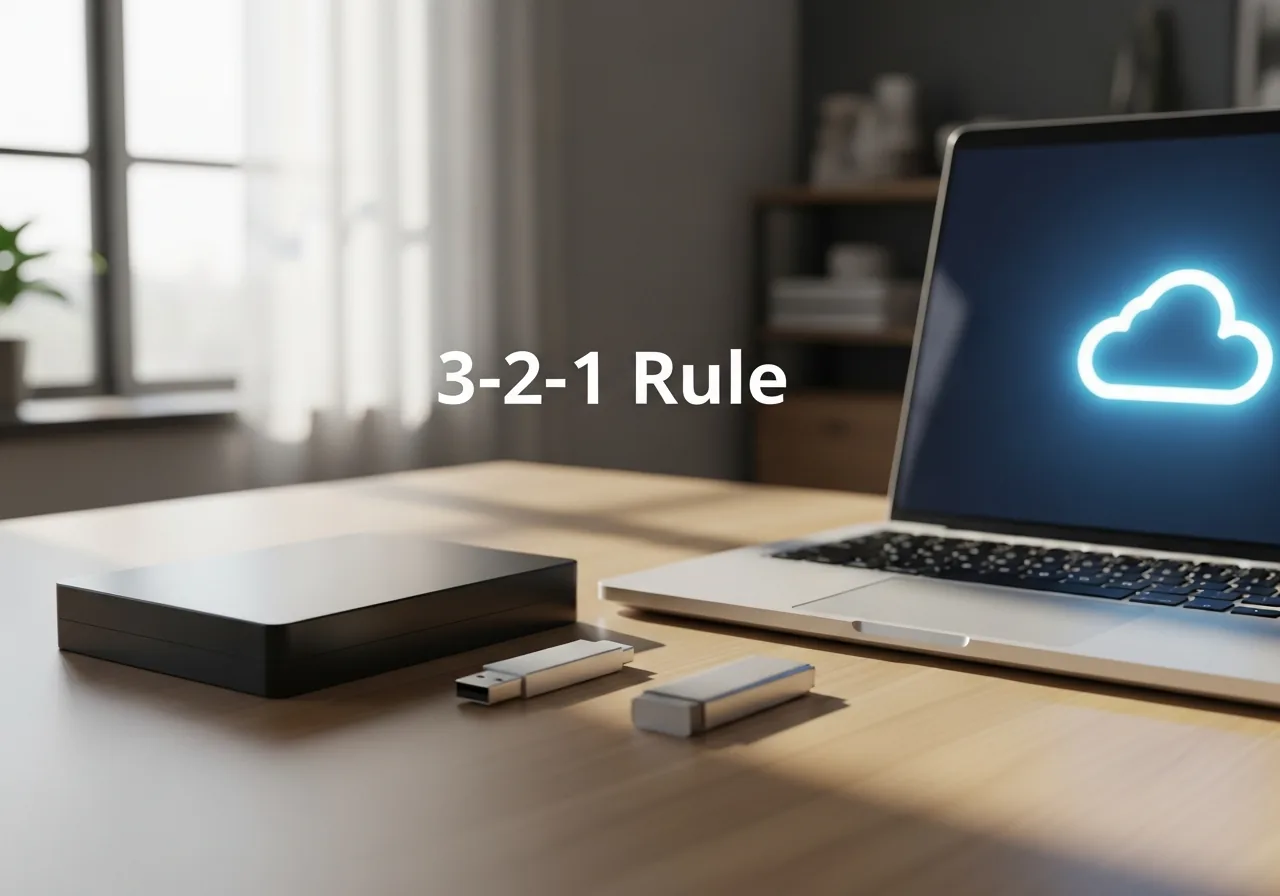
The 3-2-1 backup rule is the industry-standard strategy used by IT professionals, photographers, and anyone whose work depends on not losing data. The rule states: keep at least 3 copies of your data, on 2 different types of media (or in 2 different locations), with 1 copy stored off-site. Each part exists for a specific reason.
Three copies means a single failure (a corrupted file, a deleted folder) leaves you with two intact copies. Two media types means a single technology failure (a hard drive going bad, an SSD controller dying) only takes out one copy. One off-site copy means a physical disaster at your home — fire, flood, theft, ransomware spreading across your network — still leaves you with a recoverable copy somewhere else.
The Key Concepts You Need to Know
- The "3 copies" includes the original. So if you have your photos on your laptop, an external drive, and in the cloud, that's 3 copies — not 4.
- "Different media" means a real difference in failure modes. Two USB drives next to your computer aren't really 2 media; they share the same risks. An SSD and a cloud copy is a real two-media setup.
- "Off-site" doesn't have to mean far away — it means physically separated enough that the same disaster won't take out both copies. A cloud backup is off-site. A drive at a relative's house is off-site. A drive in a fire-resistant safe in the same building is borderline.
- Backups need to be verified periodically. A backup you can't restore from isn't really a backup. Schedule a quarterly test where you pick a file and confirm you can recover it from each of your backup copies.
- Sync (Dropbox, OneDrive, iCloud) is not backup. Sync replicates changes — including accidental deletions and file corruption — across all your copies. True backup keeps versioned snapshots that you can roll back to.
Common Mistakes People Make
The most common mistake is keeping all your "backups" on the same device or in the same physical location as the original — an external drive sitting next to the computer protects against drive failure but not against theft, fire, or ransomware that propagates over USB. The second is mistaking sync for backup: cloud sync services replicate accidental deletions and file corruption across every copy almost instantly, so a single bad action can destroy data everywhere.
The third is setting up backups once and then never verifying them; many people discover their backup software stopped working months earlier only when they actually need to restore. The fourth is forgetting to back up things that don't live in obvious file folders — password databases, browser bookmarks, application settings, email archives, and authentication app seeds are often the hardest to recreate but the easiest to overlook.
Finally, many people keep their only off-site copy in a service tied to a single account; if that account is compromised or closed, the off-site copy disappears with it.
Practical Tips You Can Apply Today
- Start by listing what data you can't bear to lose: photos, important documents, project files, password databases. Everything else is replaceable and doesn't need a strict backup strategy.
- Set up an automated backup to an external drive that runs daily or weekly when the drive is connected. macOS Time Machine, Windows File History, and free tools like Macrium Reflect or Duplicati all handle this well.
- Add a cloud backup service (Backblaze, iDrive, or built-in cloud sync used carefully) for the off-site copy. Backblaze in particular is designed for backup rather than sync, and recovers from accidental deletions or ransomware better than sync services.
- Keep at least one backup drive that isn't always connected. A drive that's only plugged in when you back up is immune to ransomware that encrypts everything attached to your computer.
- Test a restore once a quarter. Pick a random file, delete the original, and recover it from each backup. Most backup failures are discovered only when you actually need them — find them before that happens.
- Document your backup setup in a single text file: what's backed up where, what tools you use, what credentials you'd need to recover. Keep a copy with your other important documents so a future-you (or family member) can actually use it.
Frequently Asked Questions
Is the 3-2-1 rule overkill for home users?
For everyday browsing and work files, possibly — but for irreplaceable photos, family videos, and important documents, it's the right baseline. The cost is modest (an external drive plus a few dollars a month for cloud backup) and the protection is significant. People who lose data almost always wish they had set up something like 3-2-1 beforehand.
How often should backups run?
For most users, daily automated backups are the right balance between protection and overhead. If you work on critical projects, hourly or even continuous backup of the project folder is worthwhile. The key is automation — manual backups happen far less often than people intend, and the gaps between them are when data loss tends to occur.
Are RAID (disk array) setups a substitute for backup?
No. the disk array protects against drive failure but does nothing about accidental deletion, file corruption, ransomware, theft, or fire. a disk array array can — and does — fail. Many small businesses have lost all their data because they thought the disk array was a backup. the disk array adds availability; backup is what protects the data itself.
What's the cheapest way to follow 3-2-1 at home?
Most laptops already have an internal drive (copy 1). Add an external USB drive for $40–80 (copy 2 on different media). Use a free cloud backup tier or pay $7/month for Backblaze for unlimited cloud backup (copy 3, off-site). Total ongoing cost: under $100 a year for proper protection of everything you care about.
Related Articles & Categories
Apply this knowledge to your External Hard Drives & SSDs and Windows Laptops, or explore the related tutorials and guides below.