 NationRepair
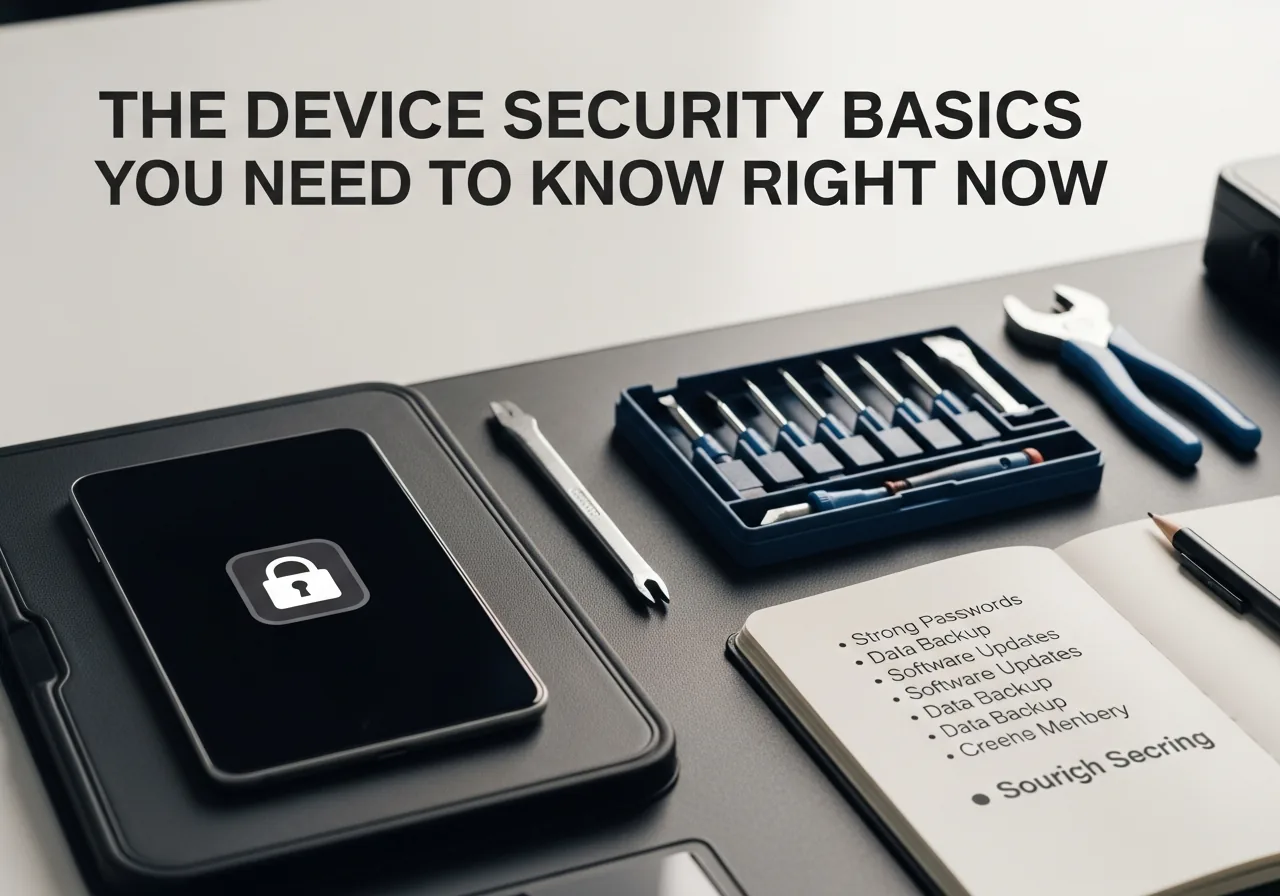
The Device Security Basics You Need to Know Right Now
Updates, PINs, two-factor authentication, and network hygiene — the essentials that stop most attacks before they start. This guide explains the key concepts in plain language — no jargon, no marketing fluff, and no assumed prior knowledge. By the end you'll understand the underlying ideas well enough to make better decisions, troubleshoot common problems, and avoid the mistakes that cost most users time, money, or both. Everything below is written for everyday users who want to understand their devices a bit better, not for engineers or IT professionals.
Why This Topic Is Worth Understanding
Device security is rarely about exotic attacks or sophisticated hackers — for most users, it's about a small number of simple habits that prevent the most common problems. The threat landscape has changed dramatically in the last decade, and the advice that was good five years ago is often outdated today. Understanding the basics gives you a much more accurate sense of what to actually worry about.
How It Actually Works
Security on a modern device works in layers. Your operating system has built-in protections (a firewall, file permissions, code signing); your accounts are protected by passwords and ideally a second factor; your data may be encrypted at rest; and your network traffic is encrypted in transit by HTTPS. Most successful attacks don't break any of these layers individually — they trick the user into bypassing them. A phishing email convinces you to type your password into a fake login page; a malicious download asks you to grant it permissions; a fake "support" call talks you into installing remote access software. Understanding this is the most important shift in thinking about security.
The Key Concepts You Need to Know
- Software updates are the single most important security habit — most successful attacks exploit known vulnerabilities for which a patch already exists.
- A strong, unique password per service is impractical to remember, which is exactly why password managers exist; using one is the highest-impact change most people can make.
- Two-factor authentication (2FA) means even a stolen password is rarely enough to compromise your account. Use an authenticator app rather than SMS where possible.
- Phishing — being tricked into entering credentials on a fake page — accounts for the majority of consumer account breaches, far more than technical exploits.
- Encryption protects data only when the device is locked. A logged-in computer or unlocked phone is unencrypted from the user's point of view.
Common Mistakes People Make
The biggest security mistake is reusing the same password across multiple sites. When (not if) any one of those sites is breached, every other account using that password is compromised within hours. The second most common mistake is dismissing phishing as something only "non-technical" people fall for — sophisticated phishing attacks are almost indistinguishable from legitimate communications, and even security professionals get caught by them. The third is deferring updates indefinitely. The vast majority of successful attacks against consumers exploit known vulnerabilities for which a patch has been available for months.
Practical Tips You Can Apply Today
- Install a password manager today and start migrating your accounts to unique generated passwords. Bitwarden (free, open source) and 1Password are both excellent.
- Turn on two-factor authentication for your email account first — it's the master key to most other accounts via password reset.
- Use an authenticator app (Authy, Google Authenticator, 1Password) for 2FA where possible rather than SMS, which can be intercepted via SIM swapping.
- Be sceptical of unsolicited contact, even from familiar names. Phishing now uses excellent fake branding and accurate personal details scraped from data breaches.
- Keep your operating system and browser updated automatically. The vast majority of consumer-targeted attacks exploit vulnerabilities for which patches already exist.
- Back up your important data regularly to an external drive or cloud service. Ransomware is one of the few attacks that's essentially survivable if you have a recent, offline backup.
Frequently Asked Questions
Do I really need a password manager?
Yes. Reusing passwords is the single most common cause of account compromise, and remembering a unique strong password for every site is impractical. A password manager solves both problems by generating and storing unique passwords for you. The risk of using one is far lower than the risk of not using one.
Is two-factor authentication worth the hassle?
Yes, especially for your email account, which is the master key to most other accounts via password reset. Use an authenticator app rather than SMS where possible — authenticator apps can't be intercepted via SIM swapping.
How do I tell if a message is phishing?
Look for urgency ("act now or lose access"), unexpected requests for credentials or money, links that don't go where they claim to, and small inconsistencies in branding or sender address. When in doubt, don't click — go directly to the service's website by typing the URL yourself.
Do I need third-party antivirus on Windows?
For most users, the built-in Microsoft Defender is sufficient when combined with good habits (updates, careful clicking, password manager, 2FA). Third-party antivirus can add useful features but rarely makes a meaningful difference to actual safety for typical home use.
Related Articles & Categories
Apply this knowledge to your Smartphones and Windows Laptops, or explore the related tutorials and guides below.