 NationRepair
How Much Storage Do You Actually Need?
A realistic breakdown by use case — from light browsing to video editing — so you stop overpaying for capacity you won't use. This guide explains the key concepts in plain language — no jargon, no marketing fluff, and no assumed prior knowledge. By the end you'll understand the underlying ideas well enough to make better decisions, troubleshoot common problems, and avoid the mistakes that cost most users time, money, or both. Everything below is written for everyday users who want to understand their devices a bit better, not for engineers or IT professionals.
Why This Topic Is Worth Understanding
Storage is the most consequential component in a modern device, and yet it gets the least attention from buyers. The choice between SSD and HDD, the file system you format with, and how full you let your drive get all have a direct impact on how fast and how reliably your computer runs. The good news is that the underlying concepts are easier to grasp than marketing materials suggest.
How It Actually Works
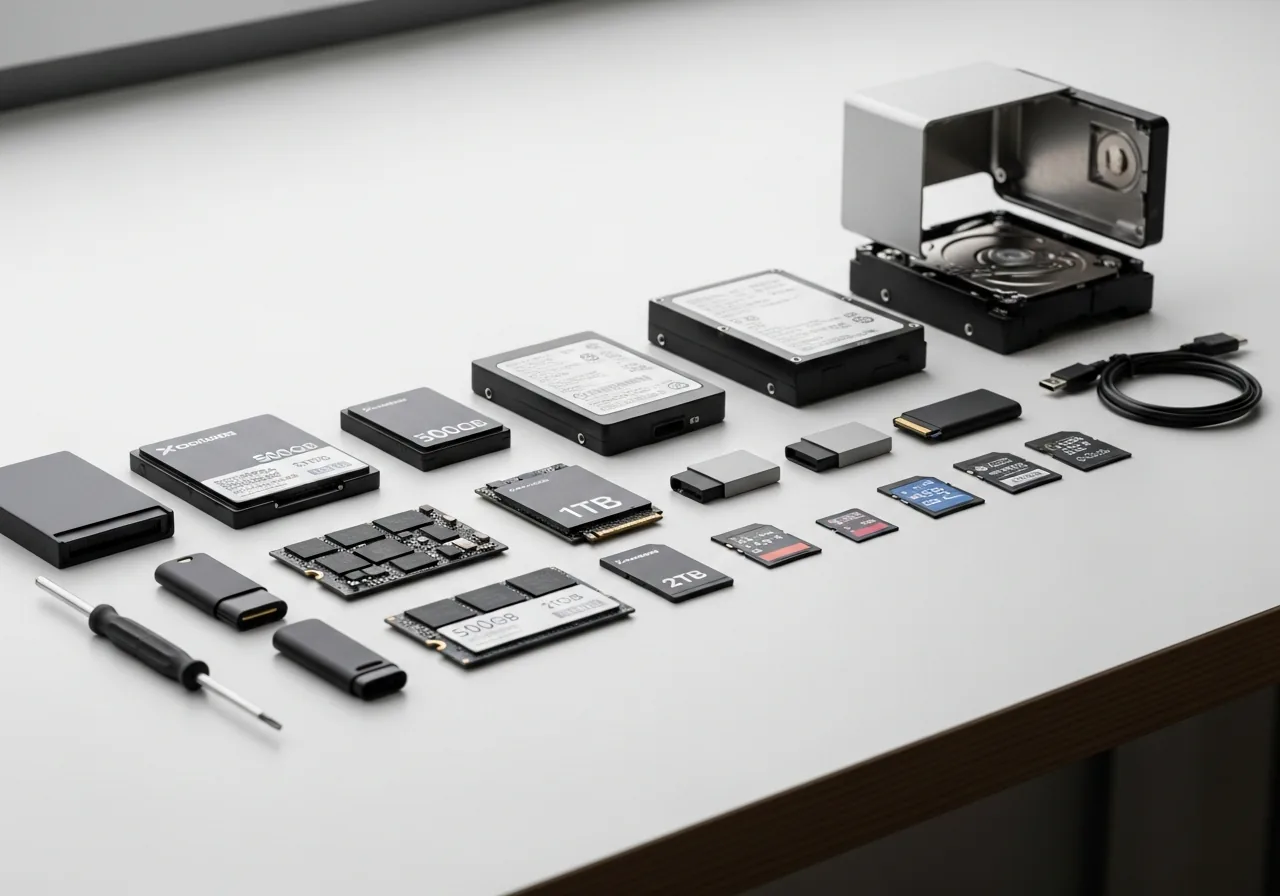
Storage drives hold every file on your computer, but the way they store and retrieve data varies dramatically. A traditional hard drive (HDD) writes data magnetically onto spinning metal platters, with a mechanical head moving back and forth to read and write — fast for sequential data, slow for random access, and vulnerable to physical shock. An SSD stores data electronically in flash memory cells with no moving parts, which makes random access nearly instantaneous and dramatically improves day-to-day responsiveness. Within SSDs, NVMe drives connect directly to the CPU via the PCIe bus and are faster again than Sata SSDs.
The Key Concepts You Need to Know
- Sata SSDs are roughly 5–10x faster than mechanical HDDs in everyday use; NVMe SSDs are roughly 5x faster again than Sata SSDs in raw throughput.
- Drive capacity is measured in GB or TB, but real-world usable capacity is always slightly less than advertised because of how manufacturers count.
- SSDs slow down significantly when more than about 80% full, because they need free space to perform internal housekeeping efficiently.
- File systems (NTFS on Windows, APFS on macOS, exFAT for cross-platform USB drives) determine compatibility and feature support, not raw speed.
- No drive lasts forever; SSDs usually fail after exhausting their write endurance, while HDDs typically fail mechanically. Backups, not drive type, are what protect your data.
Common Mistakes People Make
The most common storage mistake is letting a drive — especially an SSD — fill up. Past about 80% capacity, SSDs slow down dramatically because they need spare space to perform internal housekeeping. The second most common mistake is treating cloud storage as a backup. It's not. Cloud sync replicates whatever is on your device, including the deletion of a file or the corruption of a document. A genuine backup keeps copies that aren't immediately overwritten when the original changes, which is what separates a backup from a sync.

Practical Tips You Can Apply Today
- Check how full each of your drives is. Anything over 80% full benefits from cleanup, especially SSDs.
- Empty the recycle bin or trash and check your downloads folder, which is where forgotten gigabytes typically pile up.
- Move large media files (videos, photo libraries, large game installs) to a separate drive if you're running short of space on your system drive.
- For external USB drives that need to work across Windows, macOS, and other devices, format as exFAT — it's the most universally compatible modern file system.
- Verify your backups occasionally — a backup you can't actually restore from isn't really a backup. Try restoring a single file every few months as a check.
- Keep the firmware on SSDs up to date through the manufacturer's utility (Samsung Magician, Crucial Storage Executive, etc.) — firmware fixes can substantially improve longevity and performance.
Frequently Asked Questions
Should I use SSD or HDD?
SSD for the operating system and apps you use daily — the responsiveness difference is dramatic. HDD only makes sense as a secondary drive for bulk storage of media files, where the cost per terabyte still favours mechanical drives. Most modern systems use this hybrid approach.
How long do SSDs last?
Modern SSDs are rated for hundreds of terabytes of total writes — far more than a typical user will write in 10–15 years. The most common cause of premature SSD failure is the controller, not the flash cells. As with any drive, backups matter more than predicting failure.
Why does my SSD slow down when nearly full?
SSDs need free space to perform internal housekeeping (wear levelling, garbage collection, write amplification management). Once a drive is more than about 80% full, there's less room for these processes to work efficiently, and write speeds drop significantly. Keeping at least 15–20% free is good practice.
Is cloud storage a backup?
Not by itself. Most cloud storage is sync — if you delete a file, it's deleted from the cloud copy too. Real backup keeps versions you can restore from after corruption or accidental deletion. Many cloud services offer version history that gives you partial backup behaviour, but a separate backup strategy is still recommended for important data.
Related Articles & Categories
Apply this knowledge to your External Hard Drives & SSDs and Windows Laptops, or explore the related tutorials and guides below.