 NationRepair
Thermal Throttling Explained: What It Is and How to Prevent CPU Slowdown
Why your device slows itself down when it gets hot — and the most effective ways to stop it from happening. This guide explains the key concepts in plain language — no jargon, no marketing fluff, and no assumed prior knowledge. By the end you'll understand the underlying ideas well enough to make better decisions, troubleshoot common problems, and avoid the mistakes that cost most users time, money, or both. Everything below is written for everyday users who want to understand their devices a bit better, not for engineers or IT professionals.
Why This Topic Is Worth Understanding
Computer performance is one of the most misunderstood topics in consumer tech. People upgrade hardware that doesn't matter, ignore the components that do, and end up frustrated when their device still feels slow. The truth is that performance is the result of how several different subsystems — processor, memory, storage, software, and thermal headroom — work together. A weak link in any one of these will hold the whole system back, no matter how strong the others are.
How It Actually Works
When you ask a computer to do something, the request travels through a chain of components: the operating system schedules the task, the CPU executes the instructions, RAM holds the data being worked on, and the storage drive supplies any files that aren't already in memory. The slowest step in this chain becomes the bottleneck. For most everyday tasks — opening apps, browsing the web, switching windows — the bottleneck is almost never the CPU. It's usually storage speed, available RAM, or background processes consuming resources you don't realise are running. This is why a five-year-old computer with an SSD installed often feels faster than a brand-new computer still running a mechanical hard drive.
The Key Concepts You Need to Know
- CPU clock speed (measured in GHz) tells you roughly how many calculations per second a single core can do — but core count and architecture matter just as much, so raw clock speed alone is misleading.
- RAM is short-term workspace memory: more RAM means the system can keep more apps and data ready to use without writing to slower storage. Once you have enough for your workload, adding more produces no benefit.
- Storage speed (especially random read/write performance) is the dominant factor in how responsive your computer feels day-to-day, far more than CPU power.
- Background processes — antivirus scans, cloud sync, telemetry, update checks — can collectively consume 20–40% of your performance without you noticing until you stop them.
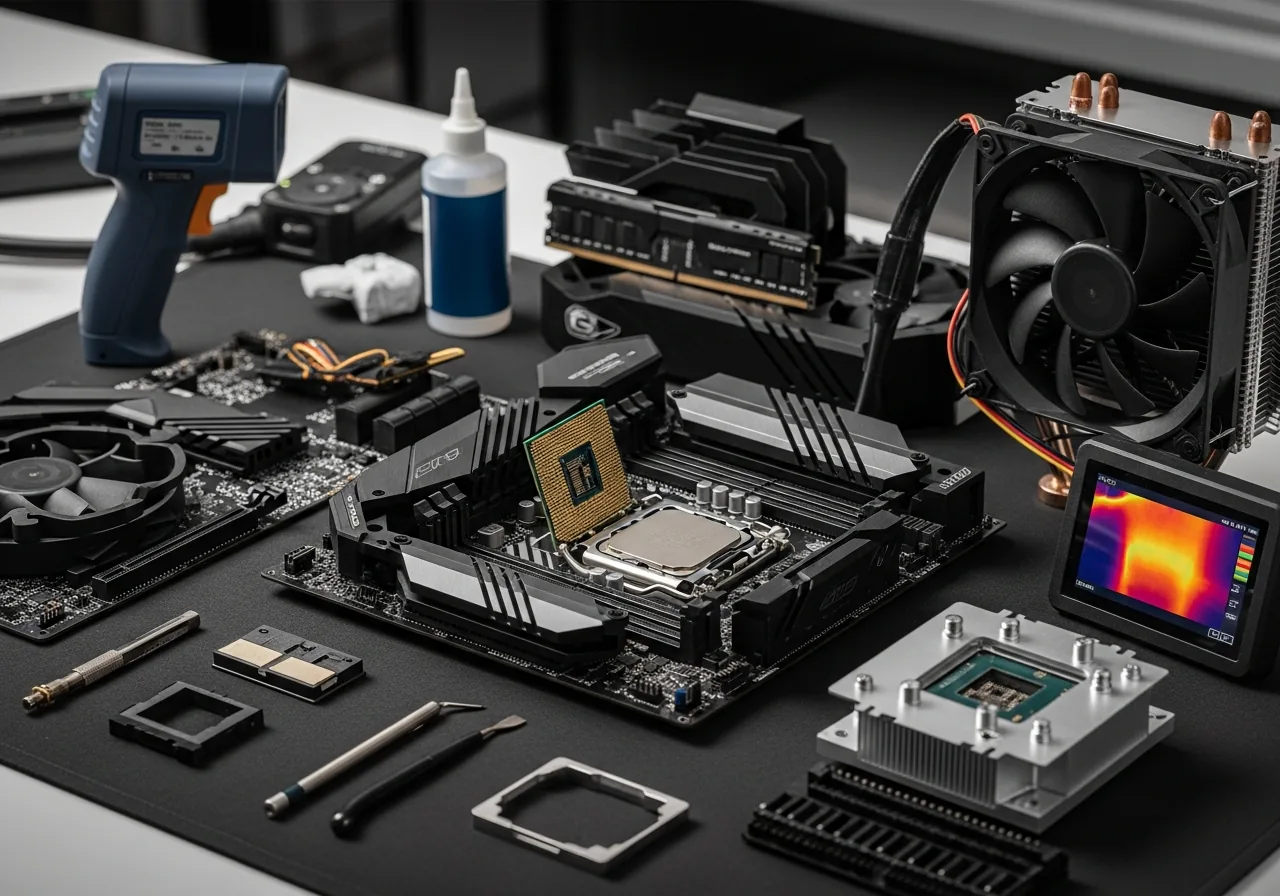
- Thermal throttling is when the CPU or GPU deliberately slows itself down to avoid overheating, often making a powerful machine feel less responsive under sustained load.
Common Mistakes People Make
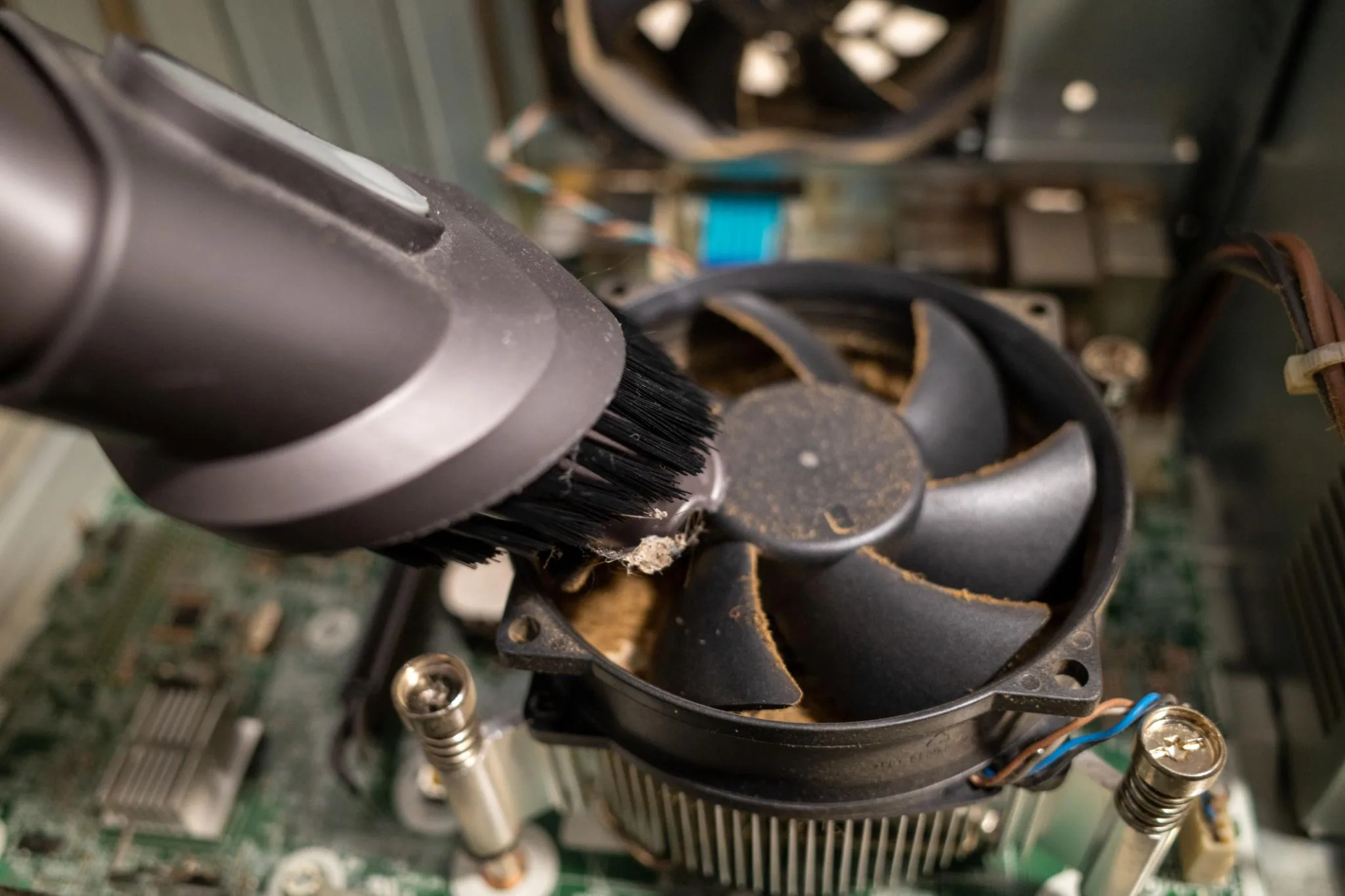
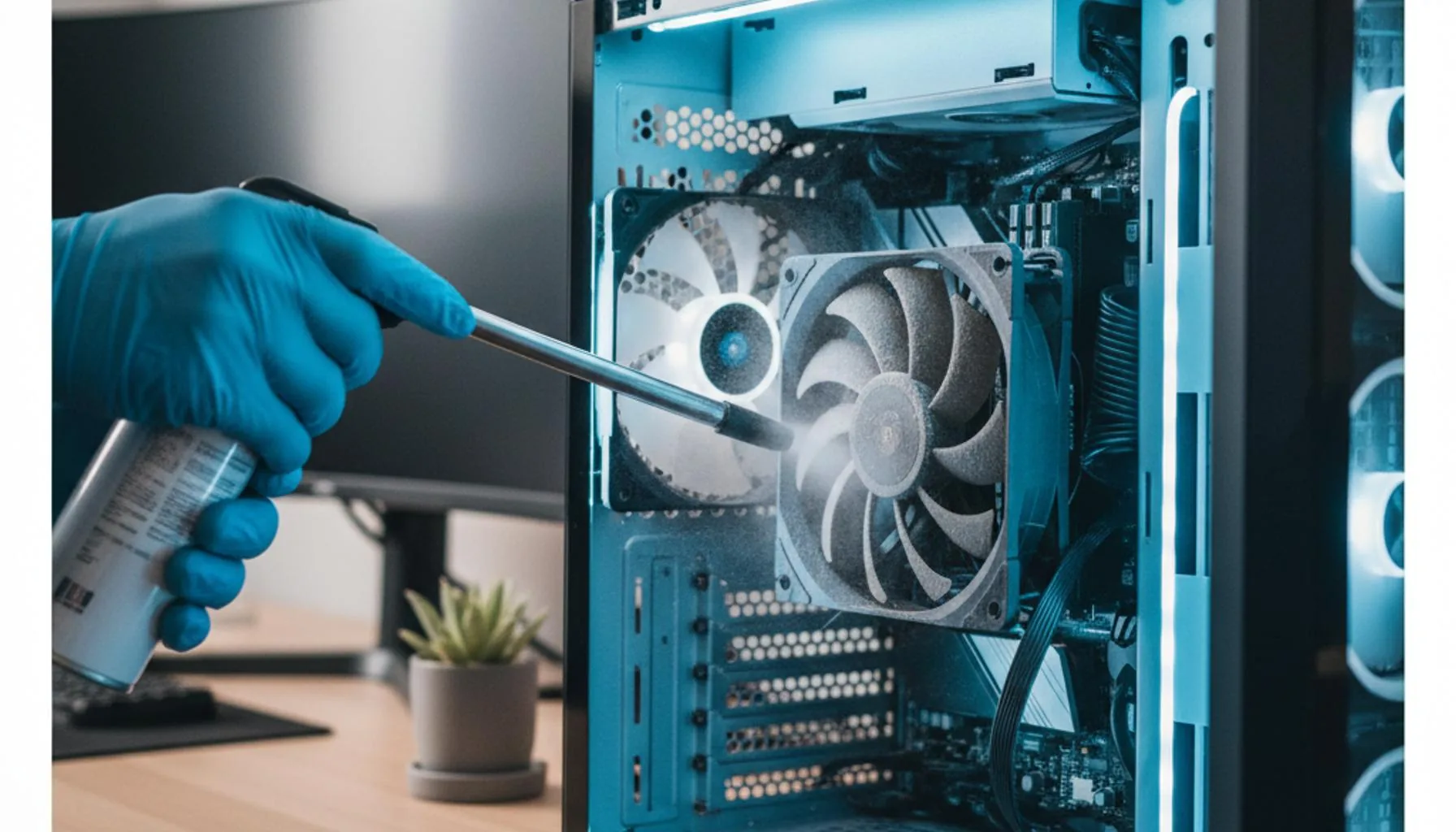
The biggest performance mistake is buying hardware that doesn't address your actual bottleneck. Adding more RAM to a system that already has enough doesn't make it faster; upgrading to a faster CPU when your storage is the slow part doesn't help either. The other common mistake is reaching for cleaner or "optimisation" utilities that promise to address PC slowdowns — most of these do nothing useful and some actively cause problems by deleting registry entries or system files. The genuinely effective interventions are far more boring: install an SSD if you don't have one, close background apps you don't use, keep the system clean of dust, and stay reasonably current on operating system updates.
Practical Tips You Can Apply Today
- Open Task Manager (Ctrl+Shift+Esc on Windows) or Activity Monitor (on macOS) and sort by memory and CPU usage. The biggest consumers are usually browsers with too many tabs and background sync apps you forgot you installed.
- Disable startup programs you don't need. On Windows, this is in Task Manager → Startup; on macOS, in System Settings → General → Login Items. Most laptops accumulate 10–20 unnecessary entries within a year of normal use.
- If you're still on a mechanical hard drive, switching to even a modest SSD will produce a bigger noticeable improvement than any other single upgrade.
- Keep at least 15–20% free space on your system drive. SSDs especially benefit from this headroom for internal maintenance.
- Run any pending operating system updates and reboot. Many performance problems clear up after a system that hasn't been restarted in weeks finally gets fresh start.
- For laptops, set the power mode to "Best performance" when plugged in and "Balanced" or "Best efficiency" on battery — the right mode for the situation makes a meaningful difference.
Frequently Asked Questions
How much RAM do I actually need?
For general web browsing, email, and office work, 8 GB is enough. For heavy multitasking, photo editing, or modern productivity work, 16 GB is the practical minimum. For gaming, video editing, or running virtual machines, 32 GB is comfortable. Beyond 32 GB, you're only benefiting if you actually use it for specific workloads — buying more "just in case" is rarely worthwhile.
Will an SSD really make my old computer faster?
In almost all cases, yes — and the improvement is dramatic. Boot times drop from a minute or more to ten or fifteen seconds. App launches feel instant rather than laggy. The whole system feels several years newer. An SSD upgrade is the single highest-impact thing you can do to a computer that's still using a mechanical hard drive.
Why does my computer slow down over time?
It's usually a combination of factors: more apps installed in the background than you realise, a fuller drive (especially if it's an SSD), accumulated browser extensions, dust limiting cooling, and an operating system that's gradually grown more complex with updates. None of these is dramatic on its own, but together they add up to a noticeable slowdown.
Do I need to defragment my drive?
Only if it's a traditional mechanical hard drive. SSDs should never be defragmented — it provides no benefit and uses up some of their finite write endurance. Modern Windows handles this correctly automatically; the "Optimize Drives" utility runs the right operation for the type of drive installed.
Related Articles & Categories
Apply this knowledge to your Windows Laptops and Desktop PCs, or explore the related tutorials and guides below.